Dashboard Overview
You've created your account, verified your email, and logged in for the first time.
Now you're staring at your dashboard thinking... "Okay, what do I click?"
Don't worry. This page breaks down every section of your Valid Email Checker dashboard so you know exactly where everything is and what it does.
Let's take a tour.
Your Dashboard at a Glance
Here's what you'll see when you log in:
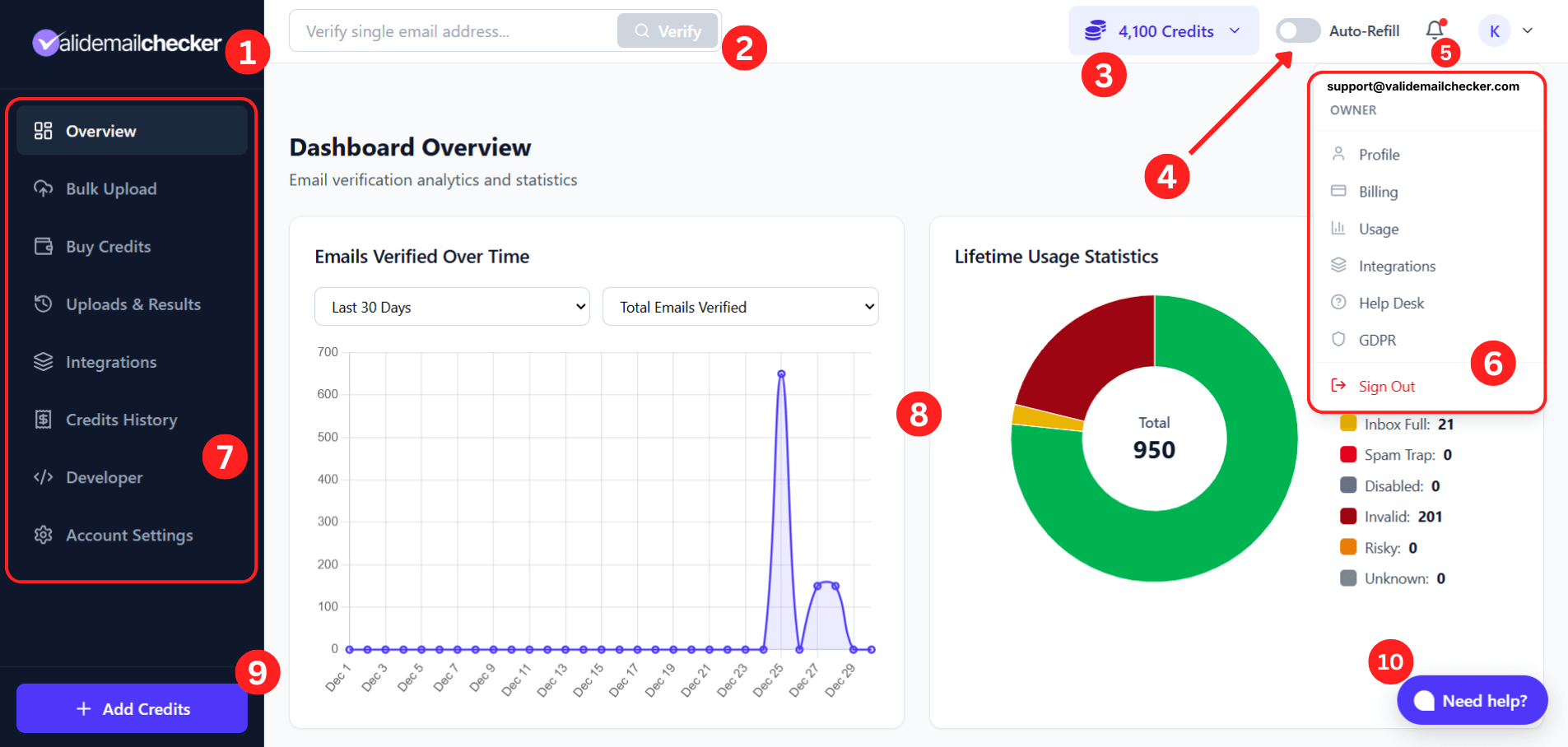
Let's break down each numbered section.
1. Logo
Click the Valid Email Checker logo anytime to return to your dashboard home (the Overview page).
Lost in the settings? Deep in your verification history? One click on the logo brings you right back to home base.
2. Single Email Verification Bar
Need to check one email address real quick? This is your go-to.
Just type (or paste) any email address into the search bar and click Verify. Within seconds, you'll know if that email is safe to send, invalid, risky, or something else.
No file uploads. No extra steps. Just instant results.
This is perfect for:
- Verifying a lead before adding them to your CRM
- Double-checking a suspicious signup
- Quick one-off checks during outreach
One verification = one credit.
→ Learn more about Single Email Verification
3. Credits Balance
This shows your current credit balance—the total number of verifications you have available.
Click on it to see a breakdown of your credits by type:
- Monthly Credits – From your active subscription (if you have one)
- Rollover Credits – Unused credits from your previous billing period
- PAYG Credits – Pay-as-you-go credits you've purchased (these never expire)
Your credits are consumed in a specific order: Monthly first, then Rollover, then PAYG. This ensures your expiring credits get used before your permanent ones.
→ Learn more about the Credit System
4. Auto-Refill Toggle
Never run out of credits at the worst possible moment.
When Auto-Refill is enabled, we'll automatically purchase more credits for you when your balance drops below a threshold you set. No interruptions. No paused verifications. Just seamless refills.
A few things to know:
- Auto-Refill requires a saved payment card (it doesn't work with cryptocurrency)
- Refilled credits go into your PAYG bucket (they never expire)
- You control the refill amount and trigger threshold
Toggle it on or off anytime from the top navigation bar.
→ Learn more about Auto-Refill
5. Notifications
The bell icon shows your notifications—alerts about completed verifications, account updates, and other important messages.
When you have unread notifications, you'll see a badge with the count. Click to view and manage them.
6. Account Menu
Click your profile icon (or initials) in the top right corner to open the account menu. This gives you quick access to:
| Option | What It Does |
|---|---|
| Profile | View and edit your personal information |
| Billing | Manage your subscription and payment methods |
| Usage | See your credit usage statistics |
| Integrations | Quick link to your connected platforms |
| Help Desk | Access support resources |
| GDPR | Data privacy and export options |
| Sign Out | Log out of your account |
These are shortcuts to sections you can also access through Account Settings (more on that below).
7. Navigation Menu (Left Sidebar)
This is your main navigation hub. Everything you need is right here:
Overview
Your dashboard home. See verification analytics, charts showing emails verified over time, and lifetime usage statistics broken down by result type (Safe, Invalid, Risky, etc.).
Bulk Upload
Upload a file containing multiple email addresses to verify them all at once. Supports CSV, and TXT formats. This is where you'll do most of your heavy lifting.
→ Learn more about Bulk Verification
Buy Credits
Need more credits? This page lets you purchase them instantly.
Choose between:
- Pay as You Go – One-time purchases with bonus credits on larger amounts. These credits never expire.
- Monthly Plans – Subscribe for a fresh batch of credits every month at a lower per-credit cost.
We accept credit/debit cards and cryptocurrency (Bitcoin, Ethereum, and more).
Uploads & Results
Your verification command center. This page shows all your uploaded files and their verification status—whether they're processing, completed, or ready to download.
Once a verification is done, click to view detailed results and download them in CSV, XLSX, JSON, or TXT format.
→ Learn more about Downloading Results
Integrations
Connect Valid Email Checker directly to your favorite email marketing platforms. Import lists, verify them, and sync clean results back—all without manual exports.
We integrate with 17+ platforms including Mailchimp, HubSpot, ActiveCampaign, Klaviyo, and more.
Credits History
A complete log of every credit transaction on your account. See exactly when credits were added (purchases, subscription renewals, rollovers) and when they were used (bulk verifications, API calls, integration syncs).
Each entry shows:
- Date and time
- Transaction type
- Credits in/out
- Running balance
- Details about the transaction
Great for tracking usage and reconciling your account.
Developer
Access your API keys and documentation here. The Valid Email Checker API lets you integrate email verification directly into your website, app, or custom workflows.
Build real-time verification into signup forms, automate list cleaning, or create custom integrations—the possibilities are endless.
API access is enabled after your first credit purchase. This helps us prevent abuse and keeps the service fast for everyone.
Account Settings
Manage everything about your account—profile information, billing, security, team members, and more. We'll cover this in detail below.
8. Main Content Area
This is where the action happens. The content here changes based on which page you're on.
On the Overview page (your dashboard home), you'll see:
Emails Verified Over Time
A line chart showing your verification activity. Use the dropdowns to filter by:
- Time period (Last 7 days, Last 30 days, etc.)
- Metric (Total emails verified, Safe emails, Invalid emails, etc.)
This helps you spot trends and track your usage patterns.
Lifetime Usage Statistics
A donut chart breaking down every email you've ever verified by result type:
- Safe (green) – Valid, deliverable emails
- Invalid (red) – Bad emails to remove
- Role – Group addresses like info@ or support@
- Catch-All – Domains that accept all emails
- Disposable – Temporary/throwaway addresses
- Inbox Full – Mailboxes that can't receive messages
- Spam Trap – Dangerous addresses to avoid
- Disabled – Deactivated accounts
- Risky – Emails with potential issues
- Unknown – Inconclusive results
Hover over any section to see the exact count.
9. Add Credits Button
A quick shortcut to purchase more credits. Click + Add Credits and you'll go straight to the Buy Credits page.
This button is always visible at the bottom of the left sidebar, so you're never more than one click away from topping up your account.
10. Need Help? (Alex)
Got a question? Click this button to chat with Alex, our AI support assistant.
Alex can help you with:
- How-to questions about the platform
- Understanding verification results
- Troubleshooting common issues
- Finding the right help article
Available 24/7, Alex provides instant answers so you're never stuck waiting.
If Alex can't solve your issue, you can always reach our human support team through the same chat.
Account Settings
Click Account Settings in the left sidebar to access all your account management options.
The settings page has five main tabs:
Profile
Update your personal information:
- First name and last name
- Phone number (optional)
- Address details (optional)
- Email notification preferences (verification complete alerts, payment receipts, etc.)
Your email address is displayed here but cannot be changed—it's the unique identifier for your account.
Billing & Payments
Manage your subscription and payment methods:
- Subscription tab – View your current plan, monthly credits, price, next billing date, and usage. Upgrade, downgrade, or cancel from here.
- Payment Methods tab – Add, remove, or update your saved cards.
- Credit Usage tab – Detailed breakdown of how you've used your credits.
You'll also see your subscription history showing all plan changes over time.
→ Learn more about Subscriptions
Invoices
Access all your invoices and payment receipts:
- Invoice History – A searchable list of every invoice with invoice number, date, amount, and status.
- Invoice Settings – Configure your billing details for invoices (company name, address, VAT number, etc.).
Click View Receipt to see details or download a PDF for your records.
Security
Keep your account safe:
- Change Password – Update your password (must be at least 8 characters).
- Two-Factor Authentication (2FA) – Add an extra layer of security with Google Authenticator or Email Authentication.
- Active Sessions – See all devices currently logged into your account. You can terminate any session you don't recognize.
We strongly recommend enabling 2FA to protect your account.
Team
Collaborate with your team:
- Invite team members by entering their email addresses
- View and manage existing team members
- Team members share your account's credits
Perfect for agencies, marketing teams, or any organization where multiple people need access.
→ Learn more about Team Management
What's Next?
Now you know your way around the dashboard. Here's where to go from here:
| I want to... | Go here |
|---|---|
| Verify my first email list | Your First Verification |
| Understand verification results | Result Types Explained |
| Connect my email platform | Integrations Overview |
| Learn about credits and pricing | Credit System |
| Set up API access | API Quick Start |
You're all set. You now know where everything is and what it does.
Time to start verifying some emails.