Profile Settings
Your profile settings let you manage your personal information and control which email notifications you receive. Everything here is optional except your email address (which can't be changed).
Accessing Profile Settings
- Click Account Settings in the sidebar
- Select the Profile tab
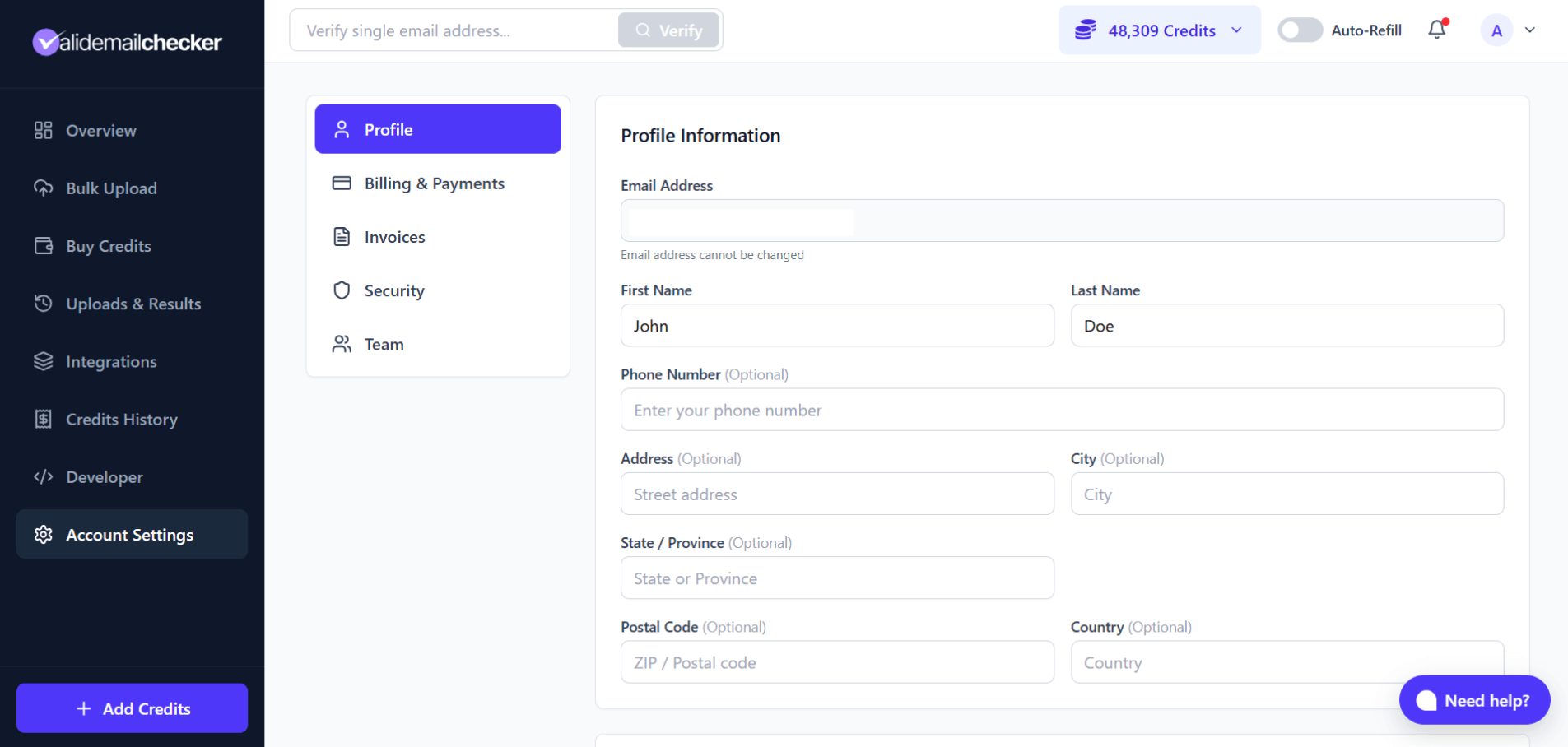
Profile Information
This section contains your basic account details.
Email Address
Your email address is displayed but can't be changed. This is the email you used to sign up and is tied to your account login.
Name
Enter your first and last name. This appears on invoices and in communications from us.
Phone Number (Optional)
Add a phone number if you'd like. This is entirely optional and used only if you contact support and prefer a callback.
Address Fields (Optional)
You can add your full address:
- Street address
- City
- State / Province
- Postal Code
- Country
Why add an address? If you're using Valid Email Checker for business, adding your address here makes it easier to set up billing information for invoices. Your address details can be used to pre-fill invoice settings.
Email Notifications
Control which emails you receive from Valid Email Checker.
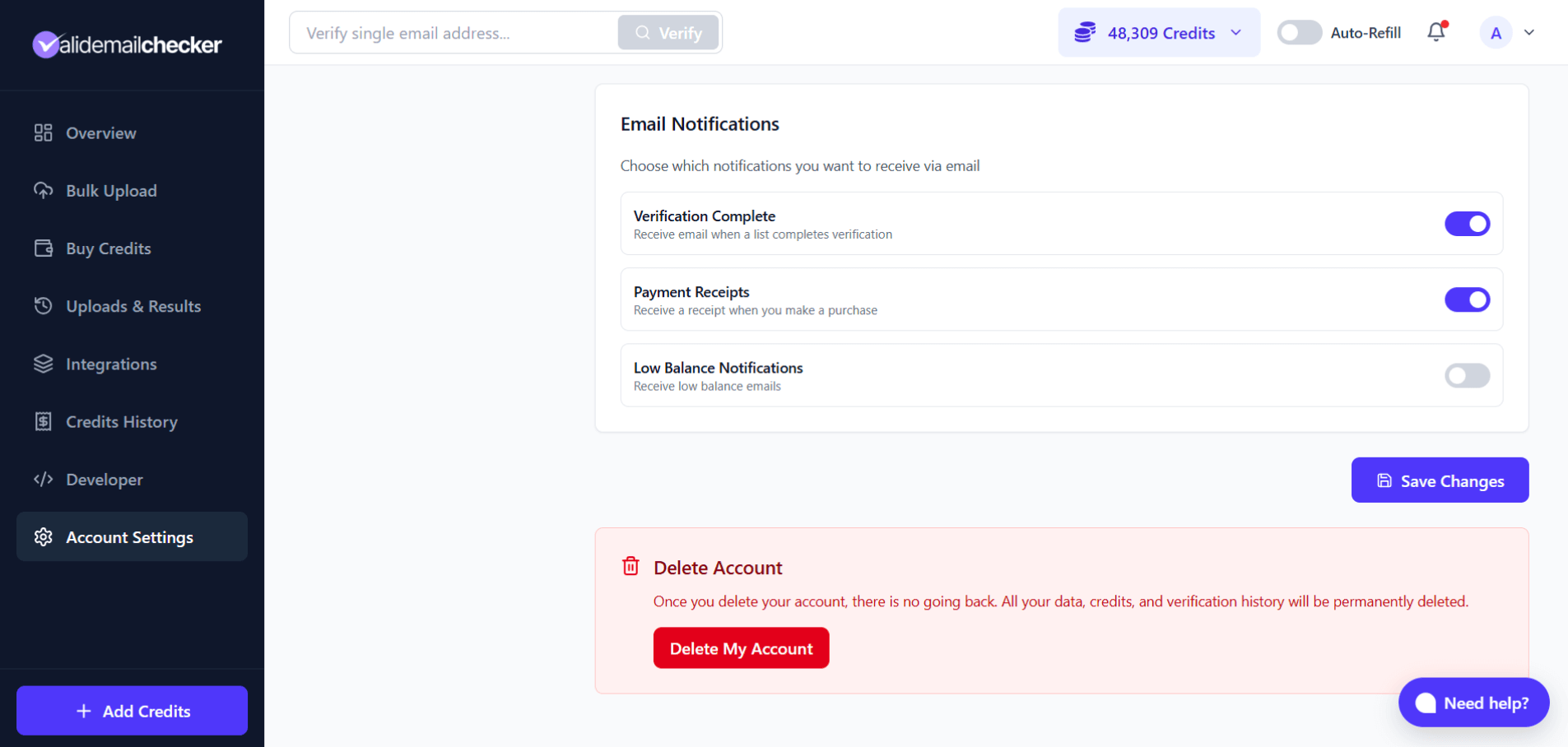
Verification Complete
Receive email when a list completes verification
When enabled, you'll get an email as soon as your bulk verification finishes. This is helpful if you upload large lists and don't want to keep checking the dashboard.
Recommended: Keep this on if you regularly upload lists and step away while they process.
Payment Receipts
Receive a receipt when you make a purchase
When enabled, you'll receive an email confirmation after every purchase - whether it's a PAYG credit pack or a subscription payment.
Note: This option is only visible to account owners. Team members don't see payment-related settings.
Low Balance Notifications
Receive low balance emails
When enabled, you'll get an email alert when your credit balance drops below a certain threshold. This helps you avoid running out of credits unexpectedly.
When you turn this on, additional settings appear:
- Threshold - Set the credit level that triggers the alert (default: 1,000 credits)
- Notification Emails - Add email addresses to receive the alert (comma-separated for multiple)
Tip: If you have auto-refill enabled, you might not need low balance notifications since credits are purchased automatically. But if you prefer manual control, this is a great safety net.
Note: This option is only visible to account owners.
Saving Your Changes
After making any changes:
- Scroll down if needed
- Click Save Changes
- You'll see a confirmation that your settings were updated
Changes take effect immediately.
Other Account Settings Tabs
Your Account Settings page has several other tabs:
| Tab | What It Does | Learn More |
|---|---|---|
| Billing & Payments | Manage your subscription, payment methods, and view credit usage | Managing Your Subscription |
| Invoices | View invoice history and configure billing details for invoices | Invoices & Receipts |
| Security | Change password, set up two-factor authentication, manage sessions | Security Settings |
| Team | Invite and manage team members | Team Management |
For Team Members
If you're a team member (not the account owner), your Profile tab looks slightly different:
- You can edit your own name, phone, and address
- You'll see the Verification Complete notification toggle
- You won't see Payment Receipts or Low Balance Notifications (these are owner-only)
- You won't see the Billing & Payments or Invoices tabs
Team members manage their own profile but don't have access to billing-related features.
Common Questions
Can I change my email address?
No. Your email address is tied to your account and can't be changed. If you need to use a different email, you'll need to create a new account.
Do I have to fill in my address?
No, all address fields are optional. You only need to add them if you want them to appear on invoices or for your own records.
Will I get spammed if I turn on notifications?
No. We only send the specific notifications you enable - verification complete alerts, payment receipts, and low balance warnings. We don't send marketing emails unless you've separately opted in.
How do I add multiple emails for low balance alerts?
In the notification emails field, enter multiple email addresses separated by commas. For example: you@company.com, finance@company.com
Next Steps
-> Security Settings - Set up two-factor authentication
-> Invoices & Receipts - Configure billing details for invoices
-> Delete Your Account - If you need to close your account