Invoices & Receipts
Every purchase generates an invoice automatically. This guide shows you how to access invoices, download receipts, and view your transaction history.
Accessing Invoices
To view your invoices:
- Click Account Settings in the sidebar
- Select Invoices under Billing & Payments
- Choose between Invoice History or Invoice Settings tabs
Invoice History
View all your past invoices in one place.
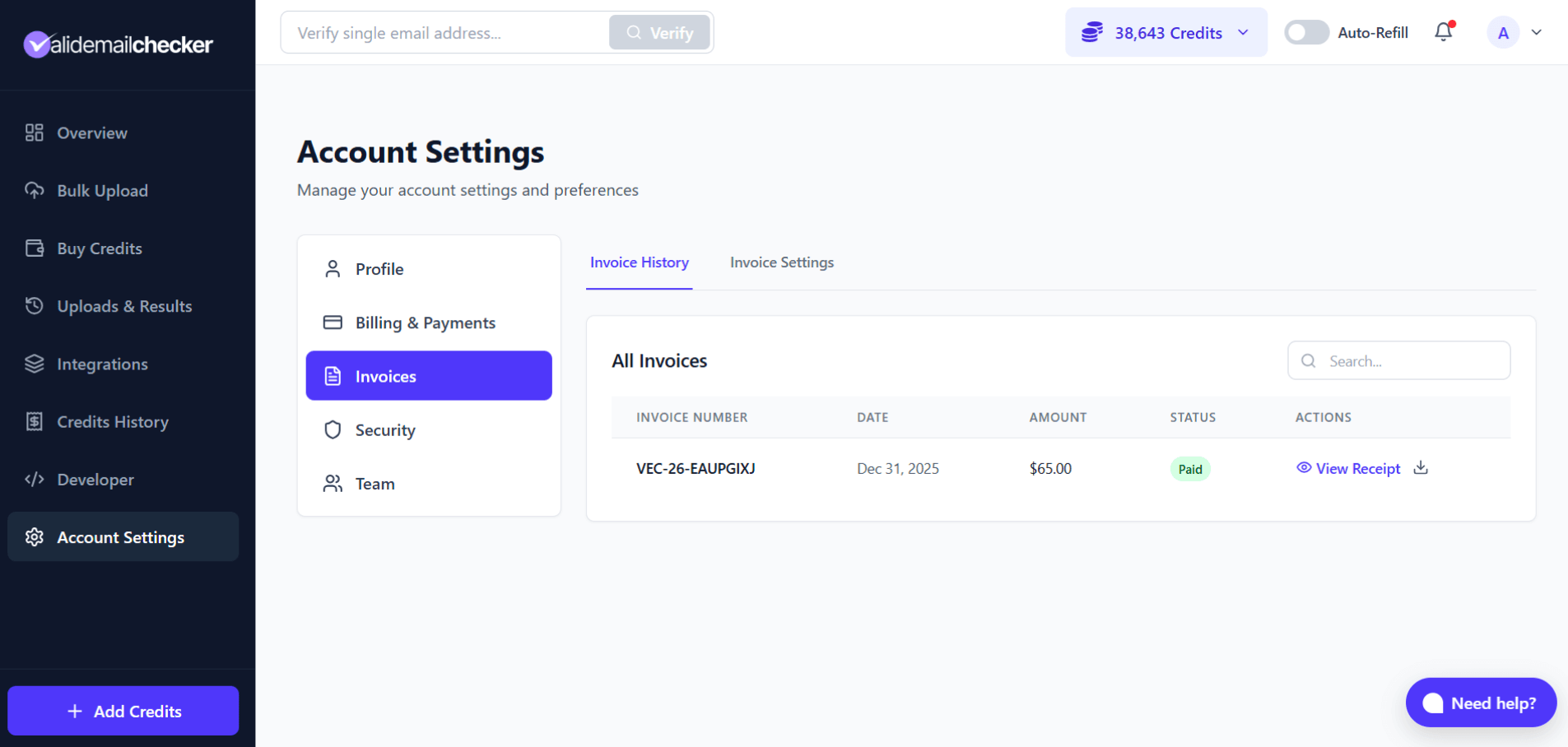
Each invoice shows:
- Invoice Number - Unique reference (e.g., VEC-25-MHCXPWBY)
- Date - When the invoice was created
- Amount - Total charged in USD
- Status - Payment status (usually "Paid" or "Pending")
- Actions - View details or download PDF
Viewing a Receipt
Click View Receipt to see full details including:
- Credits purchased (with bonus)
- Payment method used
- Transaction reference
- Your billing information
Downloading PDF
Click the download icon to save a PDF copy for your records. PDFs include all invoice details formatted for accounting and tax purposes.
Invoice Settings
Add your business details so they appear on your invoices.
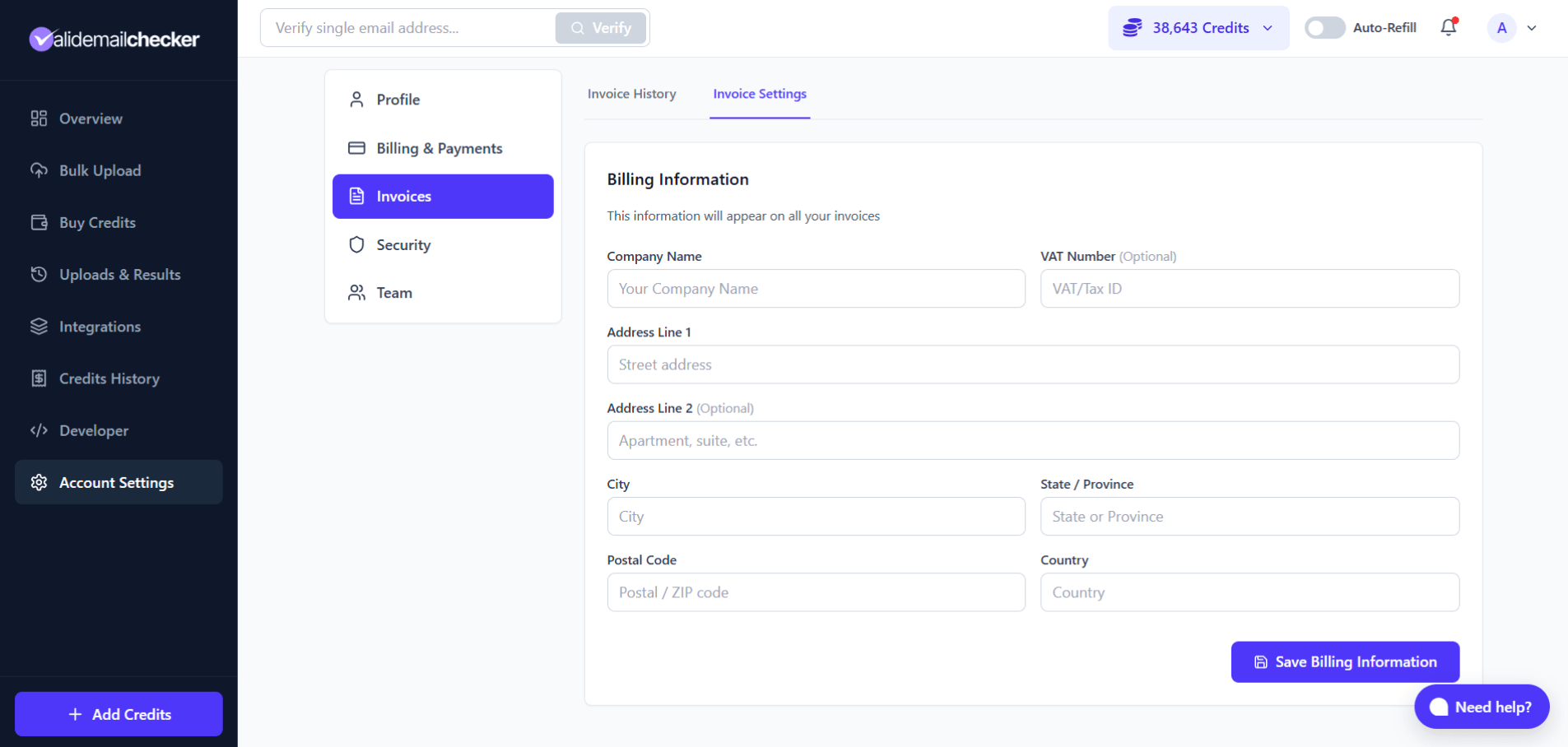
Available Fields
| Field | Description |
|---|---|
| Company Name | Your business name |
| VAT Number | Tax ID for business purchases |
| Address Line 1 | Street address |
| Address Line 2 | Suite, unit, etc. (optional) |
| City | City name |
| State / Province | State or region |
| Postal Code | ZIP or postal code |
| Country | Country name |
All fields are optional. Fill in what you need for your records.
Updating Your Information
- Enter your billing details
- Click Save Billing Information
- Your billing details will appear on invoices when downloaded
Note: When you download any invoice (including past invoices), it will include your current billing information. Update your settings anytime and re-download invoices as needed.
Credits History
Track every credit movement in your account.
Accessing Credits History
Click Credits History in the sidebar.
What's Tracked
| Transaction Type | Description |
|---|---|
| Credits Purchase | One-time PAYG credit purchase |
| Monthly Subscription | New subscription started |
| Subscription Renewal | Monthly credits refreshed |
| Bulk Verification | Credits used for list verification |
| API Verification | Credits used via API |
| Single Verification | Credit used for single email check |
| Welcome Bonus | Free credits on signup (+200) |
| Rollover Credits | Unused credits carried forward |
| Refund | Credits returned for unprocessed emails |
| Auto Refill | Automatic credit purchase |
| Account Credit | Credits added by support team |
Reading Your History
- Green (+) = Credits added (purchases, refunds, bonuses)
- Red (-) = Credits used (verifications)
- Balance = Running total after each transaction
- Details = Description of what happened
Filtering Transactions
Use the dropdown filters to narrow down:
- Transaction type - Show only purchases, verifications, or refunds
- Time period - Today, last 7 days, last 30 days, or custom range
- Search - Find by list name or description
Invoices vs Credits History
| Use Invoices For | Use Credits History For |
|---|---|
| Tax records | Usage tracking |
| Expense reports | Finding specific verifications |
| Reimbursement claims | Checking refunds |
| PDF documentation | Monitoring your balance |
Common Questions
Where do I find my invoice?
Account Settings > Invoices > Invoice History. Every payment has an invoice generated automatically.
Can I add my company name to old invoices?
Yes! Update your billing information in Invoice Settings, then download any invoice. It will include your current billing details.
How long are invoices stored?
Indefinitely. You can access and download invoices from any time in your account history.
My crypto payment went through but I don't see the invoice yet?
Crypto payments may take a few minutes to confirm. The invoice will appear once the payment is verified.
Next Steps
-> Auto-Refill Setup - Never run out of credits
-> Refunds & Credit Returns - When credits are returned
-> Credit System - How the 3-bucket system works