Auto-Refill Setup
Never run out of credits in the middle of a campaign.
Auto-refill automatically purchases credits when your balance drops below a threshold you set. It's like autopilot for your credit balance - set it once and forget about it.
What Auto-Refill Does
When enabled, auto-refill monitors your credit balance. The moment it drops to or below your threshold, the system automatically:
- Charges your saved payment method
- Adds credits to your account
- Shows you a notification
All of this happens in the background. No manual action needed.
Requirements
Before you can enable auto-refill, you need:
- A saved payment method - Credit or debit card saved in your account
Auto-refill only works with saved cards. Cryptocurrency cannot be used for automatic purchases since crypto payments require manual wallet transactions.
Setting Up Auto-Refill
Step 1: Open Settings
Click the Auto-Refill toggle in the top-right corner of your dashboard (next to your credit balance).
If auto-refill is off, clicking it opens the settings modal.
Step 2: Configure Your Preferences
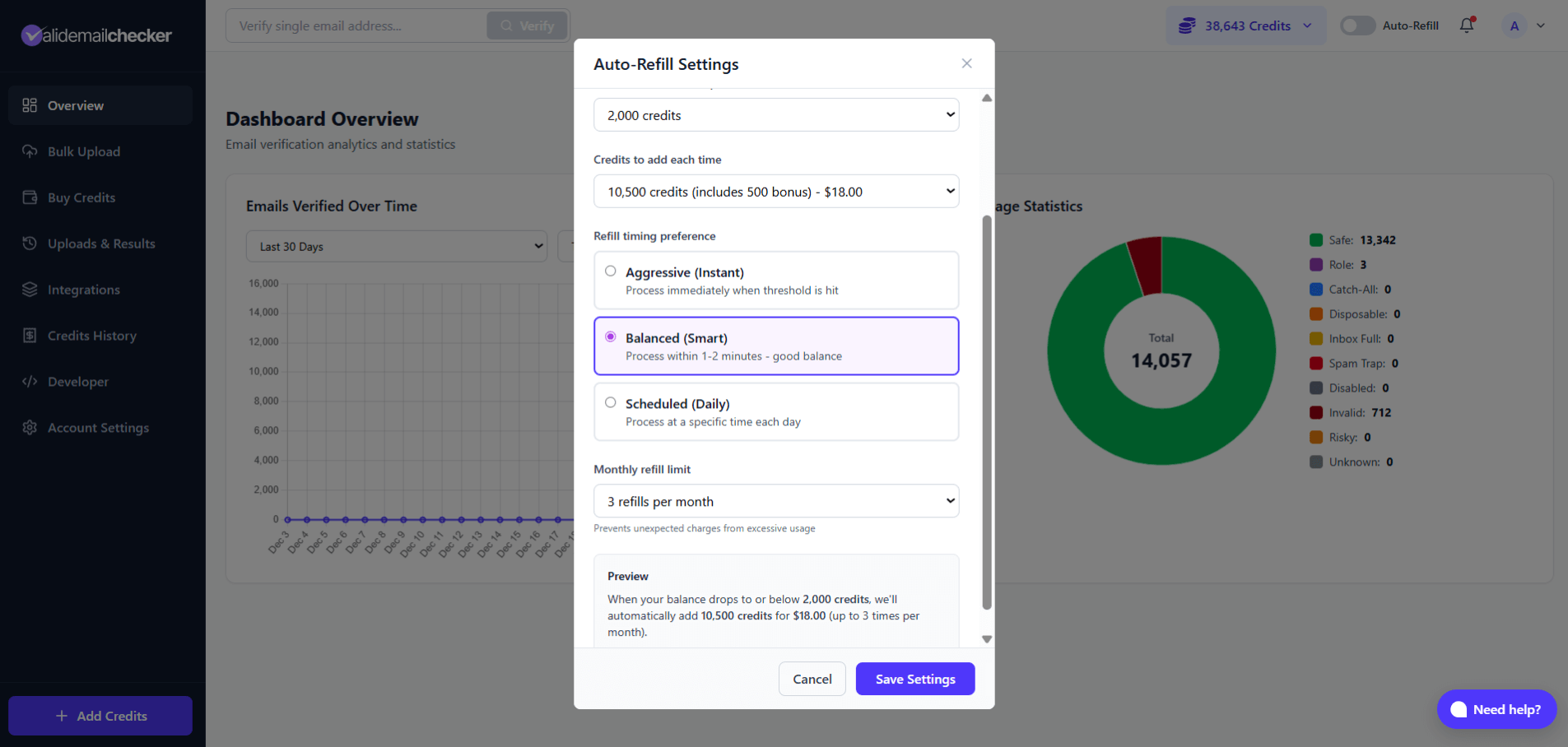
Refill Threshold
"Refill when credits drop below"
Choose the credit level that triggers a refill:
- Range: 1,000 to 10,000 credits
- Default: 2,000 credits
Tip: Set this higher than your typical daily usage. If you usually verify 1,500 emails per day, a threshold of 2,000-3,000 gives you comfortable buffer.
Credits to Add
"Credits to add each time"
Select which PAYG credit package to purchase when refill triggers:
| Package | Price |
|---|---|
| 2,100 credits (includes 100 bonus) | $5.00 |
| 5,200 credits (includes 200 bonus) | $10.00 |
| 10,500 credits (includes 500 bonus) | $18.00 |
| 26,000 credits (includes 1,000 bonus) | $35.00 |
| And larger packages... |
Choose a package that covers your typical usage between refills.
Timing Preference
Control when the refill processes after your balance hits the threshold:
| Option | Description | Best For |
|---|---|---|
| Aggressive (Instant) | Processes immediately | High-volume users who can't afford any downtime |
| Balanced (Smart) | Processes within 1-2 minutes | Most users - good balance of speed and control |
| Scheduled (Daily) | Processes at a specific time each day | Users who want predictable billing times |
Balanced is the default and recommended for most users.
If you choose Scheduled, you'll set a specific time (like 2:00 AM) when refills process. The system waits until that time even if your balance drops earlier.
Monthly Refill Limit
"Maximum refills per month"
Protect yourself from unexpected charges:
- Range: 1 to 30 refills per month
- Default: 3 refills per month
When you hit your monthly limit, auto-refill automatically disables itself for the rest of the month. You'll see a notification and can manually re-enable it or wait for the counter to reset on the 1st of the next month.
Step 3: Review the Preview
Before saving, check the preview at the bottom of the modal:
"When your balance drops to or below 2,000 credits, we'll automatically add 10,500 credits for $18.00 (up to 3 times per month)."
This confirms exactly what will happen with your settings.
Step 4: Save Settings
Click Save Settings to enable auto-refill.
The toggle in your header will show as active (green indicator).
When Auto-Refill Triggers
Once enabled, here's what happens when your balance drops:
- You verify emails and your balance drops to or below your threshold
- The system detects this and schedules a refill based on your timing preference
- Your saved card is charged
- Credits are added to your PAYG bucket (they never expire)
- You see a notification: "Auto-refill triggered! 10,500 credits added."
- Your credit balance updates automatically
No page refresh needed - everything updates in real-time.
Monthly Limit Behavior
The monthly limit prevents runaway charges if something unexpected happens.
Example: You set a limit of 3 refills per month.
| Refill | What Happens |
|---|---|
| 1st refill | Credits added, counter shows 1/3 |
| 2nd refill | Credits added, counter shows 2/3 |
| 3rd refill | Credits added, auto-refill automatically disables |
When you hit the limit:
- You'll see a notification explaining why it was disabled
- The toggle switches off automatically
- You can manually buy more credits if needed
- On the 1st of next month, the counter resets to 0
To continue using auto-refill after hitting the limit, simply re-enable it.
If Payment Fails
Sometimes payments fail - expired card, insufficient funds, or bank declines.
Here's how the system handles it:
| Failure | What Happens | Retry |
|---|---|---|
| 1st failure | Email notification sent | Retries in 1 hour |
| 2nd failure | Urgent email notification | Retries in 24 hours |
| 3rd failure | Auto-refill automatically disables | No retry |
After 3 consecutive failures, you'll need to:
- Update your payment method
- Manually re-enable auto-refill
Successful refills reset the failure counter back to zero.
Disabling Auto-Refill
To turn off auto-refill:
- Click the Auto-Refill toggle in the header
- Confirm you want to disable it
Or open the settings modal and toggle it off from there.
Auto-refill also disables automatically when:
- You reach your monthly refill limit
- Payment fails 3 times in a row
Checking Auto-Refill Status
The toggle in your header shows the current status:
| Indicator | Meaning |
|---|---|
| Green dot | Active and working |
| Yellow warning | Payment issues - check your card |
| Blue info | Disabled due to monthly limit |
| Gray/Off | Disabled |
You can also see how many refills you've used this month (e.g., "2/3").
Auto-Refill and Teams
If you're a team member (not the account owner):
- You cannot enable or configure auto-refill
- Only the main account owner can set up auto-refill
- Auto-refill charges the owner's payment method
Tips for Best Results
Set the Right Threshold
- Too low: You might run out before refill completes
- Too high: Refills trigger when you don't really need them
Good rule: Threshold = Your average daily usage + 20% buffer
Choose the Right Package
Don't pick the minimum package if you use a lot of credits. A larger package means fewer refill events and less frequent charges.
Start with a Lower Monthly Limit
If you're new to auto-refill, start with 2-3 refills per month. You can always increase it once you understand your usage patterns.
Keep Your Card Updated
Auto-refill only works with valid payment methods. If your card expires, update it before the expiration date to avoid disruption.
Common Questions
Can I use crypto for auto-refill?
No. Auto-refill requires a saved card because crypto payments need manual wallet transactions. You can still buy credits manually with crypto anytime.
What happens if I'm already below threshold when I enable auto-refill?
The system will trigger a refill based on your timing preference. If you choose "Balanced," it will process within 1-2 minutes.
Do auto-refill credits expire?
No. Auto-refill purchases PAYG credits, which never expire.
Can I change settings after enabling?
Yes. Click the toggle to open settings and adjust threshold, package, timing, or monthly limit anytime.
What if I want to pause auto-refill temporarily?
Just toggle it off. Your settings are saved. Toggle it back on when you're ready.
Will I be notified when auto-refill triggers?
Yes. You'll see an in-app notification immediately, and the transaction appears in your Credits History.
Quick Reference
| Setting | Range | Default |
|---|---|---|
| Threshold | 1,000 - 10,000 credits | 2,000 |
| Credits to add | Any PAYG package | - |
| Timing | Instant / Smart / Scheduled | Balanced (Smart) |
| Monthly limit | 1 - 30 refills | 3 |
Next Steps
-> Refunds & Credit Returns - When credits are returned to your account
-> Pricing & Bonus Credits - See all PAYG packages
-> Credit System - How the 3-bucket system works