Managing Your Subscription
Your subscription dashboard gives you a complete view of your plan, usage, and billing. From here, you can track your credits, see when your next renewal is, and make changes to your plan.
Accessing Your Subscription
To view your subscription:
- Click Account Settings in the sidebar
- Select Billing & Payments
- You'll land on the Subscription tab
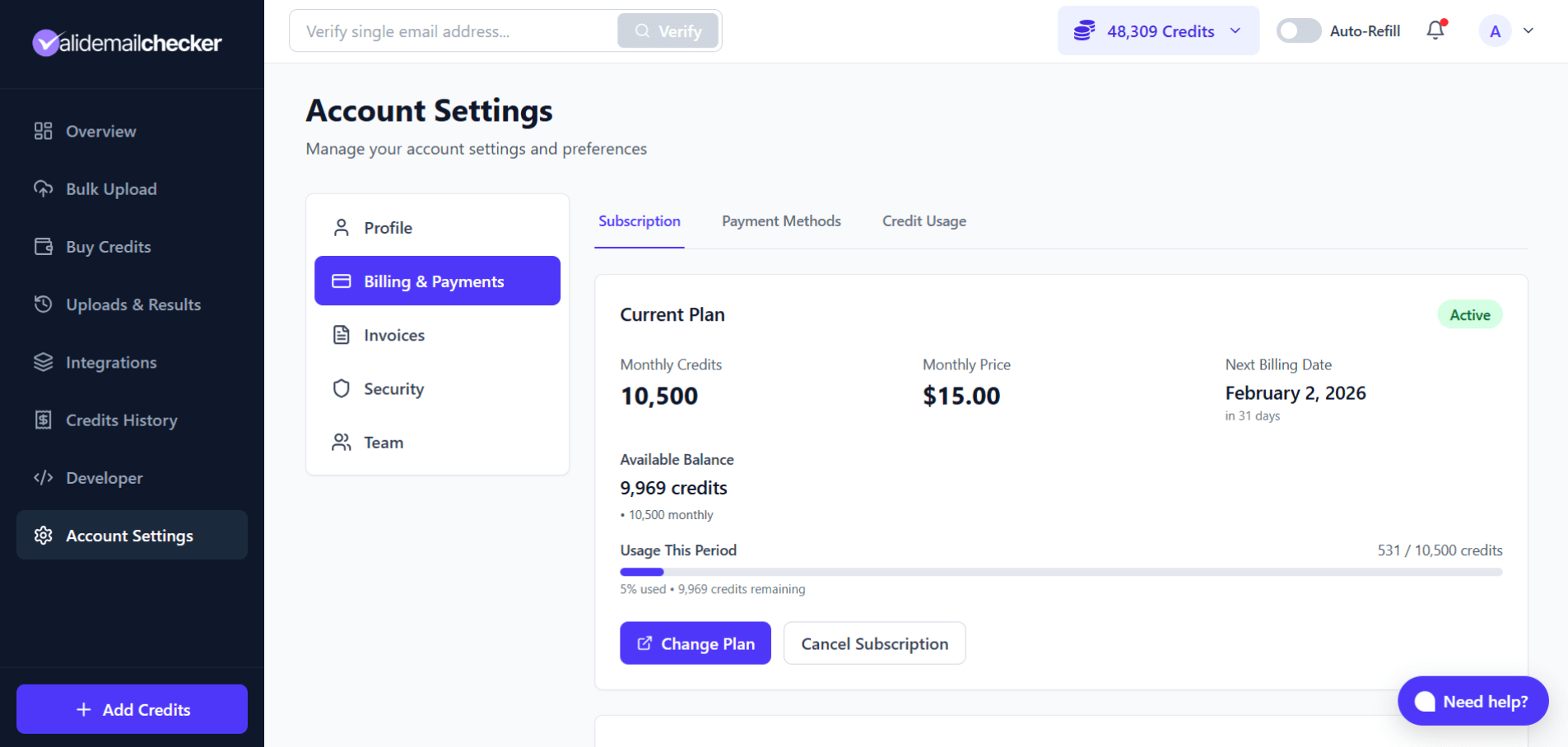
What You'll See
Current Plan
The main card shows your active subscription:
| Field | Description |
|---|---|
| Status | Active (green badge) or Cancelled |
| Monthly Credits | Credits included in your plan |
| Monthly Price | What you pay each billing cycle |
| Next Billing Date | When your subscription renews |
Available Balance
Your current credit balance with a breakdown showing where credits come from:
- Monthly - Credits from your subscription
- Rollover - Unused credits carried from last month
Usage This Period
A progress bar showing how many credits you've used this billing cycle:
- Credits used vs total allocated
- Percentage used
- Credits remaining
This helps you understand your usage patterns and whether your plan size is right for you.
Available Actions
Change Plan
Click Change Plan to upgrade or downgrade your subscription.
- Upgrade - Takes effect immediately with prorated billing
- Downgrade - Scheduled for your next renewal date
See Upgrade Your Plan or Downgrade Your Plan for details.
Cancel Subscription
Click Cancel Subscription to cancel your plan.
You'll keep full access until your current billing period ends. See Cancel Subscription for details.
Other Billing Tabs
The Billing & Payments section has three tabs:
Subscription
Your current tab - shows plan details and usage.
Payment Methods
Manage your saved payment methods:
- View saved cards
- Add new payment method
- Set default payment method
- Remove old cards
Credit Usage
View detailed usage statistics and trends over time.
Understanding Your Billing Cycle
Your subscription runs on a 30-day billing cycle.
How it works:
- You subscribe and get your monthly credits
- Use credits throughout the month
- At renewal, unused credits roll over (based on usage tier)
- New monthly credits are added
- Cycle repeats
Example timeline:
| Date | Event |
|---|---|
| Jan 2 | Subscribe to 10,500 credit plan |
| Jan 2 - Feb 1 | Use credits for verifications |
| Feb 2 | Renewal - new credits added, rollover calculated |
Your Next Billing Date shows exactly when this happens.
Subscription Statuses
| Status | Meaning |
|---|---|
| Active | Subscription is running normally |
| Cancelled | Cancellation scheduled - access continues until period end |
| Expired | Subscription ended - no longer active |
If you see "Cancelled" status, you can still reactivate before your period ends.
Pending Changes
If you've scheduled a change (like a downgrade), you'll see it noted on this page. Pending changes take effect at your next renewal.
You can cancel a pending downgrade anytime before the renewal date.
Quick Actions
| I want to... | Action |
|---|---|
| Get more credits | Click Change Plan and select a higher tier |
| Reduce my plan | Click Change Plan and select a lower tier |
| Stop my subscription | Click Cancel Subscription |
| Add a payment method | Go to Payment Methods tab |
| See my usage history | Go to Credit Usage tab |
| Buy one-time credits | Go to Buy Credits in sidebar |
Related Articles
-> Upgrade Your Plan - Immediate upgrades with prorated billing
-> Downgrade Your Plan - Schedule a plan reduction
-> Cancel Subscription - How cancellation works
-> Rollover Credits - How unused credits carry forward