Downgrade Your Plan
Need fewer credits? You can downgrade to a smaller plan anytime. The change takes effect at your next renewal - you keep your current plan until then.
How Downgrades Work
When you downgrade:
- Scheduled for next renewal - Not immediate
- No payment today - Nothing charged when you schedule
- Keep current plan - Full access until renewal date
- Can cancel anytime - Change your mind before it takes effect
Why Downgrades Are Scheduled
Unlike upgrades (which are immediate), downgrades are scheduled to take effect at your next billing date.
Why? You've already paid for your current plan. Rather than lose those credits, you get to use them until your period ends. On renewal day, you'll switch to the smaller plan and be charged the lower price.
How to Downgrade
- Go to Buy Credits in the sidebar
- Select the Monthly Plans tab
- Choose a plan lower than your current one
- You'll see "Downgrade: Changes on next billing cycle" below the price
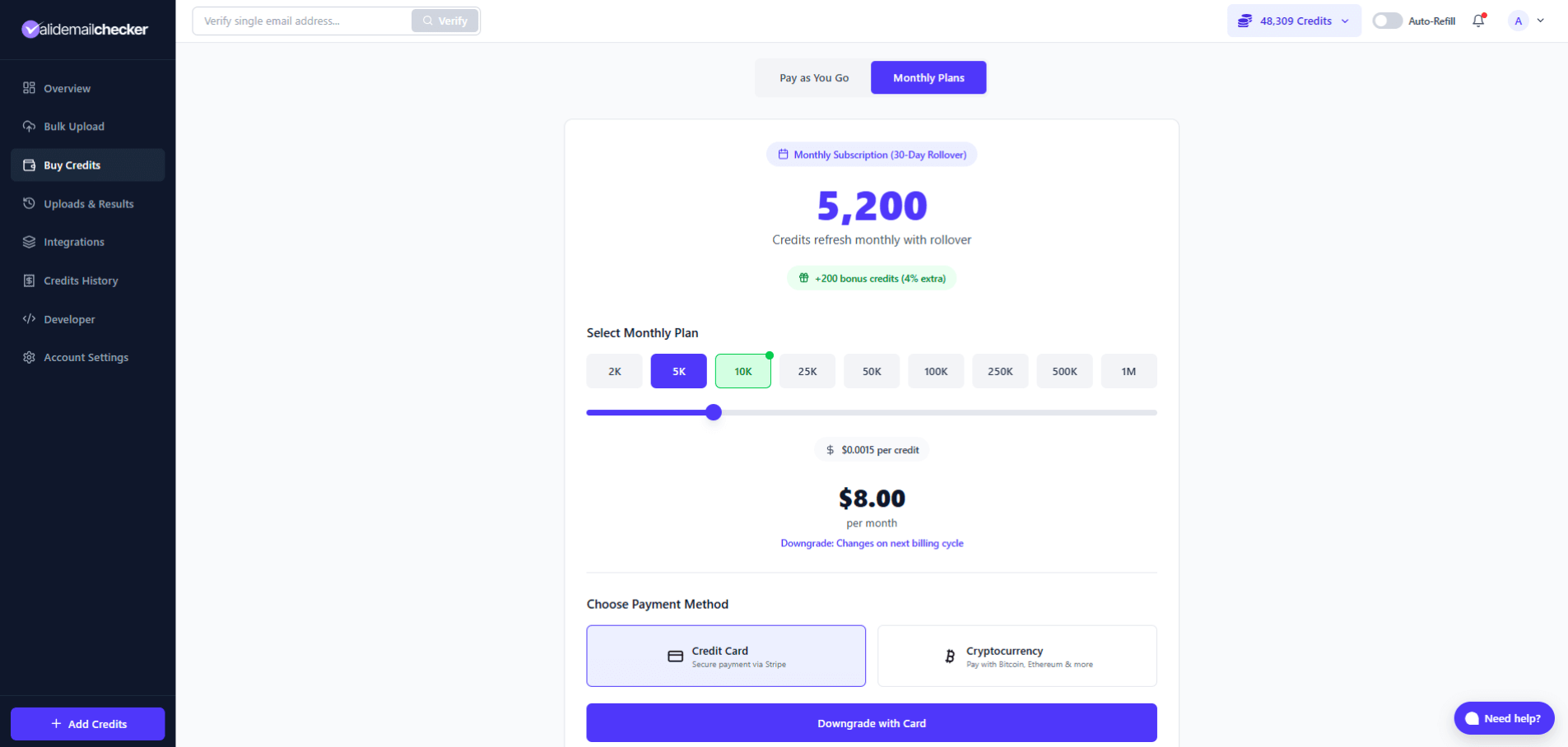
- Select your payment method for future renewals
- Click Downgrade with Card (or your chosen method)
- Review the Downgrade Preview modal
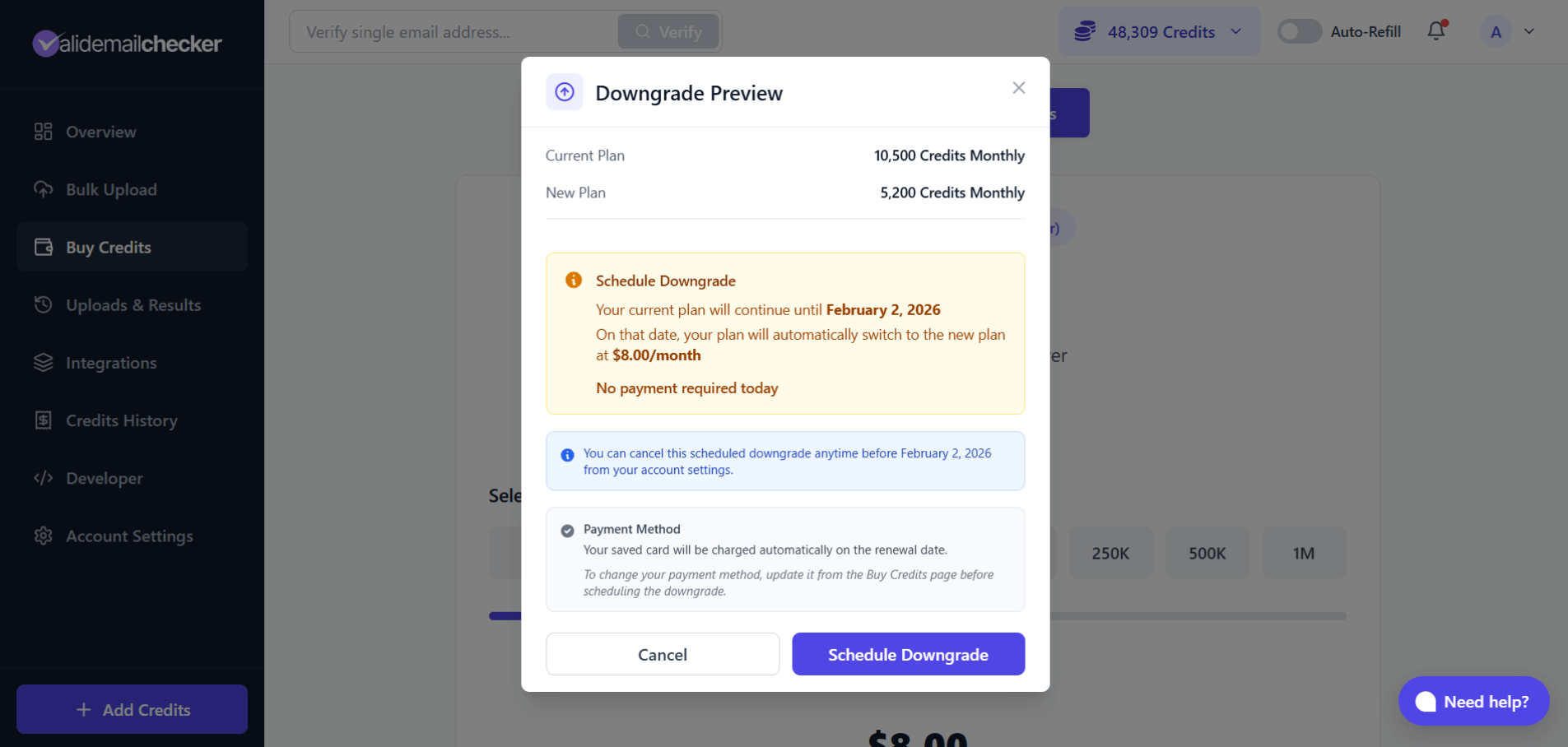
The preview shows:
- Your current plan vs new plan
- The date your downgrade takes effect
- New monthly price
- Confirmation that no payment is required today
- Note that you can cancel the scheduled downgrade anytime
- Click Schedule Downgrade to confirm
After Scheduling a Downgrade
Once scheduled, you'll see confirmation in your subscription settings.
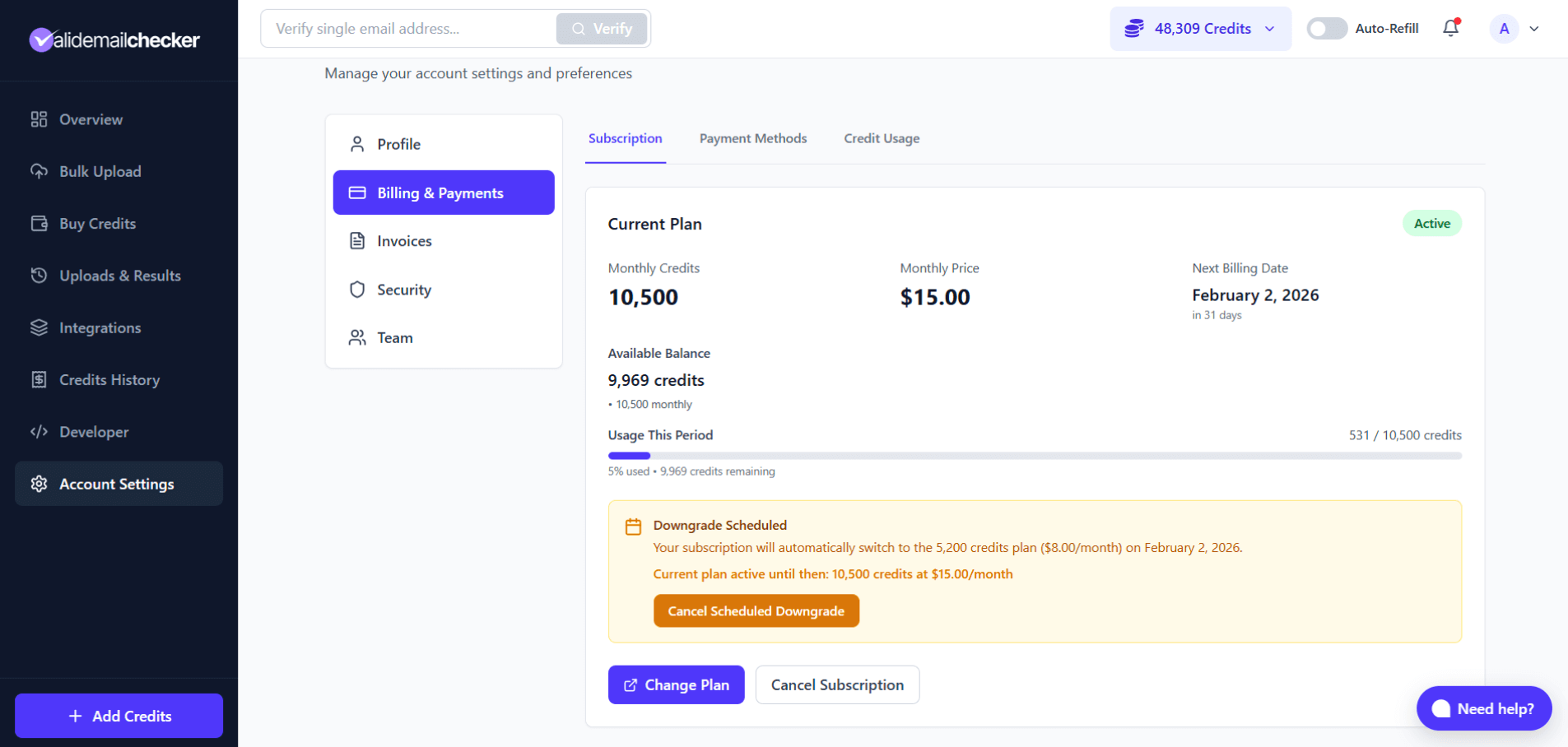
The banner shows:
- The new plan you're switching to
- When the switch happens
- That your current plan remains active until then
- Option to cancel the scheduled downgrade
What Happens to Your Credits
Until Renewal Date
- Your current monthly credits remain available
- Use them as normal
- No changes to your balance
At Renewal
- Monthly credits reset to the new (lower) plan amount
- Rollover credits are calculated based on your usage
- Rollover is capped at the new plan size
Important: Rollover Cap
When you downgrade, your rollover credits are capped at the new plan's credit amount.
Example:
- Current plan: 10,500 credits
- Unused at renewal: 8,000 credits
- Usage: 24% (qualifies for 25% rollover)
- Base rollover: 8,000 × 25% = 2,000 credits
- New plan: 5,200 credits
- Rollover received: 2,000 credits (within cap)
But if your rollover calculation exceeds the new plan size:
- Base rollover: 4,000 credits
- New plan: 2,100 credits
- Rollover received: 2,100 credits (capped at plan size)
This prevents accumulating more rollover credits than your new plan provides monthly.
Cancelling a Scheduled Downgrade
Changed your mind? You can cancel the scheduled downgrade anytime before it takes effect.
To cancel:
- Go to Account Settings > Billing & Payments
- Look for the yellow Downgrade Scheduled banner
- Click Cancel Scheduled Downgrade
Your subscription continues on the current plan as if nothing happened.
What Happens on Renewal Day
When your renewal date arrives:
| Step | What Happens |
|---|---|
| 1 | System processes your renewal |
| 2 | New (lower) plan activates |
| 3 | You're charged the new, lower price |
| 4 | Monthly credits set to new plan amount |
| 5 | Rollover calculated (capped at new plan) |
| 6 | New 30-day billing cycle begins |
Downgrade vs Cancel
Not sure whether to downgrade or cancel?
| Downgrade | Cancel |
|---|---|
| Keep a subscription at lower cost | End subscription completely |
| Continue getting monthly credits | No more monthly credits |
| Keep rollover benefits | Lose rollover when subscription expires |
| Automatic renewals continue | No more charges |
If you still need credits regularly but fewer than before, downgrade. If you don't need credits anymore, cancel.
Tips for Downgrading
Check Your Usage First
Look at your typical monthly usage in Account Settings > Credit Usage. Choose a plan that covers your actual needs with a small buffer.
Time It Right
Schedule your downgrade early in your billing cycle. This gives you maximum time to use your current larger allocation before switching.
Consider Rollover
If you have a lot of unused credits, remember they'll be capped at the new plan size. You might want to use more credits before the downgrade takes effect.
Common Questions
When does the downgrade take effect?
On your next billing date. You'll see the exact date in the Downgrade Preview modal and on your subscription page.
Do I pay anything when I schedule a downgrade?
No. There's no charge when you schedule. You're only charged the new, lower price on your next renewal date.
Can I still use all my credits until then?
Yes. Your current plan remains fully active until the downgrade takes effect. Use your credits as normal.
What if I upgrade after scheduling a downgrade?
The scheduled downgrade is automatically cancelled. Your upgrade takes effect immediately, and you're on the new higher plan.
Can I downgrade multiple tiers at once?
Yes. You can go from any plan to any lower plan in one step. For example, from 100K credits directly to 5K credits.
What happens to my PAYG credits?
Nothing. PAYG credits are separate from your subscription and are not affected by downgrades.
Can I cancel the downgrade after scheduling?
Yes, anytime before your renewal date. Go to your subscription settings and click "Cancel Scheduled Downgrade."
Quick Reference
| Aspect | What Happens |
|---|---|
| When it takes effect | Next renewal date |
| Payment when scheduling | None |
| Current credits | Keep until renewal |
| Current plan | Active until renewal |
| Rollover credits | Capped at new plan size |
| PAYG credits | Unaffected |
| Can cancel? | Yes, anytime before renewal |
| Upgrade instead? | Cancels scheduled downgrade |
Next Steps
-> Cancel Subscription - If you want to stop your subscription entirely
-> Upgrade Your Plan - If you change your mind and need more credits
-> Rollover Credits - Understand how rollover works with downgrades