Inviting Team Members
Need to share your email verification credits with colleagues? You can invite team members to your account, giving them access to your shared credit pool without sharing your login credentials.
How Team Sharing Works
When you invite team members:
- They get their own login credentials
- They use credits from your account's shared pool
- You can see how many credits each member uses
- You retain full control (suspend or remove anytime)
- They can't access billing, invoices, or payment settings
This is perfect for teams where one person manages the account and credits, while others do the actual verification work.
Who Can Invite Team Members
Only the account owner can invite team members. If you're already a team member on someone else's account, you won't see the invite option.
How to Invite Team Members
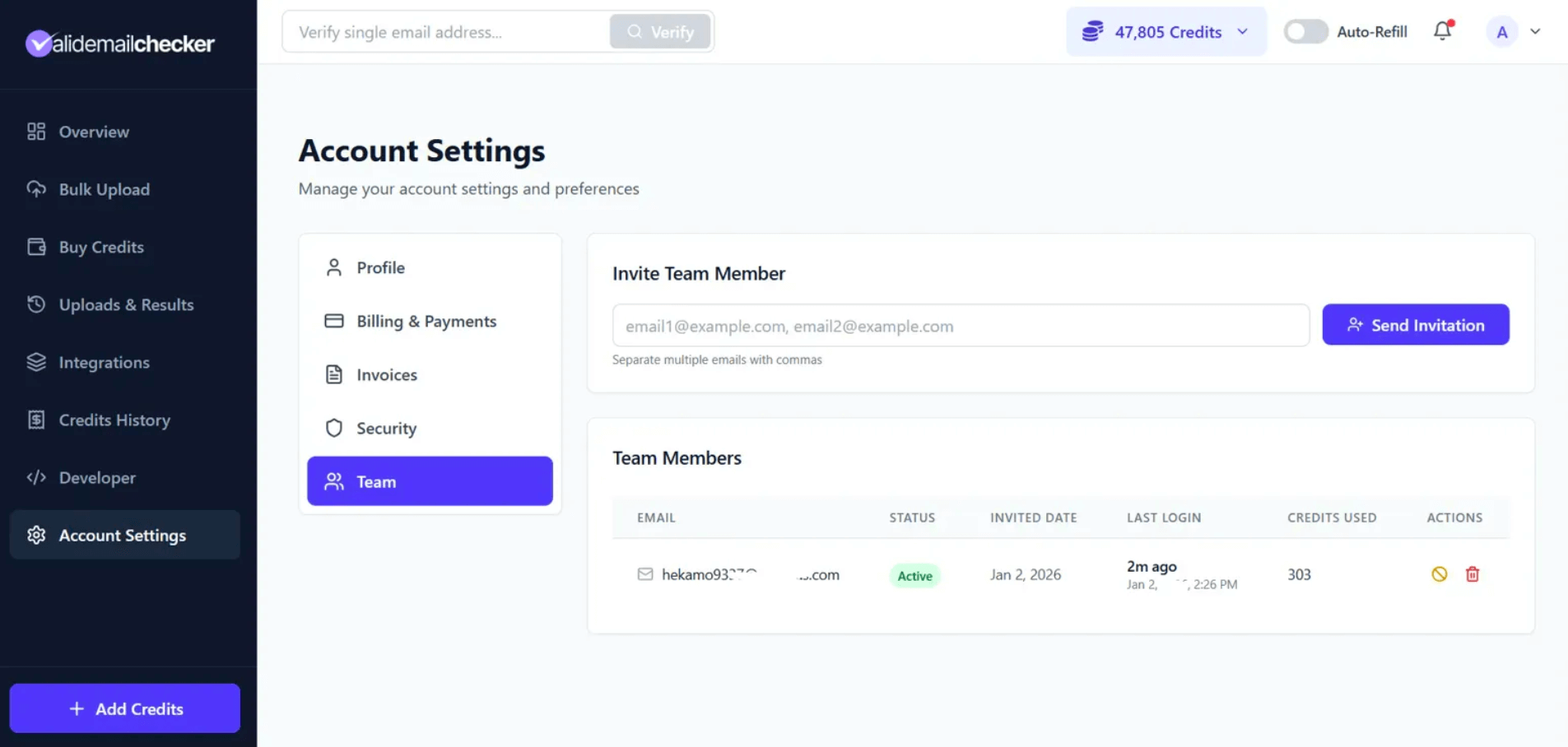
- Go to Account Settings in the sidebar
- Select the Team tab
- Enter the email address(es) in the invite field
- Click Send Invitation
Inviting Multiple People
You can invite multiple team members at once. Simply separate email addresses with commas:
john@company.com, sarah@company.com, mike@company.com
All invitations are sent simultaneously.
What Team Members Receive
When you invite someone, they receive an email with:
- An invitation to join your Valid Email Checker team
- Their temporary login password (auto-generated)
- A link to sign in
They'll use their email address and the provided password to log in. They can change their password after logging in from Security settings.
Invitation Validation
The system checks for:
| Check | What Happens |
|---|---|
| Invalid email format | Error shown, invitation not sent |
| Duplicate email | Error if already a team member |
| Self-invite | Can't invite yourself |
| Already registered | Error if email has an existing account |
If you're inviting multiple emails and one fails validation, you'll be notified which ones succeeded and which failed.
After the Invitation
Once invited, the team member appears in your Team Members list with:
| Column | Description |
|---|---|
| Their email address | |
| Status | Pending (not yet logged in) or Active |
| Invited Date | When you sent the invitation |
| Last Login | When they last accessed the account |
| Credits Used | How many credits they've used this month |
| Actions | Suspend or remove options |
Member Statuses
| Status | Meaning |
|---|---|
| Pending (yellow) | Invitation sent, but they haven't logged in yet |
| Active (green) | They've logged in and can use the account |
| Suspended (red) | You've temporarily disabled their access |
Rate Limiting
To prevent abuse, there's a short cooldown between sending invitations. If you're inviting a large team, you may need to wait a few seconds between batches.
Tips for Team Invitations
Use Work Emails
Invite team members using their work email addresses. This makes it clear the account is for business use and helps with organization.
Start Small
If you're new to team features, start with one or two members. You can always add more once you're comfortable with how it works.
Communicate Expectations
Let your team members know:
- What the account is for
- Any usage guidelines you have
- That you can see their credit usage
Common Questions
Can team members invite other team members?
No. Only the account owner can invite team members.
Is there a limit to how many team members I can have?
There's no hard limit on team size. Invite as many members as you need.
What if someone doesn't receive their invitation?
Ask them to check their spam folder. If it's still not there, remove them from the team list and send a new invitation.
Can I resend an invitation?
Remove the pending invitation and send a new one. This generates a fresh password.
Do team members need to pay?
No. Team members use credits from your account. They don't need their own subscription or credits.
Next Steps
-> Managing Team Members - Suspend, reactivate, or remove members
-> Team Member Guide - Share this with your team members
-> Credit System - How shared credits work