Security Settings
Keep your account secure with a strong password, two-factor authentication, and session monitoring. This guide covers all the security features available in your account.
Accessing Security Settings
- Click Account Settings in the sidebar
- Select the Security tab
Change Password
Update your password anytime from the Security tab.
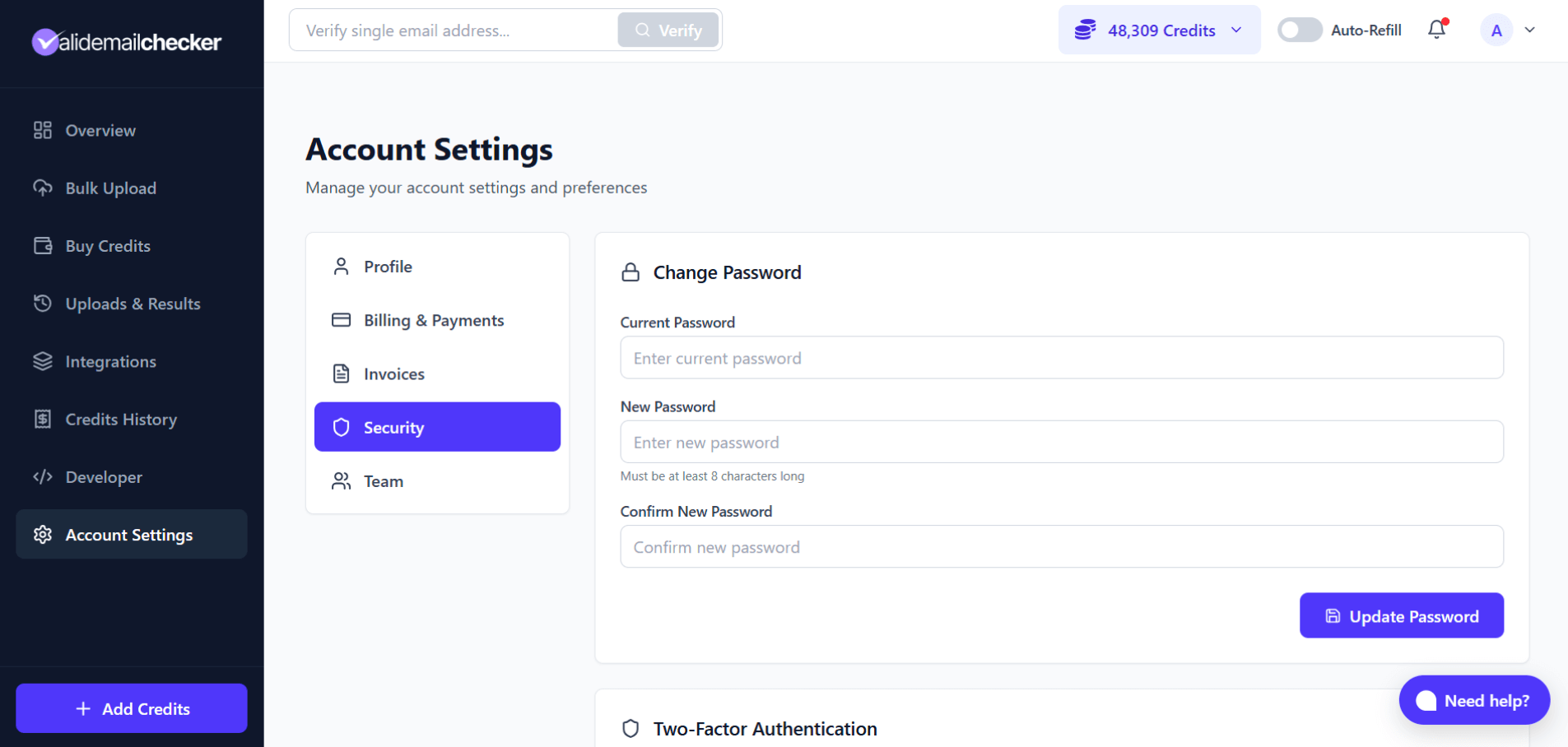
How to Change Your Password
- Enter your Current Password
- Enter your New Password (minimum 8 characters)
- Confirm New Password by entering it again
- Click Update Password
Password Requirements
- Minimum 8 characters
- Must match in both fields
Use a strong, unique password that you don't use on other sites. Consider using a password manager to generate and store secure passwords.
Two-Factor Authentication
Two-factor authentication (2FA) adds an extra layer of security by requiring a second form of verification when you sign in. Even if someone gets your password, they can't access your account without the second factor.
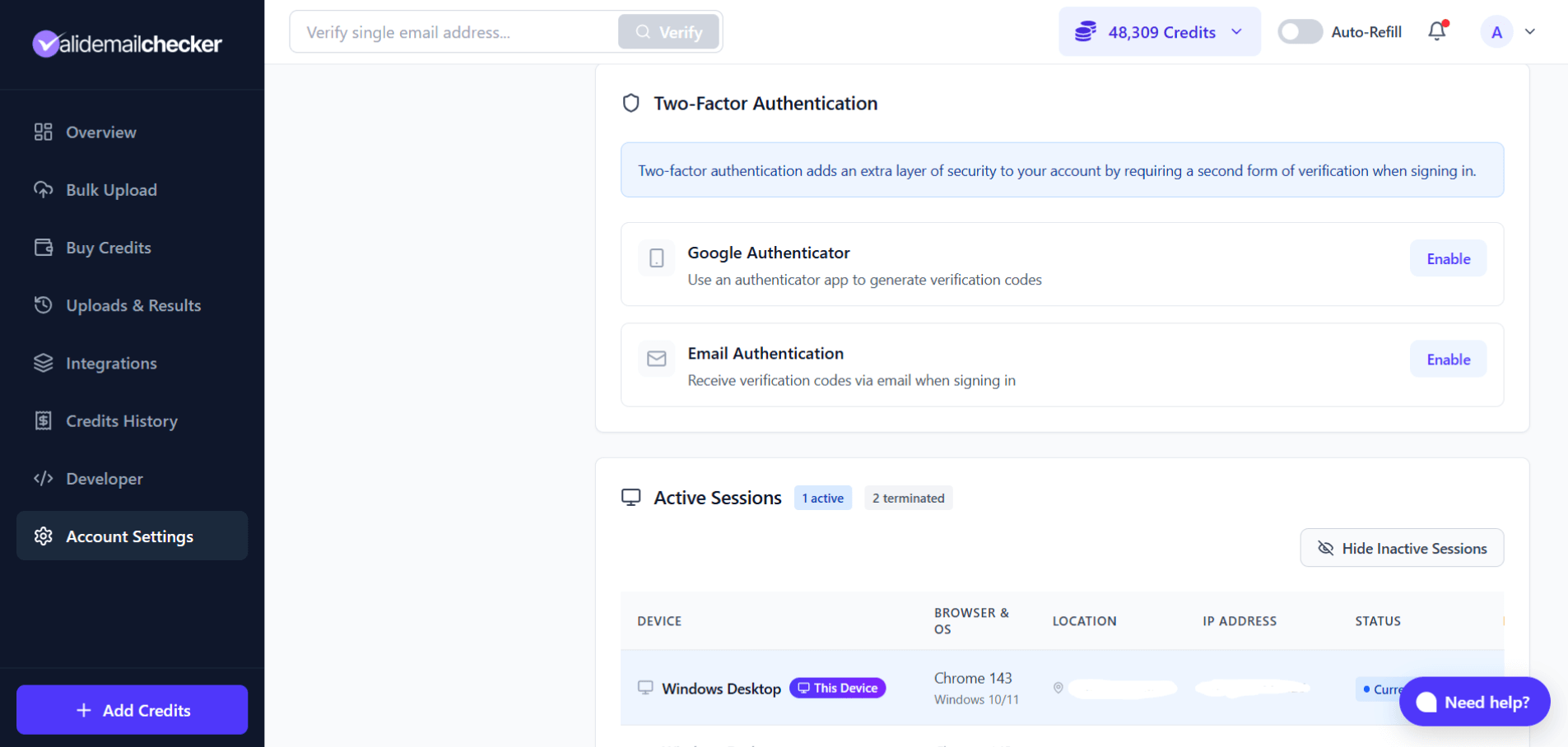
You have two options:
Google Authenticator
Use an authenticator app to generate verification codes
This is the more secure option. You'll use an app like Google Authenticator, Authy, or 1Password to generate time-based codes.
To enable:
- Click Enable next to Google Authenticator
- Scan the QR code with your authenticator app
- Enter the 6-digit code from the app to verify
- Save your backup codes somewhere safe
Backup codes: During setup, you'll receive backup codes. Store these securely - they're your way back in if you lose access to your authenticator app.
Email Authentication
Receive verification codes via email when signing in
A simpler option that sends a code to your email address each time you log in.
To enable:
- Click Enable next to Email Authentication
- We'll send a verification code to your email
- Enter the 6-digit code to confirm
- Email 2FA is now active
Which Should You Choose?
| Method | Security | Convenience |
|---|---|---|
| Google Authenticator | Higher - codes generated offline | Requires app on phone |
| Email Authentication | Good - tied to your email | No app needed |
Google Authenticator is more secure because codes are generated on your device and don't travel over email. But Email Authentication is better than no 2FA at all.
Disabling 2FA
If you need to disable two-factor authentication:
- Click the method you want to disable
- Type "DISABLE" to confirm
- 2FA is removed from your account
Note: Only disable 2FA if you have a good reason. It significantly reduces your account security.
Active Sessions
Monitor all devices and browsers that have logged into your account. This helps you review your login history and spot any unauthorized access.
How Sessions Work
Valid Email Checker automatically terminates your previous session when you log in from a new device or browser. This means only one session can be active at a time, adding an extra layer of security.
What You'll See
The Active Sessions section shows:
| Column | Description |
|---|---|
| Device | Device type (Windows Desktop, MacBook, iPhone, etc.) |
| Browser & OS | Browser name and operating system |
| Location | City and country based on IP address |
| IP Address | The IP address used for the session |
| Status | Current Session or Terminated |
Your current session is marked with a This Device badge.
Session Statuses
- Current Session (blue) - The session you're using right now
- Terminated (gray) - Previous sessions that were automatically ended
Viewing Session History
By default, only your current session is shown. Click Show Inactive Sessions to view terminated sessions, or Hide Inactive Sessions to hide them again.
Deleting Session Records
Terminated sessions are kept as a history of your login activity. To remove a session record:
- Click Show Inactive Sessions to view terminated sessions
- Find the session you want to remove
- Click the delete icon on that row
- The session record is permanently removed
Deleting a session record only removes it from your history - the session was already terminated when you logged in elsewhere.
When to Review Sessions
Check your session history if:
- You see login notifications you don't recognize
- You want to verify where you've logged in from
- You notice an unfamiliar location or device in your history
- You suspect someone may have accessed your account
Security Best Practices
Use a Strong Password
- At least 12 characters (8 is the minimum, but longer is better)
- Mix of letters, numbers, and symbols
- Don't reuse passwords from other sites
- Consider a password manager
Enable Two-Factor Authentication
Even a strong password can be compromised. 2FA ensures that password alone isn't enough to access your account.
Review Sessions Regularly
Glance at your active sessions occasionally. If you see a location or device you don't recognize, terminate it and change your password.
Log Out When Done
If you're using a shared or public computer, always log out when finished. Don't just close the browser.
Common Questions
I forgot my password. How do I reset it?
On the login page, click "Forgot Password" and enter your email. You'll receive a reset link.
I lost my authenticator app. How do I get back in?
Use one of your backup codes to log in. If you don't have backup codes, contact support at support@validemailchecker.com for account recovery assistance.
Why do I see sessions from different locations?
IP-based location isn't always accurate. VPNs, mobile networks, and ISP routing can show different cities or even countries. If the device and browser look familiar, it's likely just location imprecision.
Can I require 2FA for my team members?
Currently, 2FA is set individually by each user. Team members can enable their own 2FA from their Security settings.
How long do sessions stay active?
Sessions remain active until you log out, terminate them, or they expire due to inactivity. Terminated sessions are kept in the history so you can review past activity.
Quick Reference
| Feature | Where to Find It |
|---|---|
| Change password | Security tab > Change Password |
| Enable 2FA | Security tab > Two-Factor Authentication |
| View sessions | Security tab > Active Sessions |
| Terminate session | Active Sessions > Click terminate on session row |
| Disable 2FA | Security tab > Click enabled method > Type "DISABLE" |
Next Steps
-> Profile Settings - Update your personal information
-> Delete Your Account - If you need to close your account
-> Managing Your Subscription - View billing and subscription details