Downloading Your Results
You've verified your email list. Now it's time to download the results.
Valid Email Checker gives you complete control over your exports. Download everything at once, or filter by status to get exactly what you need. Choose your format—CSV, XLSX, JSON, or TXT—and you're good to go.
Let's walk through it.
Accessing the Verification Details Page
After your bulk verification completes:
- Go to Uploads & Results in the sidebar
- Find your completed verification
- Click View Results
You'll land on the Verification Details page:
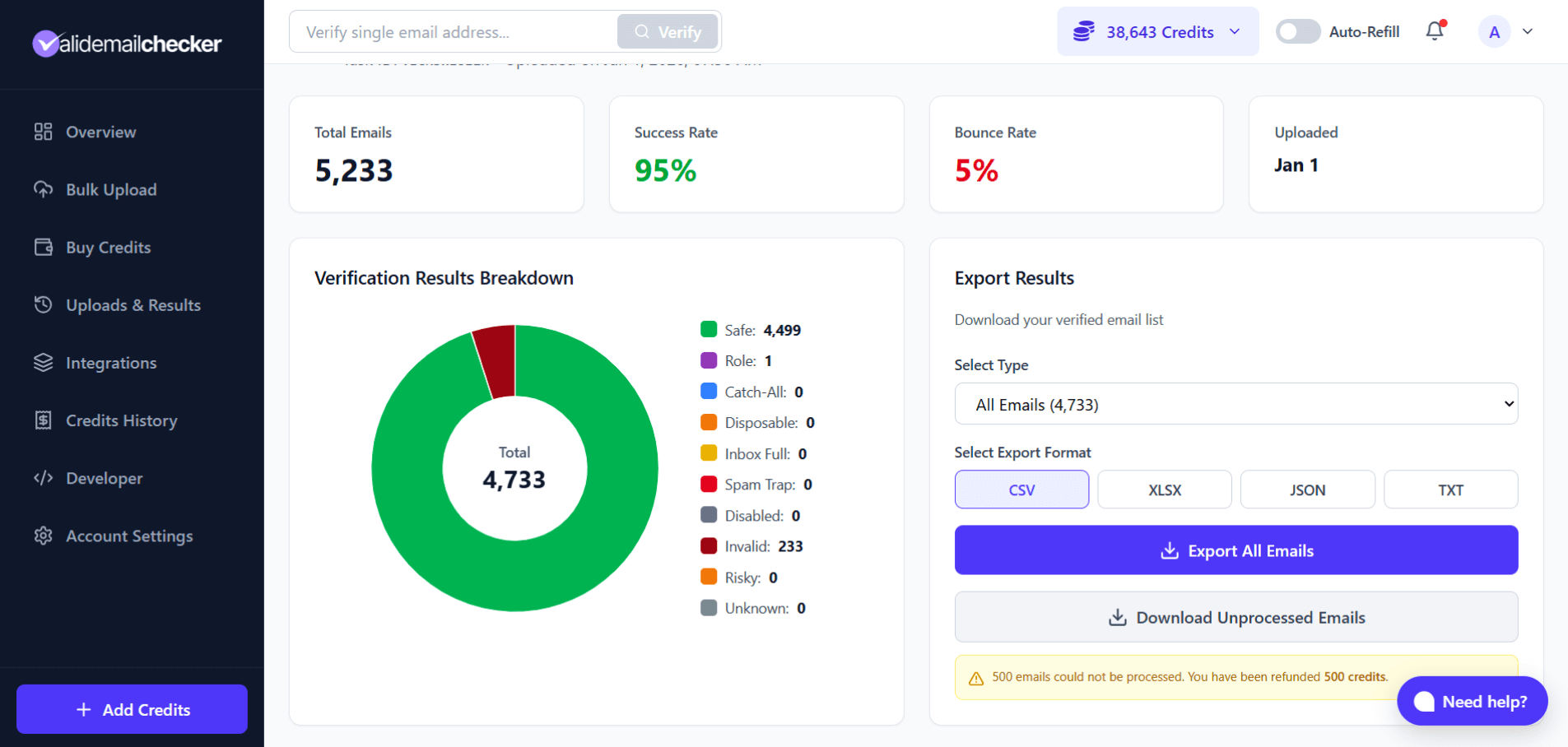
The verification details page—your command center for results
Understanding Your Dashboard
The verification details page shows you everything at a glance.
Quick Stats
At the top, you'll see four key metrics:
| Stat | What It Shows |
|---|---|
| Total Emails | How many emails were in your upload |
| Success Rate | Percentage of emails that are safe to send |
| Bounce Rate | Percentage of emails likely to bounce |
| Uploaded | When you uploaded the list |
These numbers tell you the health of your email list instantly. A high success rate (90%+) means your list is in great shape. Lower than that? You've got some cleaning to do.
Verification Results Breakdown
The donut chart gives you a visual breakdown of every email by status:
| Status | What It Means |
|---|---|
| 🟢 Safe | Valid, deliverable emails—send confidently |
| 🟣 Role | Team emails (info@, support@)—valid but lower engagement |
| 🔵 Catch-All | Server accepts all—delivery uncertain |
| 🟠 Disposable | Temporary emails—remove these |
| 🟡 Inbox Full | Mailbox is full—retry later |
| 🔴 Spam Trap | Honeypot addresses—never send |
| ⚫ Disabled | Account deactivated—remove |
| 🔴 Invalid | Doesn't exist—will bounce |
| 🟠 Risky | Questionable—proceed with caution |
| ⚫ Unknown | Couldn't verify—credits refunded |
The chart shows exact counts next to each status, so you know precisely what's in your list.
Exporting Your Results
On the right side of the page, you'll find the Export Results panel. This is where the magic happens.
Step 1: Select What to Download
Click the Select Type dropdown to choose which emails to export:
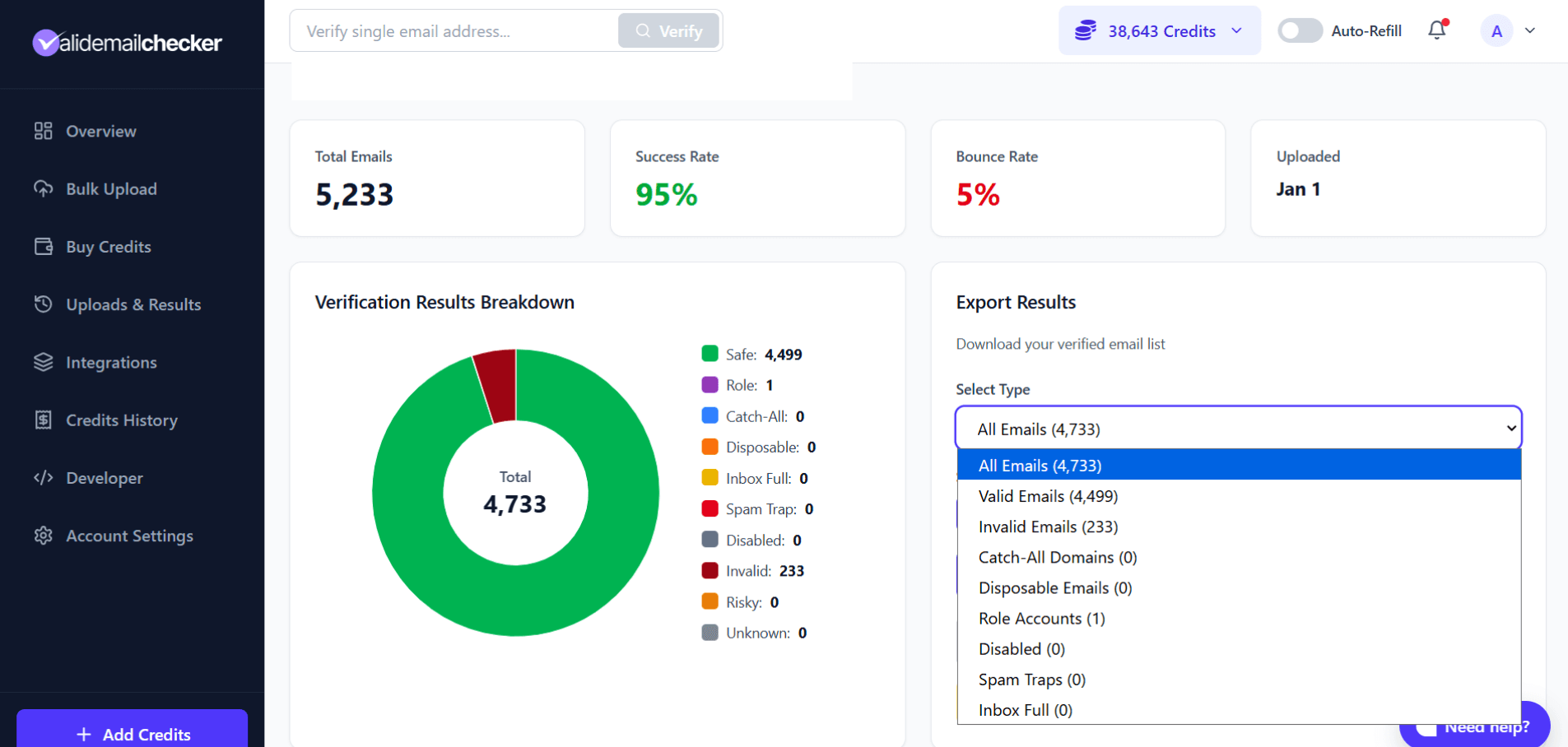
Filter your export by status type
Available filters:
| Filter | What You Get |
|---|---|
| All Emails | Everything—complete results file |
| Valid Emails | Only Safe emails (ready to send) |
| Invalid Emails | Only bounced/non-existent addresses |
| Catch-All Domains | Only catch-all server emails |
| Disposable Emails | Only temporary/throwaway addresses |
| Role Accounts | Only team emails (info@, support@) |
| Disabled | Only deactivated accounts |
| Spam Traps | Only honeypot addresses |
| Inbox Full | Only full mailboxes |
Each filter shows the count in parentheses, so you know exactly how many emails you'll get.
Pro tip: Want just the good emails? Select Valid Emails to download only the addresses that are safe to send to. This is your cleaned, ready-to-use list.
Step 2: Choose Your Format
Pick your preferred file format:
| Format | Best For |
|---|---|
| CSV | Universal—works everywhere (Excel, Google Sheets, most tools) |
| XLSX | Microsoft Excel—preserves formatting |
| JSON | Developers—API integrations, custom processing |
| TXT | Simple list—one email per line (emails only, no extra data) |
Click the button for your format. It'll highlight to show it's selected.
Step 3: Download
Click Export All Emails (or whatever filter you selected) to download your file.
The file downloads immediately to your computer. Done!
What's in the Downloaded File?
Your exported file contains your original data plus all verification results.
Columns Included
| Column | Description | Example |
|---|---|---|
| The email address | john@example.com | |
| Status | Verification result | safe, invalid, catch_all |
| Score | Confidence score (0-100) | 98 |
| Domain | Email domain | example.com |
| Safe to Send | Quick yes/no | Yes |
| Deliverable | Will it deliver? | Yes |
| Free Email | Gmail, Yahoo, etc.? | No |
| Disposable | Temporary email? | No |
| Catch-All | Accepts all emails? | No |
| Role Account | Team email? | No |
| Spam Trap | Honeypot address? | No |
| Inbox Full | Mailbox full? | No |
| Disabled | Account deactivated? | No |
| MX Found | Mail server exists? | Yes |
| Verified Date | When verified | 01/01/2024, 11:33 AM |
Your Original Data Is Preserved
If your uploaded file had additional columns (names, company, notes), they're preserved in your export. We append our verification columns to the end—we never delete or rearrange your data.
Example:
Your uploaded file:
email,first_name,company
john@acme.com,John,Acme Inc
Your downloaded results:
email,first_name,company,Status,Score,Domain,Safe to Send,...
john@acme.com,John,Acme Inc,safe,98,acme.com,Yes,...
Downloading Unprocessed Emails
Remember the "Completed with Warning" status we talked about? If some emails couldn't be verified, you'll see a special option on this page.
Look below the export button:
Download Unprocessed Emails
This button appears when some email servers were unreachable during verification. Click it to download a separate file containing only the emails we couldn't verify.
You'll also see a message like:
⚠️ 500 emails could not be processed. You have been refunded 500 credits.
What to do with unprocessed emails:
- Download the unprocessed list
- Wait a day or two (gives servers time to come back online)
- Upload the list again for another verification attempt
- Most will verify successfully on the second try
You've already been refunded for these, so re-verifying costs you nothing extra.
TXT Format: Just the Emails
When you select TXT format, you get a simple text file with one email per line—no headers, no extra columns, just email addresses.
Example TXT export:
john@example.com
sarah@company.org
mike@business.net
This is useful when you just need a clean list to paste somewhere or import into a tool that only accepts plain text.
Note: TXT exports only include email addresses. If you need the verification details (status, score, etc.), use CSV, XLSX, or JSON.
JSON Format: For Developers
If you're integrating with custom systems or processing data programmatically, JSON format gives you structured data:
[
  {
    "email": "john@example.com",
    "status": "safe",
    "score": 98,
    "domain": "example.com",
    "safe_to_send": true,
    "deliverable": true,
    "free_email": false,
    "disposable": false,
    "catch_all": false,
    "role_account": false,
    "spam_trap": false,
    "inbox_full": false,
    "disabled": false,
    "mx_found": true,
    "verified_at": "2024-01-01T11:33:00Z"
  }
]
Perfect for feeding into your CRM, custom scripts, or data pipelines.
Download Tips
Download Promptly
Your results are stored for 15 days after verification. After that, they're automatically deleted.
Don't wait too long! Download your results as soon as verification completes, especially for important lists.
Results are automatically deleted after 15 days. Make sure to download before then—we can't recover deleted data.
Use Filters Strategically
Instead of downloading everything and filtering in Excel, use our built-in filters:
- Need only good emails? → Download "Valid Emails"
- Want to see what's bad? → Download "Invalid Emails"
- Checking for spam traps? → Download "Spam Traps"
This saves time and gives you exactly what you need.
Keep Your Original File
Your exported results include verification data, but it's still smart to keep a backup of your original upload. You never know when you might need the raw data.
Common Questions
Can I download multiple times?
Yes! Download as many times as you want, in any format, with any filter. Your results don't disappear after downloading.
Why is my file empty?
If you select a filter (like "Spam Traps") but there are 0 emails with that status, you'll get an empty file. Check the count in parentheses before downloading.
Can I download to Google Sheets directly?
Not directly, but you can:
- Download as CSV
- Open Google Sheets
- File → Import → Upload your CSV
It takes about 10 seconds.
What if I need the results after 15 days?
Download before the deadline! Once deleted, results cannot be recovered. If you miss the window, you'll need to re-upload and re-verify the list (which costs credits again).
Quick Reference
| Feature | Details |
|---|---|
| Formats | CSV, XLSX, JSON, TXT |
| Filters | All, Valid, Invalid, Catch-All, Disposable, Role, Disabled, Spam Trap, Inbox Full |
| Original data | Preserved—columns appended, not replaced |
| Columns added | 14 verification fields |
| Retention | 15 days |
| Re-downloads | Unlimited |
Next Steps
Now that you have your results:
→ Understanding Your Results — Learn how to interpret and act on your data
→ Catch-All Emails — What to do with those uncertain addresses
→ Bulk Upload — Verify another list