Understanding Your Results
You've downloaded your email verification results. Now what?
That spreadsheet full of data can look overwhelming at first. But once you understand what each column means and how to use it, you'll be cleaning email lists like a pro.
This guide walks you through reading your results, filtering your data, and taking action on every email type.
Opening Your Results File
Your downloaded file (CSV or XLSX) opens in any spreadsheet application:
- Microsoft Excel — Double-click the file
- Google Sheets — File → Import → Upload
- Numbers (Mac) — Double-click the file
- LibreOffice Calc — Double-click the file
Here's what your results look like:
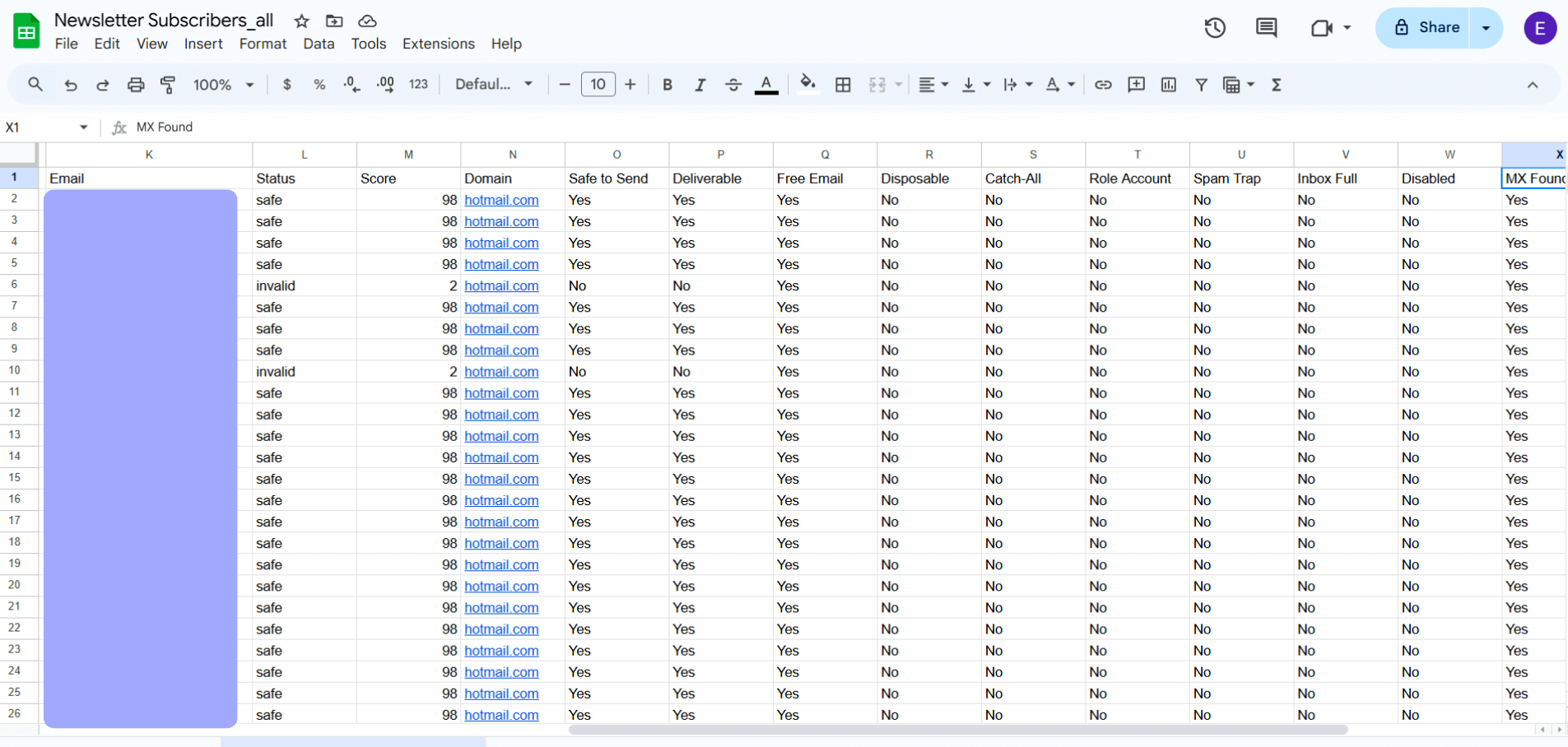
Your verification results in a spreadsheet—each row is one email with full verification data
Understanding Each Column
Your results file contains 14 verification columns (plus any columns from your original upload). Here's what each one means and why it matters.
Core Columns
| Column | What It Shows | Why It Matters |
|---|---|---|
| The email address | The address you're evaluating | |
| Status | Verification result (safe, invalid, etc.) | The most important column—tells you what to do |
| Score | Confidence score (0-100) | Higher = safer to send |
| Domain | Email domain (gmail.com, etc.) | Helps identify patterns in your list |
Quick Decision Columns
| Column | Values | What It Tells You |
|---|---|---|
| Safe to Send | Yes / No | Can you email this address? |
| Deliverable | Yes / No | Will the email likely arrive? |
These two columns give you instant answers. If both say "Yes"—you're good to go.
Detailed Flag Columns
| Column | If "Yes" | Action |
|---|---|---|
| Free Email | Gmail, Yahoo, Outlook, etc. | No action needed—just informational |
| Disposable | Temporary/throwaway email | Remove from list |
| Catch-All | Server accepts all addresses | Proceed with caution |
| Role Account | Team email (info@, support@) | Keep, but expect lower engagement |
| Spam Trap | Honeypot address | Remove immediately—never send |
| Inbox Full | Mailbox is full | Retry later or remove |
| Disabled | Account deactivated | Remove from list |
| MX Found | Domain has mail servers | "No" means email can't be delivered |
Timestamp Column
| Column | What It Shows |
|---|---|
| Verified Date | When verification was performed |
Use this to know how fresh your results are. Email lists decay over time—re-verify if results are more than 30-60 days old.
The Status Column: Your North Star
The Status column is the most important field in your results. It tells you exactly what to do with each email.
Status Quick Reference
| Status | Score | Safe to Send? | What to Do |
|---|---|---|---|
| safe | 98 | ✅ Yes | Send confidently |
| role | 93 | ✅ Yes | Send (lower engagement expected) |
| catch_all | 71 | ⚠️ Maybe | Test with small batch first |
| risky | ~50 | ⚠️ Maybe | Proceed with caution |
| disposable | 30 | ❌ No | Remove—temporary address |
| inbox_full | 20 | ⚠️ Maybe | Retry later |
| disabled | 4 | ❌ No | Remove—account deactivated |
| invalid | 2-3 | ❌ No | Remove—doesn't exist |
| spamtrap | ~3 | 🚫 Never | Remove immediately |
| unknown | 0 | ⚠️ Unknown | Retry or skip |
Filtering Your Results
The real power comes from filtering. Instead of scrolling through thousands of rows, filter to see exactly what you need.
In Excel
- Select your header row
- Go to Data → Filter
- Click the dropdown arrow on any column
- Select the values you want to see
In Google Sheets
- Select your header row
- Go to Data → Create a filter
- Click the filter icon on any column
- Check/uncheck values to filter
Useful Filters
"Show me only good emails" → Filter Status column → Select only "safe"
"Show me all bad emails" → Filter Safe to Send column → Select "No"
"Show me risky emails I need to review" → Filter Status column → Select "catch_all", "role", "inbox_full"
"Show me spam traps" → Filter Spam Trap column → Select "Yes"
What to Do With Each Status
Now for the actionable part. Here's exactly what to do with each type of email in your results.
✅ Safe Emails (Status: safe)
Action: Add to your main sending list
These are verified, deliverable email addresses. The mailbox exists, accepts mail, and is active. This is your gold—send confidently.
In your spreadsheet:
- Filter Status = "safe"
- Copy these rows to a new sheet
- Import into your email platform
✅ Role Accounts (Status: role)
Action: Keep, but set expectations
Role accounts are team emails like info@company.com, support@company.com, or sales@company.com. They're valid and will receive your email, but:
- Multiple people may read them
- Response rates are typically lower
- They're less personal
Best practice: Segment these separately. Use different messaging that acknowledges you're reaching a team, not an individual.
⚠️ Catch-All Emails (Status: catch_all)
Action: Test before bulk sending
Catch-all servers accept emails to any address on their domain. We can't verify if the specific mailbox exists—only that the server won't reject it.
What this means:
- The email might deliver
- It might bounce
- It might go to a general inbox no one checks
Best practice:
- Separate catch-all emails into their own segment
- Send to a small test batch (10-20%)
- Monitor bounce rates
- If bounces are low, send to the rest
→ Learn more about catch-all emails
⚠️ Inbox Full (Status: inbox_full)
Action: Retry later or remove
The mailbox exists but can't accept new messages—it's full. This often indicates an abandoned or neglected account.
Options:
- Wait and retry — Re-verify in a week or two
- Remove — If you've seen this status multiple times, the account is likely abandoned
❌ Disposable Emails (Status: disposable)
Action: Remove from your list
Disposable emails are temporary addresses from services like Guerrilla Mail, 10 Minute Mail, or Mailinator. People use them specifically to avoid giving their real email.
Why remove them:
- They expire quickly (minutes to days)
- The person doesn't want to hear from you
- They'll never convert to customers
Prevention tip: Use real-time verification on your signup forms to block disposable emails before they enter your database.
❌ Invalid Emails (Status: invalid)
Action: Remove from your list
These email addresses don't exist. The mailbox was never created, or it was deleted. Sending to them will result in a hard bounce.
Before deleting, check for typos:
gmial.com→gmail.comyahoocom→yahoo.comhotmal.com→hotmail.com
If you spot an obvious typo and have a way to contact the person, it might be worth correcting. Otherwise, delete.
❌ Disabled Emails (Status: disabled)
Action: Remove from your list
The email account has been deactivated by the provider or user. It exists in the system but can no longer receive mail.
Common reasons:
- User closed their account
- Account suspended for inactivity
- Company email after employee left
These will hard bounce. Remove them.
🚫 Spam Traps (Status: spamtrap)
Action: Remove immediately—never send
Spam traps are honeypot addresses used by ISPs and anti-spam organizations to identify spammers. They're not used by real people.
Types of spam traps:
- Pristine traps — Created specifically to catch spammers
- Recycled traps — Old abandoned addresses repurposed as traps
Why this is serious: Sending to a spam trap can get your domain blacklisted. Your emails will start landing in spam folders for everyone on your list, not just the trap address.
How they got on your list:
- Purchased or scraped email lists (never do this)
- Very old addresses that were recycled
- Typos that happened to match a trap
Remove these immediately. No exceptions.
⚠️ Unknown (Status: unknown)
Action: Retry or skip
We couldn't verify these emails. The server didn't respond, timed out, or used aggressive anti-verification measures.
Your credits were refunded for unknown results.
Options:
- Retry later — Server might have been temporarily down
- Skip — If you're being cautious, leave them out
- Send anyway — Higher risk, but some will be valid
Segmentation Strategies
Smart email marketers don't send one blast to everyone. They segment their lists for better results.
Basic Segmentation
| Segment | Who's In It | How to Use It |
|---|---|---|
| Primary | Safe emails only | Main campaigns, important announcements |
| Secondary | Role + Catch-all | Less frequent, more targeted |
| Re-engage | Inbox full | Win-back campaign after 30 days |
| Do Not Send | Invalid, disposable, spam trap, disabled | Archive or delete |
By Domain Type
Filter the Free Email column to segment:
| Segment | Examples | Characteristics |
|---|---|---|
| Free email users | Gmail, Yahoo, Outlook | Personal accounts, B2C |
| Business email users | @company.com | Professional, B2B |
Business emails often have higher engagement for B2B campaigns. Free emails are typical for B2C.
By Engagement Risk
| Risk Level | Statuses | Send Strategy |
|---|---|---|
| Low risk | Safe | Send normally |
| Medium risk | Role, Catch-all | Monitor closely, smaller batches |
| High risk | Inbox full, Unknown | Test first or skip |
| No send | Invalid, Disposable, Spam trap, Disabled | Never send |
Calculating Your List Health
Use your results to measure overall list quality.
Key Metrics
Deliverability Rate
(Safe + Role emails) ÷ Total emails × 100
Aim for: 90%+ is healthy, 95%+ is excellent
Bounce Risk Rate
(Invalid + Disabled + Spam trap) ÷ Total emails × 100
Aim for: Under 3%
Unknown Rate
Unknown emails ÷ Total emails × 100
Aim for: Under 5%
Example Calculation
Your list has 10,000 emails:
- Safe: 8,500
- Role: 200
- Catch-all: 500
- Invalid: 600
- Disposable: 100
- Spam trap: 10
- Unknown: 90
Deliverability Rate: (8,500 + 200) ÷ 10,000 = 87% ⚠️ Needs improvement
Bounce Risk Rate: (600 + 10) ÷ 10,000 = 6.1% ❌ Too high
Action: Remove all invalid and spam traps. Re-verify unknowns. Consider cleaning more aggressively.
Maintaining List Hygiene
Email verification isn't a one-time task. Lists decay constantly.
How Often to Verify
| Scenario | Recommended Frequency |
|---|---|
| Active sending list | Every 30-60 days |
| Before major campaign | Always verify first |
| Imported/purchased list | Immediately (and question the source) |
| List unused for 90+ days | Verify before sending anything |
Signs Your List Needs Cleaning
- Bounce rate above 2%
- Declining open rates
- Increasing spam complaints
- Emails landing in spam folders
- Blacklist warnings from your ESP
Common Questions
Should I delete invalid emails or keep them?
Delete them. There's no value in keeping addresses that don't exist. They'll never convert, and attempting to send will hurt your reputation.
What about catch-all emails?
Keep them, but treat them carefully. They're not guaranteed deliverable, but many are real addresses. Test small batches before bulk sending.
My list has lots of spam traps. What happened?
You likely acquired emails from a questionable source—purchased list, scraped data, or very old unverified addresses. Remove the traps immediately and reconsider where your emails come from.
Should I try to fix typos in invalid emails?
If the typo is obvious (gmial.com → gmail.com) and you have another way to contact the person, yes. Otherwise, don't guess—you might create a different valid address belonging to someone else.
How accurate is the Score column?
The score reflects our confidence in the verification result. Higher scores (90+) mean high confidence. Lower scores (under 50) mean more uncertainty. Use it alongside the Status for decision-making.
Quick Action Checklist
After reviewing your results:
- Export "Safe" emails as your primary sending list
- Separate "Role" and "Catch-all" for special handling
- Delete all "Invalid" emails
- Delete all "Disposable" emails
- Delete all "Spam trap" emails immediately
- Delete all "Disabled" emails
- Decide on "Inbox full" — retry or remove
- Decide on "Unknown" — retry or skip
- Import cleaned list to your email platform
- Schedule next verification in 30-60 days
Next Steps
Your results are understood. Your list is segmented. Now what?
→ Catch-All Emails Deep Dive — Special strategies for those uncertain addresses
→ Bulk Upload Another List — Verify your next batch
→ Connect Your Email Platform — Sync directly with Mailchimp, HubSpot, etc.