Brevo (Sendinblue) Integration
Brevo (formerly known as Sendinblue) has become one of the most popular all-in-one marketing platforms out there. From email campaigns to SMS marketing to CRM, it's a powerhouse for businesses of all sizes.
But here's the thing - even the best email platform can't help you if you're sending to invalid addresses. That's where Valid Email Checker comes in. Connect your Brevo account and verify your contact lists without the tedious export-import dance.
What You Can Do
With the Brevo integration, you can:
- Import contacts directly from your Brevo lists
- Verify email addresses without downloading or uploading files
- Automatically clean lists by removing or unsubscribing bad emails
- Protect your sender score by catching invalid emails before they bounce
- Connect multiple Brevo accounts if you manage several
Before You Start
Make sure you have everything ready:
| Requirement | Details |
|---|---|
| Brevo account | Free or paid plan |
| API key | Generated from SMTP & API settings |
| Valid Email Checker credits | Enough to cover your list size |
| Contacts to verify | At least one list in your Brevo account |
If you're wondering about the name - Sendinblue rebranded to Brevo in 2023. The platform is the same, just with a fresh look and name. You might still see "Sendinblue" in some places within the interface, and that's perfectly normal.
Finding Your Brevo API Key
Brevo uses API keys for secure integration. Here's how to create one:
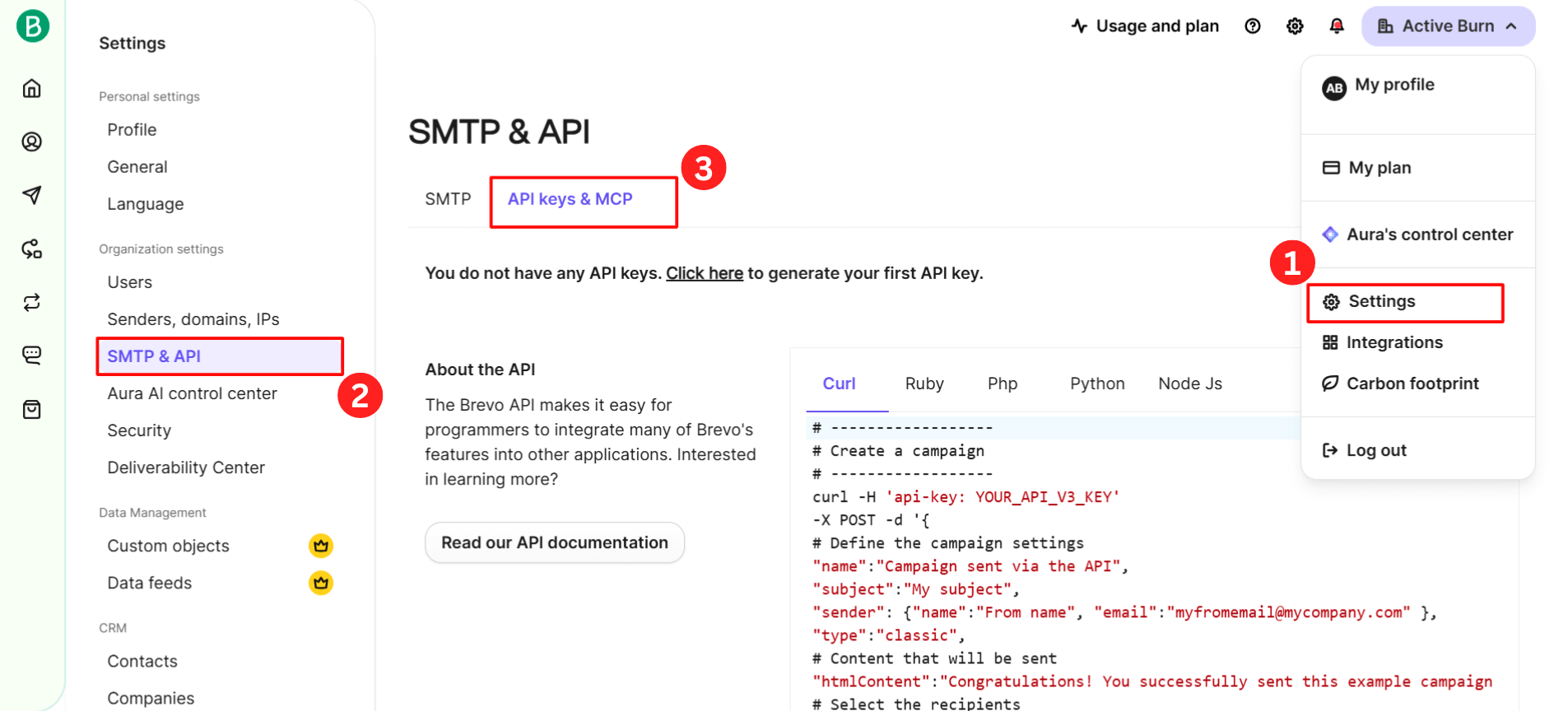
Step 1: Access SMTP & API Settings
- Log in to your Brevo account
- Click your account name in the top-right corner
- Select Settings from the dropdown menu
- In the left sidebar under Organization settings, click SMTP & API
- Click the API keys & MCP tab
Step 2: Generate a New API Key
- Click Generate a new API key button (top right)
- Enter a name for your key (e.g., "Valid Email Checker Integration")
- Click Generate
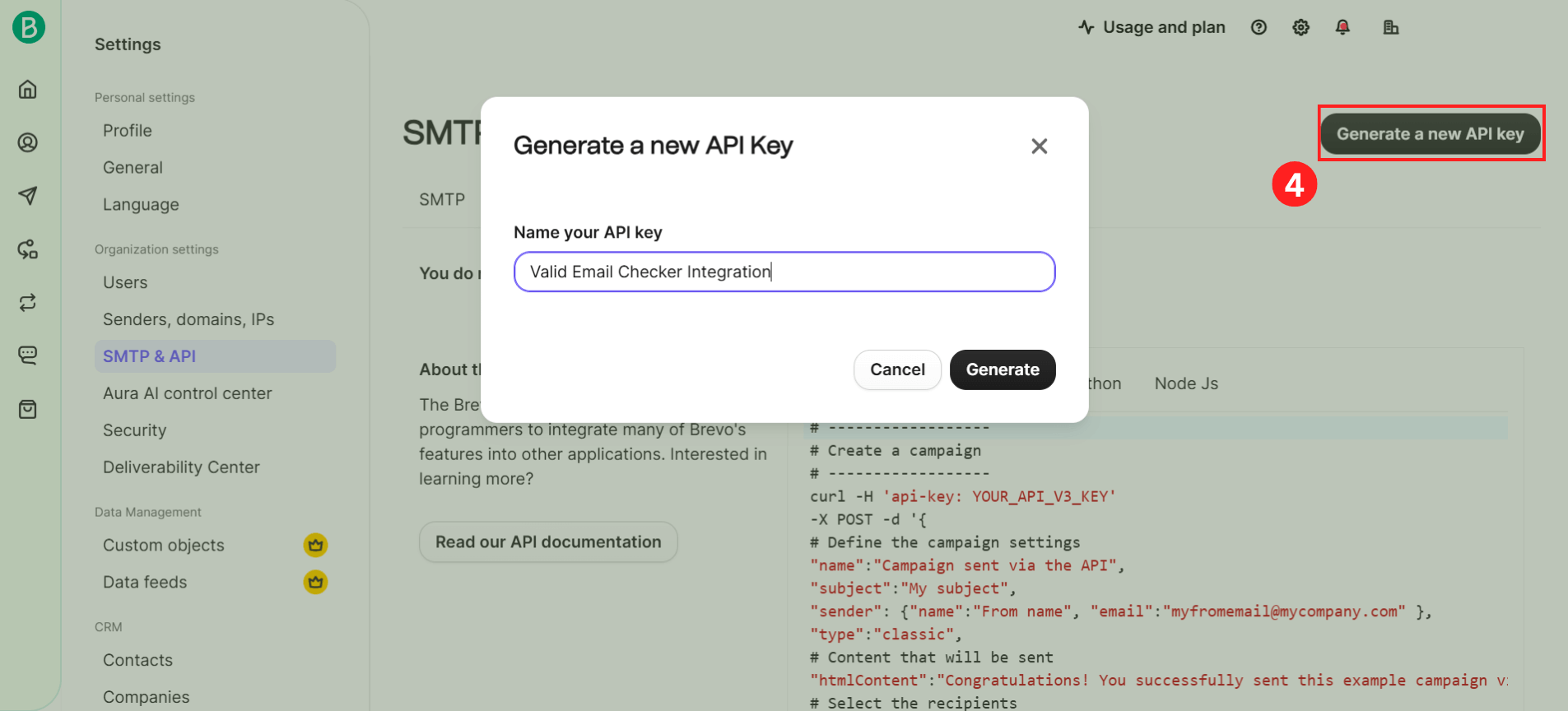
Brevo shows your API key only once when you create it. Copy it right away and store it somewhere safe. If you lose it, you'll need to generate a new one.
Connecting Your Brevo Account
Now let's connect Brevo to Valid Email Checker.
Step 1: Open the Connection Modal
You have two ways to start:
Option A: From Integrations page
- Go to Integrations in the sidebar
- Find Sendinblue(Brevo) in the Available Integrations
- Click on it to open the connection modal
Option B: From Bulk Upload page
- Go to Bulk Upload
- Click Connect Email Platform
- Select Sendinblue (Brevo) from the list
Step 2: Enter Your Credentials
In the connection modal:
- Connection Name (optional): Give this connection a friendly name like "Main Brevo Account" or "Marketing Team"
- Brevo API Key: Paste the API key you just created
- Click Connect Account
The modal includes a helpful "Where do I find my API key?" link showing the path: Settings → SMTP & API → API keys & MCP → Generate a new API key
Step 3: Connection Success
Once connected, Valid Email Checker syncs with your Brevo account and fetches your available lists.
Verifying Your Brevo Lists
After connecting, you can verify your contacts.
Step 1: Select a List
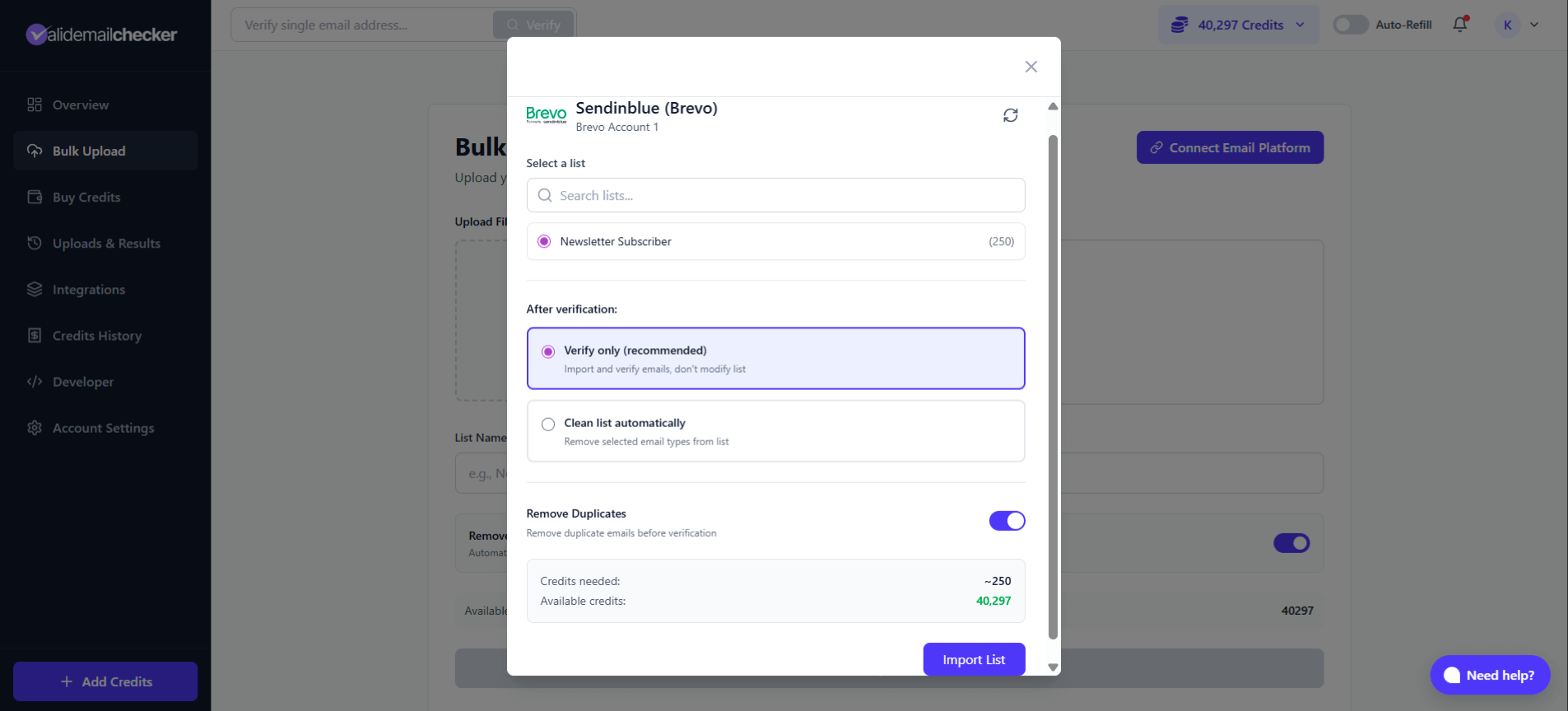
You'll see all your Brevo lists with the number of contacts in parentheses. Use the search bar to find specific lists if you have many.
Select the list you want to verify.
Step 2: Choose Your Verification Mode
You have two options:
Option 1: Verify Only
Select Verify only to:
- Import and verify all emails
- See detailed results for each contact
- Make your own decisions about what to do with each email type
- Download results and review before taking action
This is perfect if you want to understand your list health before making changes.
Option 2: Clean List Automatically
Select Clean list automatically for hands-free cleaning:
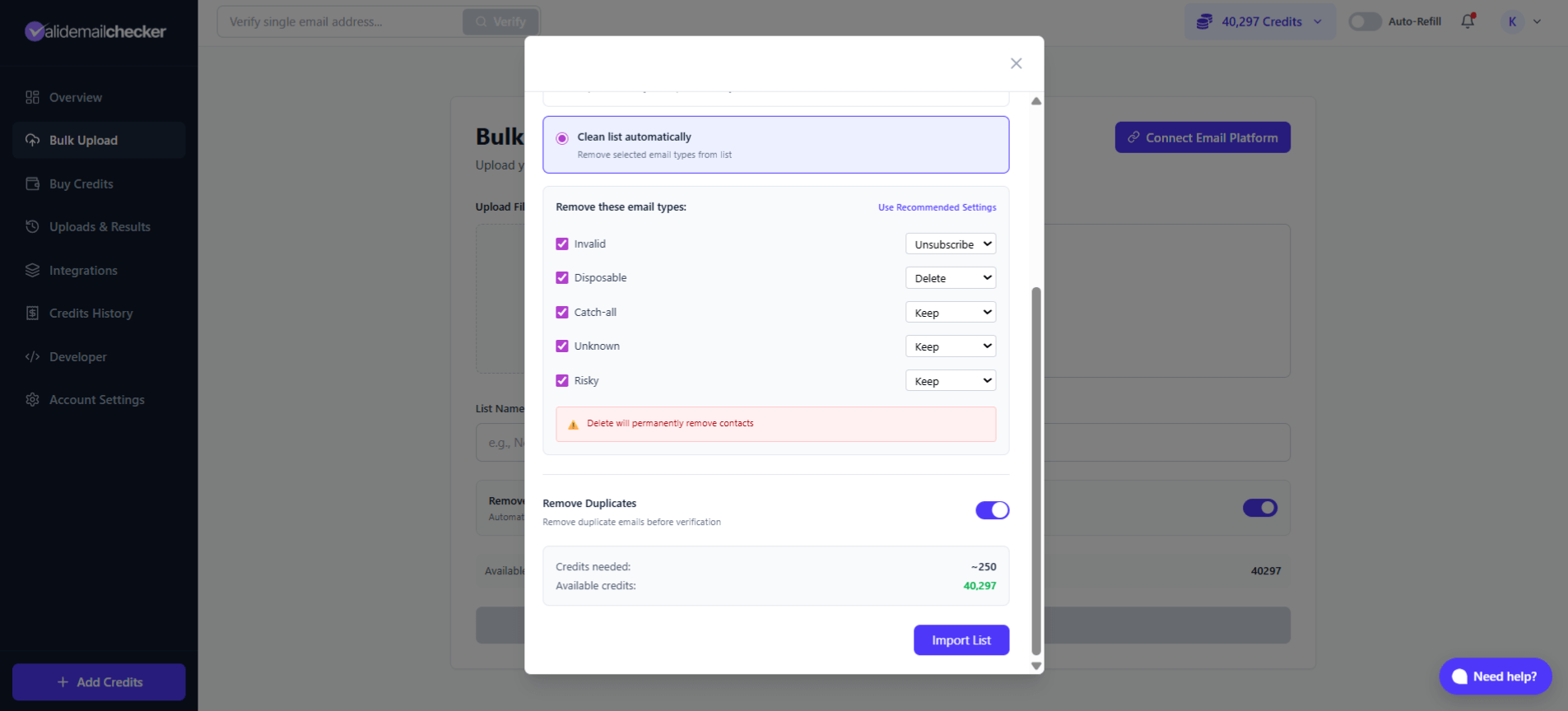
Configure what happens to each email type:
| Email Type | Options | Default |
|---|---|---|
| Invalid | Keep / Unsubscribe / Delete | Unsubscribe |
| Disposable | Keep / Unsubscribe / Delete | Delete |
| Catch-all | Keep / Unsubscribe / Delete | Keep |
| Unknown | Keep / Unsubscribe / Delete | Keep |
| Risky | Keep / Unsubscribe / Delete | Keep |
When you choose "Delete," contacts are permanently removed from Brevo. This cannot be undone. If you're unsure, use "Unsubscribe" instead - it preserves the contact but prevents them from receiving emails.
Step 3: Configure Additional Options
Remove Duplicates: Toggle on (recommended) to automatically remove duplicate email addresses before verification. This saves credits and ensures accurate counts.
Step 4: Review and Import
Check the credit summary at the bottom:
- Credits needed: Estimated credits for this verification
- Available credits: Your current balance
Click Import List to start the verification.
Monitoring Your Verification
After clicking Import List, you're redirected to the Uploads & Results page.
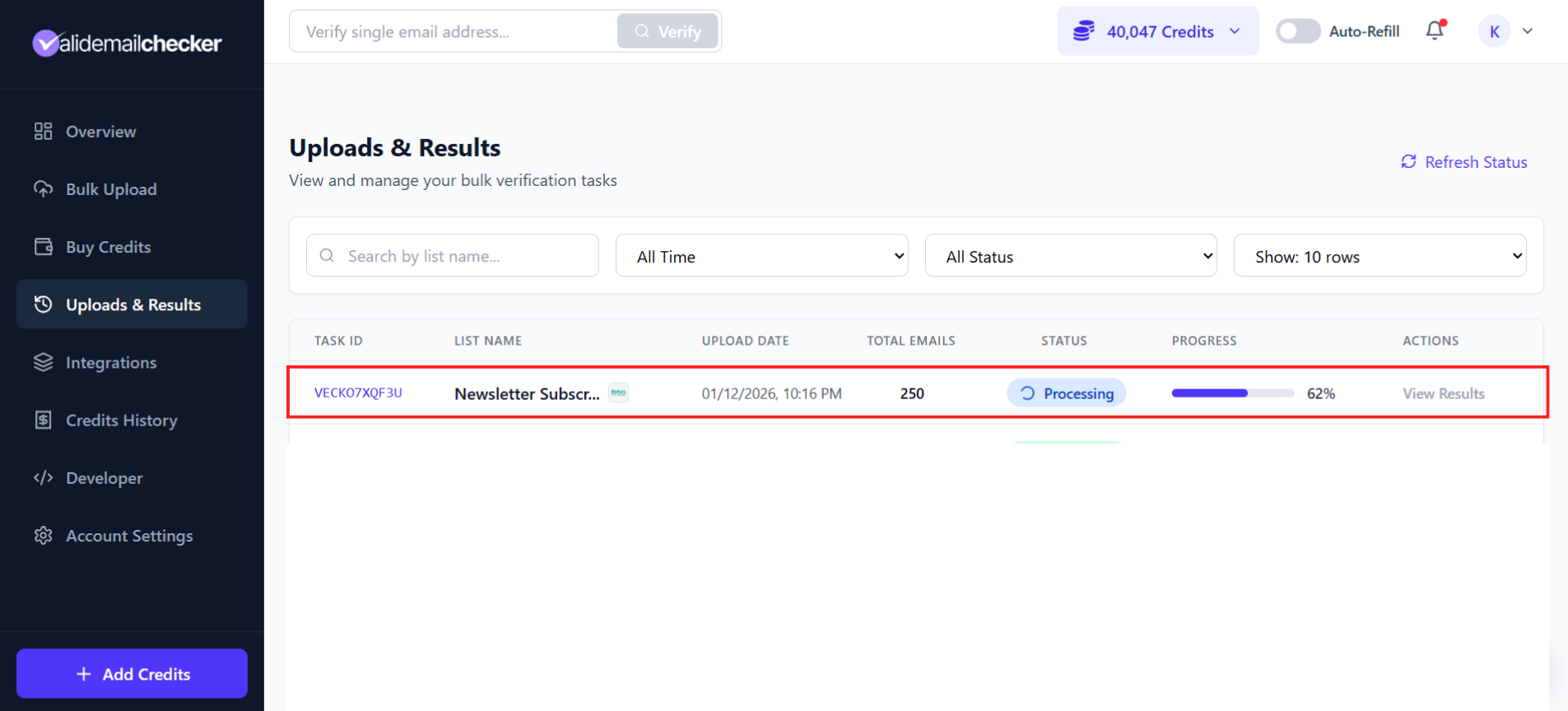
What You'll See
| Column | Description |
|---|---|
| Task ID | Unique identifier (e.g., VECKO7XQF3U) |
| List Name | Your list name with email icon |
| Upload Date | When you started the verification |
| Total Emails | Number of contacts being verified |
| Status | Processing, Completed, Failed, or Deleted |
| Progress | Percentage complete |
| Actions | View Results when complete |
Real-Time Updates
The progress updates automatically - no need to refresh. Watch the percentage climb as verification progresses.
Understanding Your Results
Once verification completes, click View Results to see the breakdown:
| Status | Meaning | Recommendation |
|---|---|---|
| Safe | Valid, deliverable email | ✅ Send confidently |
| Invalid | Doesn't exist, will bounce | ❌ Remove immediately |
| Disposable | Temporary/throwaway email | ❌ Remove |
| Catch-all | Server accepts all addresses | ⚠️ Test carefully |
| Unknown | Couldn't verify | ⚠️ Proceed with caution |
| Risky | Potential issues detected | ⚠️ Monitor closely |
For detailed explanations, see our Result Types Explained guide.
Managing Your Brevo Connection
Viewing Connected Accounts
Go to Integrations in the sidebar to see all your connected platforms.
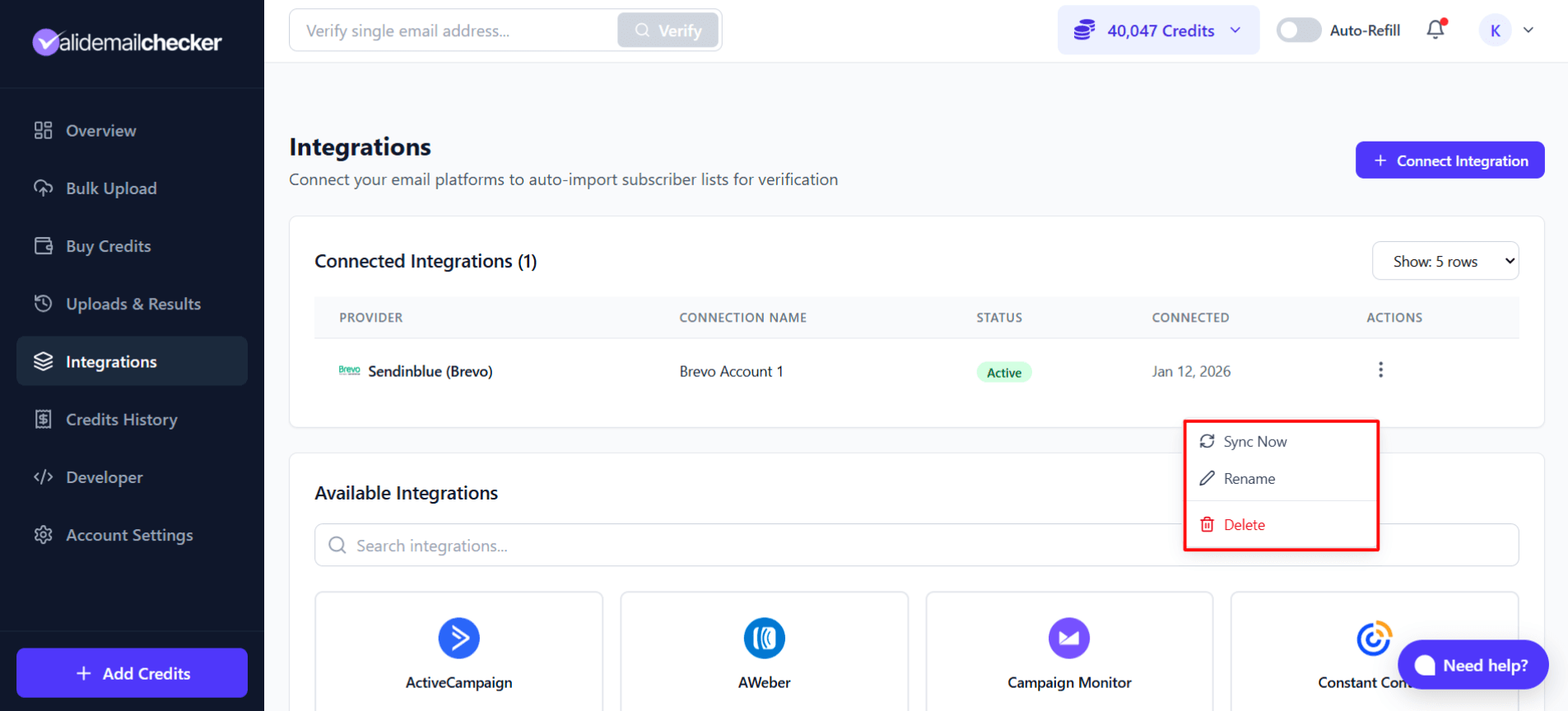
Your Brevo connection shows:
- Provider: Sendinblue (Brevo) with logo
- Connection Name: The name you gave it
- Status: Active (green badge)
- Connected: Date you connected
- Actions: Three-dot menu
Available Actions
Click the three-dot menu to access:
| Action | What It Does |
|---|---|
| Sync Now | Refresh your lists from Brevo |
| Rename | Change the connection name |
| Delete | Remove this connection entirely |
When to Sync
Use Sync Now when:
- You've added new lists in Brevo
- Contacts have changed since you last checked
- Lists aren't appearing that should be there
Syncing refreshes the list data from Brevo but doesn't re-verify anything.
Connecting Multiple Brevo Accounts
Managing multiple Brevo accounts? No problem.
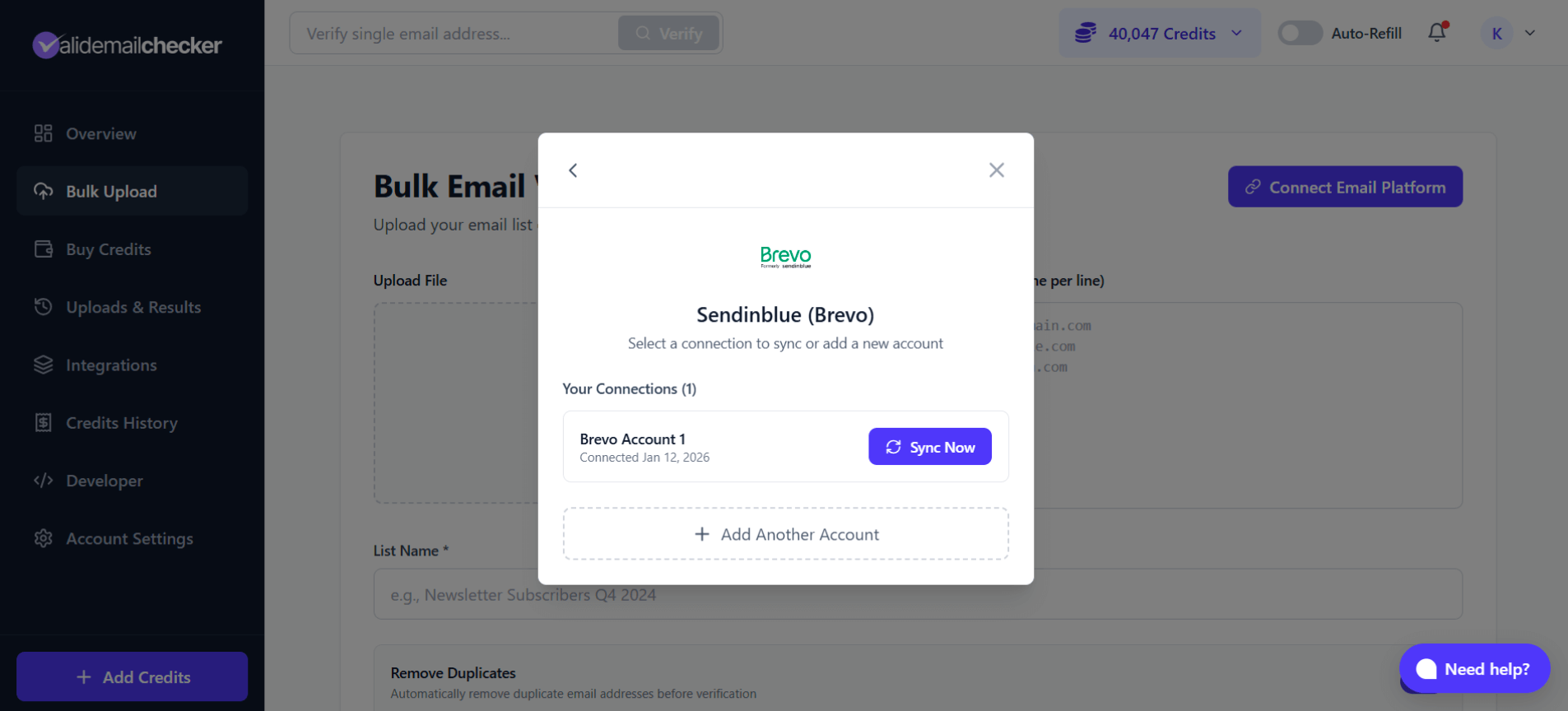
Adding Another Account
- Click Connect Email Platform from Bulk Upload page
- Select Sendinblue (Brevo)
- You'll see your existing connections listed under "Your Connections"
- Click + Add Another Account
- Enter the new API key and a unique name
- Click Connect Account
Managing Multiple Connections
Each Brevo connection appears separately in your Integrations list. Use clear names to tell them apart:
- "Brevo - Main Account"
- "Brevo - Client ABC"
- "Brevo - Newsletter"
Each connection needs a unique name. If you try to use the same name twice, you'll be prompted to choose a different one.
Troubleshooting
"Invalid API key" Error
Causes:
- API key was copied incorrectly (missing characters)
- API key was deleted in Brevo
- API key has been revoked
Solutions:
- Go to Brevo Settings → SMTP & API → API keys & MCP
- Generate a new API key
- Copy the entire key carefully
- Paste it fresh into Valid Email Checker
No Lists Appearing
Causes:
- No lists created in Brevo yet
- API key doesn't have correct permissions
- Lists are empty
Solutions:
- Log in to Brevo and check Contacts → Lists
- Ensure you have at least one list with contacts
- Use Sync Now to refresh
Connection Works But Import Fails
Causes:
- Insufficient credits
- List is empty
- Network timeout for very large lists
Solutions:
- Check your credit balance
- Verify the list has contacts in Brevo
- For large lists, try during off-peak hours
List Count Doesn't Match Brevo
Contact counts might differ slightly due to:
- Recent additions not yet synced
- Duplicate emails (we deduplicate before counting)
- Blocklisted or unsubscribed contacts
Use Sync Now to refresh the latest counts.
Frequently Asked Questions
Does Valid Email Checker modify my Brevo contacts?
Only if you choose "Clean list automatically." With "Verify only," we just read and verify - no changes are made to your Brevo account.
What happens when I delete a contact?
If you select "Delete" as the action for any email type, that contact is permanently removed from your Brevo list. They won't appear in that list anymore.
Can I verify Brevo contacts and export results?
Yes! After verification completes, you can download results in CSV, XLSX, JSON, or TXT format from the Uploads & Results page.
Is the Brevo API key stored securely?
Yes. Your API key is encrypted and stored securely. We use it only to communicate with Brevo on your behalf.
Will this work with my Sendinblue account?
Yes! Sendinblue and Brevo are the same platform - Sendinblue rebranded to Brevo in 2023. Your existing Sendinblue account works perfectly with this integration.
Can I verify contacts across all my lists at once?
Currently, you verify one list at a time. This gives you more control and lets you prioritize your most important lists first.
Next Steps
Now that you've connected Brevo:
- Understanding Catch-All Emails - Learn how to handle catch-all results
- Credit System - Understand how credits work
- Auto-Refill Setup - Never run out of credits during verification
- All Integrations - Connect more email platforms