Mailgun Integration
Connect your Mailgun account to Valid Email Checker and verify your mailing lists without manual exports. Keep your transactional email lists clean and your sender reputation protected.
What You Can Do
Once connected, you can:
- Import mailing lists directly from Mailgun
- Verify emails without downloading or uploading files
- Auto-clean lists by removing bad emails automatically
- Track verification progress in real-time
- Connect multiple accounts if you manage several Mailgun setups
Before You Start
Make sure you have:
| Requirement | Details |
|---|---|
| Mailgun account | Active account with API access |
| API key | Generated from API Security settings |
| Mailing lists | At least one list with subscribers |
| Valid Email Checker credits | Enough credits for your list size |
Finding Your Mailgun API Key
Mailgun uses API keys for authentication. Here's how to find or create yours:
Step 1: Access API Security
- Log in to your Mailgun account
- Click your profile icon in the top right corner
- Select API Security from the dropdown menu
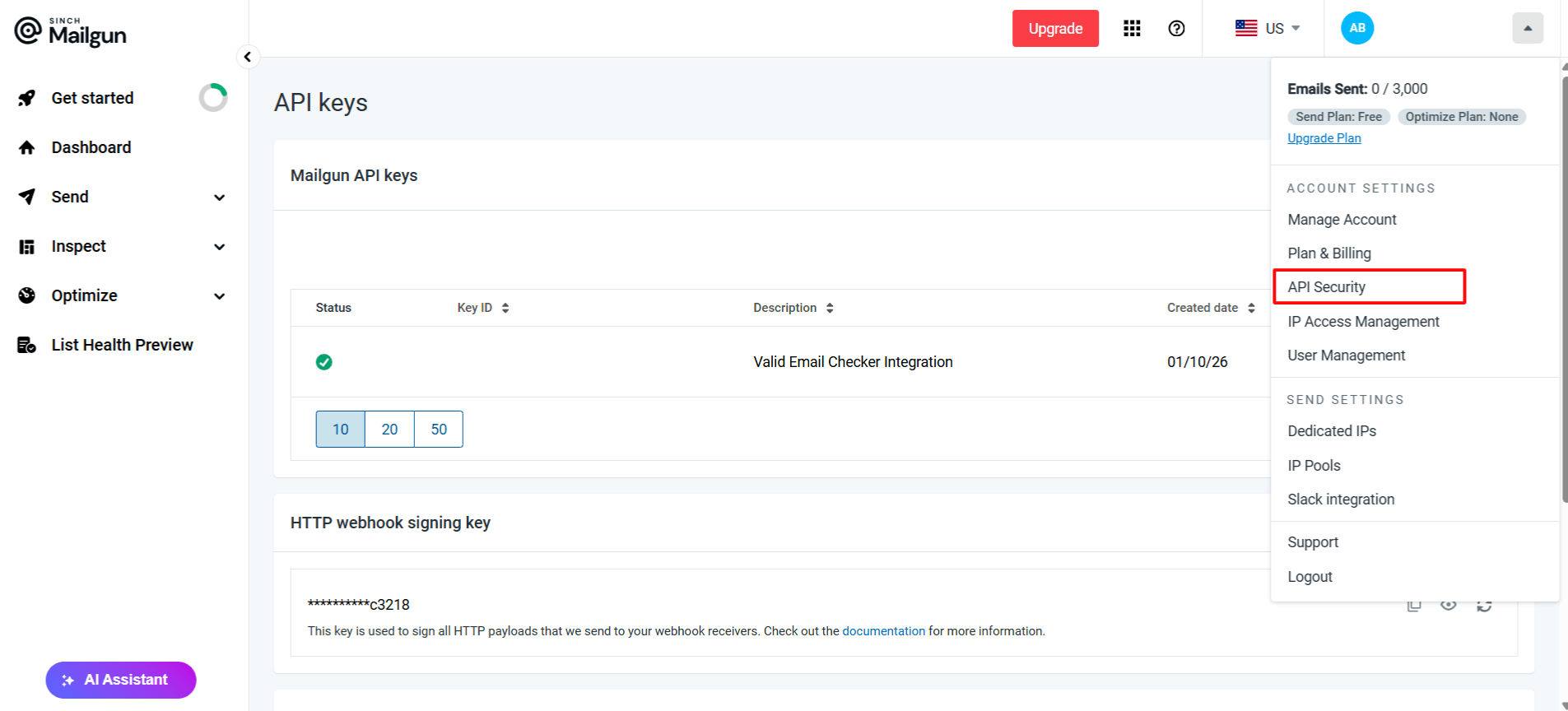
Step 2: Create or Copy Your API Key
If you have an existing API key:
- Find it in the "Mailgun API keys" table
- Click the copy icon to copy the key
If you need to create a new key:
- Click Create Key
- Give it a description (e.g., "Valid Email Checker Integration")
- Copy the key immediately - it's only shown once!
Mailgun only displays your full API key once when you create it. Copy it immediately and store it somewhere secure. If you lose it, you'll need to create a new one.
Connecting Your Mailgun Account
Step 1: Open the Integration
- Log in to Valid Email Checker
- Click Integrations in the left sidebar
- Find Mailgun in the Available Integrations
- Click on the Mailgun card
Step 2: Enter Your Credentials
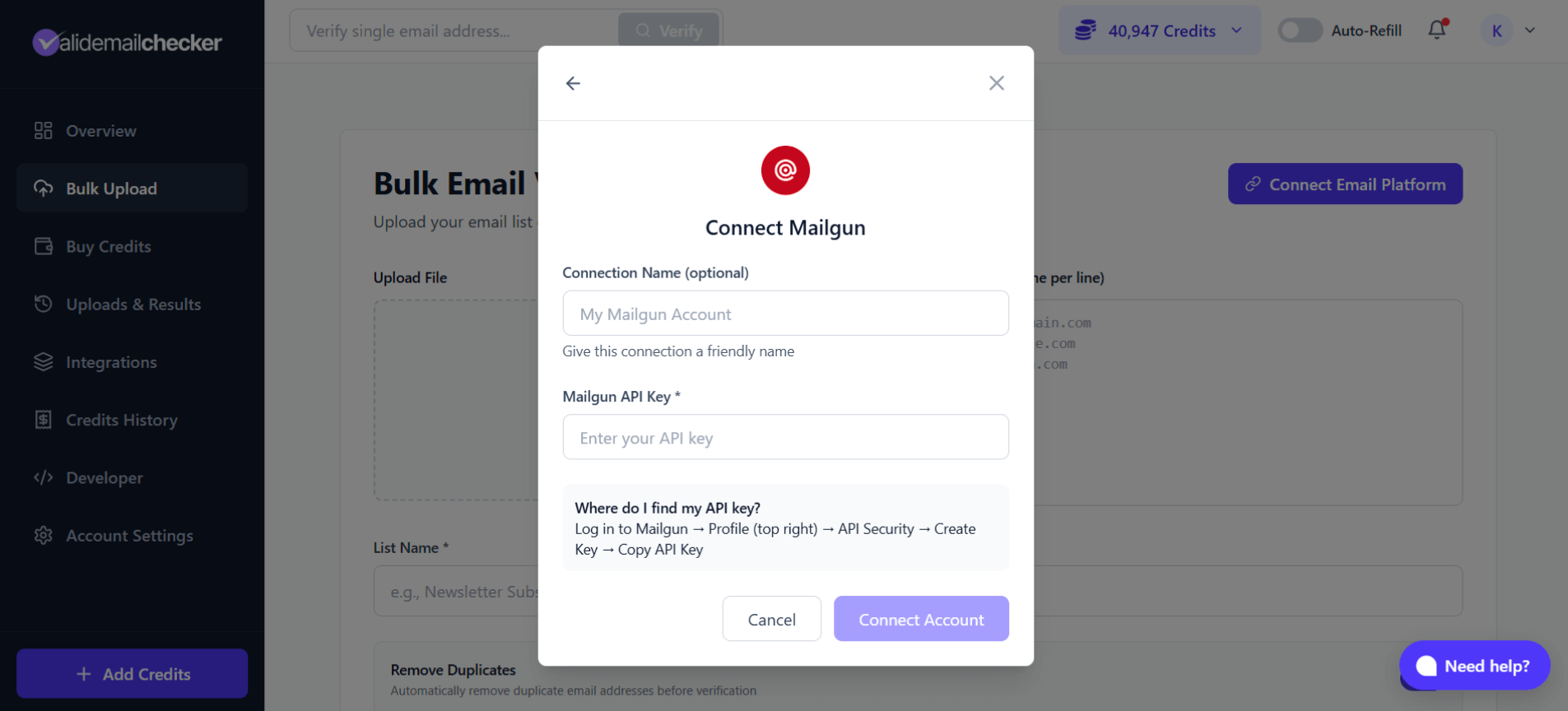
Fill in the connection form:
| Field | What to Enter |
|---|---|
| Connection Name | A friendly name (e.g., "My Mailgun Account") - optional |
| Mailgun API Key | Your API key from Mailgun |
Step 3: Connect
Click Connect Account. Valid Email Checker will verify your API key and connect to your Mailgun account.
Using descriptive names like "Production Mailgun" or "Marketing Mailgun" helps when you have multiple accounts connected.
Verifying Your Mailing Lists
Step 1: Select Your Connection
After connecting, you can start verifying:
- Go to Bulk Upload in the sidebar
- Click Connect Email Platform
- Select Mailgun
- Choose your connection and click Sync Now
Step 2: Choose a Mailing List
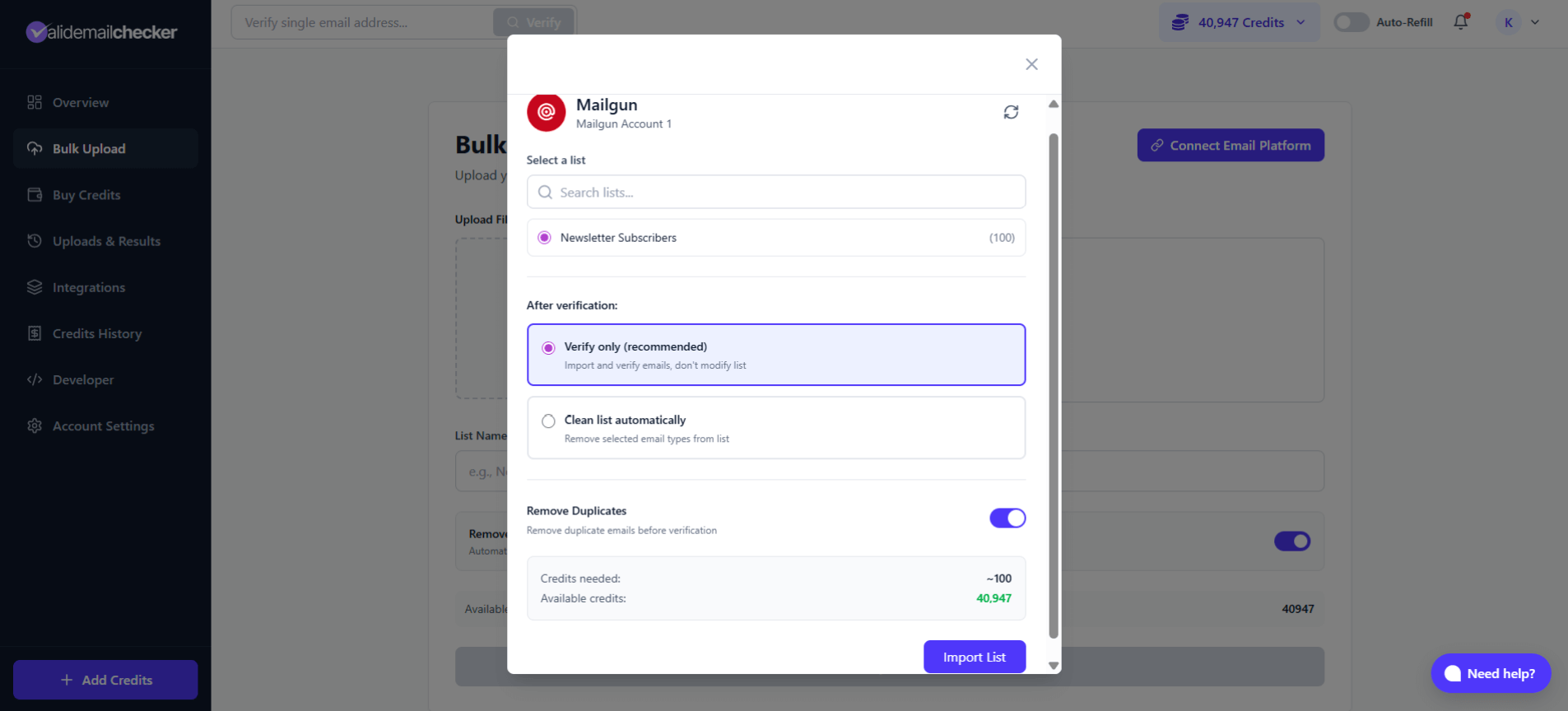
Your Mailgun mailing lists will appear. Select the list you want to verify.
You'll see:
- List name - The name of your mailing list
- Subscriber count - Number of emails in the list
- Search - Find specific lists if you have many
Step 3: Choose Your Verification Mode
You have two options:
Option A: Verify Only
Select Verify only to:
- Import and verify all emails
- See results without changing your Mailgun list
- Decide what to do after reviewing results
This is the safest option - your Mailgun list stays untouched.
Option B: Clean List Automatically
Select Clean list automatically to have Valid Email Checker remove or update problematic emails in Mailgun after verification.
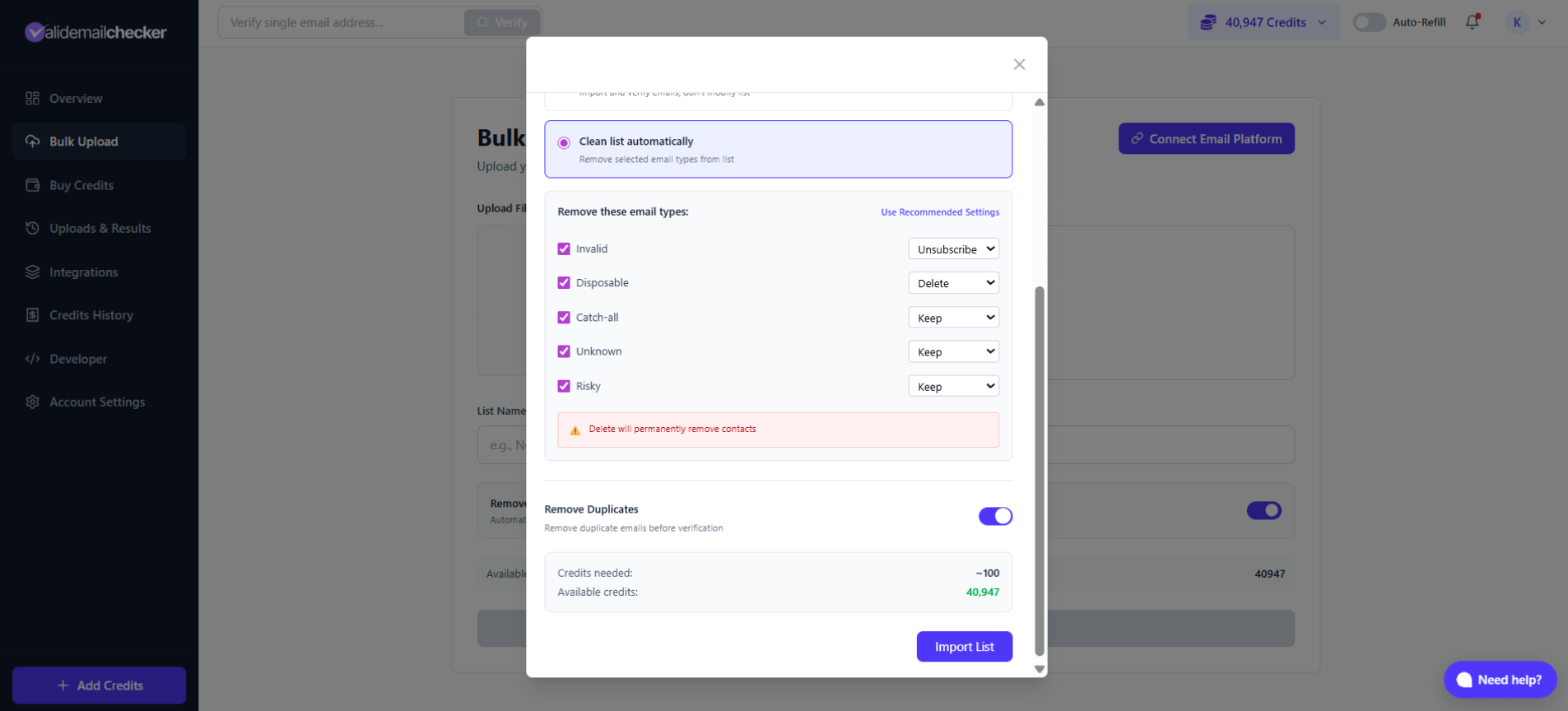
Configure what happens to each email type:
| Email Type | Available Actions | Default |
|---|---|---|
| Invalid | Keep, Unsubscribe, Delete | Unsubscribe |
| Disposable | Keep, Unsubscribe, Delete | Delete |
| Catch-all | Keep, Unsubscribe, Delete | Keep |
| Unknown | Keep, Unsubscribe, Delete | Keep |
| Risky | Keep, Unsubscribe, Delete | Keep |
Action definitions:
- Keep - Leave the contact unchanged in Mailgun
- Unsubscribe - Mark as unsubscribed (preserves the record)
- Delete - Permanently remove from your Mailgun list
When you choose "Delete," contacts are permanently removed from your Mailgun mailing list. This cannot be undone. If unsure, use "Unsubscribe" instead.
Step 4: Configure Options
Before importing:
- Remove Duplicates - Toggle on to skip duplicate emails (saves credits)
- Credits needed - Shows how many credits this verification will use
- Available credits - Your current credit balance
Step 5: Start Verification
Click Import List to begin. You'll be redirected to the Uploads & Results page.
Monitoring Verification Progress
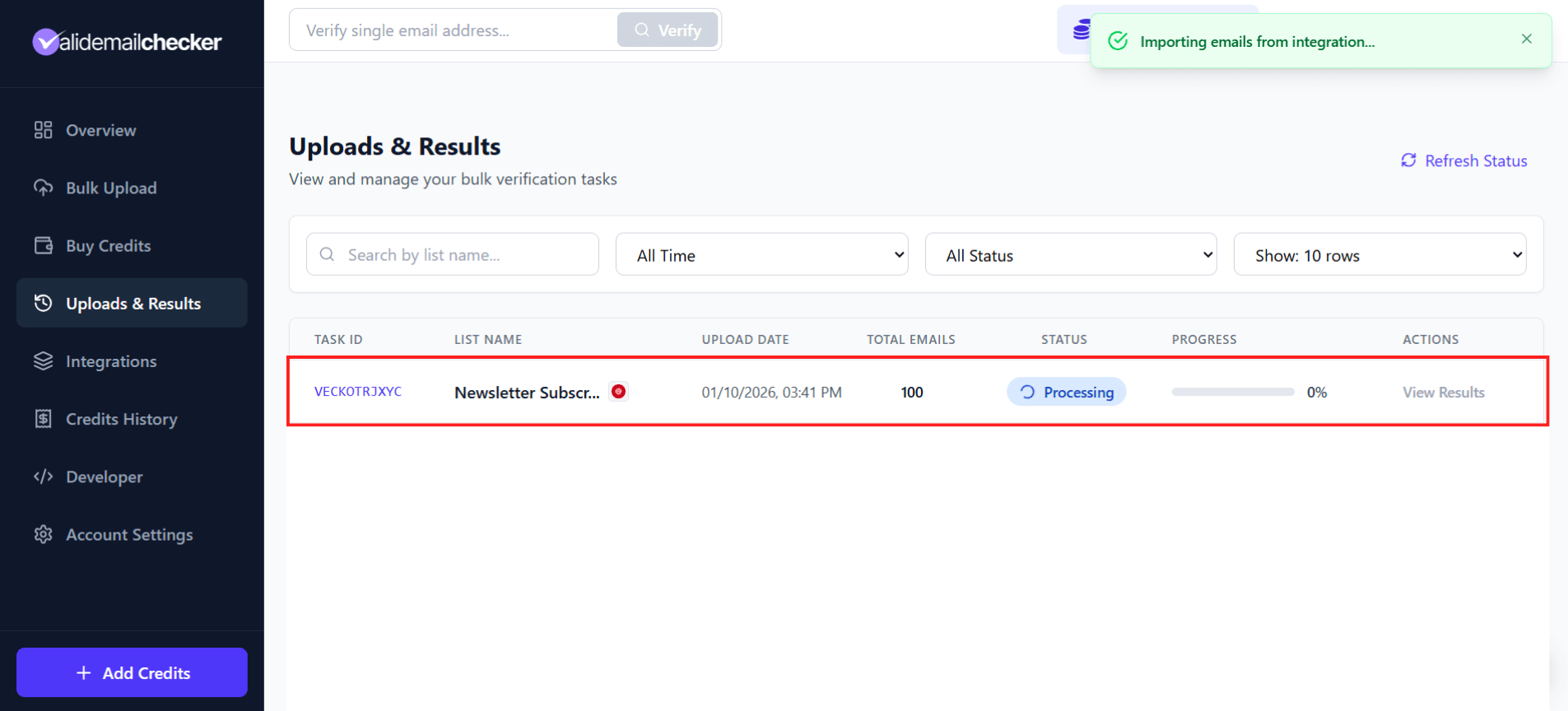
Track your verification in real-time:
| Column | Description |
|---|---|
| Task ID | Unique identifier (e.g., VECK0TRJXYC) |
| List Name | Your Mailgun list name with integration icon |
| Upload Date | When verification started |
| Total Emails | Number of emails being verified |
| Status | Processing, Completed, Failed, or Deleted |
| Progress | Percentage complete |
| Actions | View Results when done |
Verification Timeline
| List Size | Estimated Time |
|---|---|
| 100 emails | Seconds |
| 1,000 emails | 1-2 minutes |
| 10,000 emails | 5-10 minutes |
| 100,000 emails | 15-30 minutes |
| 1,000,000 emails | 1-2 hours |
The page updates automatically - no need to refresh.
Managing Your Mailgun Connection
Accessing Connection Settings
- Go to Integrations in the sidebar
- Find your Mailgun connection in "Connected Integrations"
- Click the three-dot menu (⋮) for options
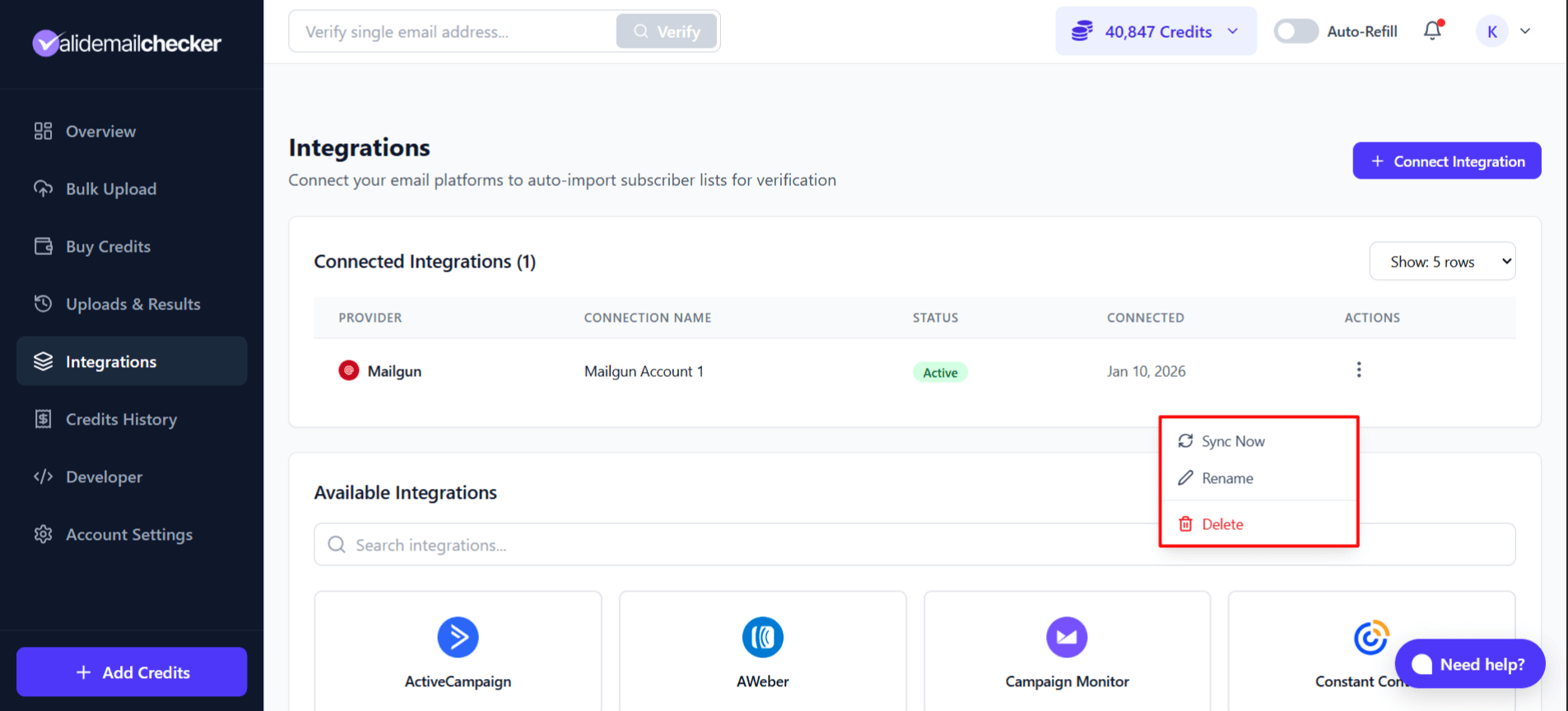
Available Actions
| Action | What It Does |
|---|---|
| Sync Now | Refresh your mailing lists from Mailgun |
| Rename | Change the connection's display name |
| Delete | Remove the connection entirely |
When to Use Each Action
- Sync Now - After adding new lists in Mailgun
- Rename - To better identify the account
- Delete - When you no longer need this connection
Removing a connection from Valid Email Checker doesn't affect your Mailgun account or mailing lists. You can always reconnect later with the same API key.
Multiple Mailgun Accounts
Managing multiple Mailgun accounts? No problem.
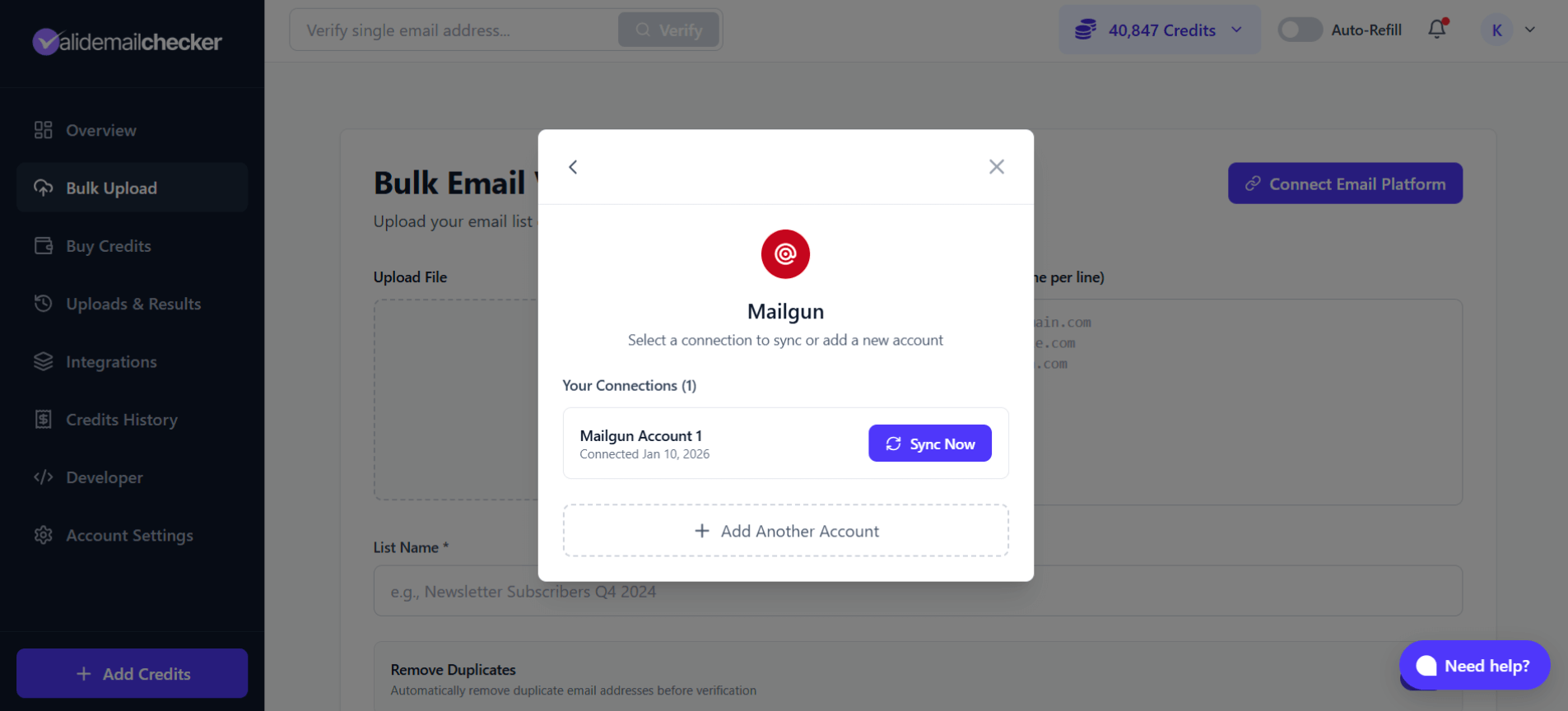
Adding Another Account
- Click Connect Email Platform from Bulk Upload
- Select Mailgun
- Click Add Another Account
- Enter the new account's API key
- Give it a unique, descriptive name
Managing Multiple Connections
Each connection appears separately in your Integrations page. Use clear naming to tell them apart:
- "Mailgun - Production"
- "Mailgun - Development"
- "Mailgun - Client ABC"
- "Mailgun - Marketing Team"
Troubleshooting
"Invalid API key" Error
Causes:
- Copied the key incorrectly
- Using the wrong key type
- Key was deleted or regenerated
Solutions:
- Go to Mailgun → Profile → API Security
- Create a new API key
- Copy the entire key (including any prefixes)
- Paste it fresh into Valid Email Checker
No Lists Showing Up
Causes:
- No mailing lists created in Mailgun
- Lists are empty
- API key lacks permissions
Solutions:
- Check your Mailgun account for existing mailing lists
- Create a mailing list in Mailgun first
- Ensure you're using a Private API key (not validation key)
- Click "Sync Now" to refresh
Connection Shows "Error" Status
Causes:
- API key was regenerated in Mailgun
- Account permissions changed
- Temporary API issue
Solutions:
- Delete the connection in Valid Email Checker
- Generate a new API key in Mailgun
- Reconnect with the fresh credentials
Verification Stuck at 0%
Causes:
- Large list still importing
- Network connectivity issues
- Processing queue
Solutions:
- Wait a few minutes - large imports take time
- Check the notification in the top right
- Refresh the page
- Contact support if stuck for over 30 minutes
Changes Not Appearing in Mailgun
If you selected auto-clean but changes aren't visible:
- Wait for verification to complete fully
- Refresh your Mailgun mailing list view
- Check the verification results in Valid Email Checker
- Confirm the action wasn't set to "Keep"
Frequently Asked Questions
Does Valid Email Checker store my Mailgun API key securely?
Yes. Your API key is encrypted and stored securely. We use it only to connect to Mailgun on your behalf and never share it.
Will verifying emails send anything to my subscribers?
No. Email verification checks if addresses are valid without sending any emails. Your subscribers won't know verification happened.
Can I verify the same list multiple times?
Yes. You might want to re-verify if:
- Significant time has passed
- You've added new subscribers
- You want to catch newly invalid addresses
What's the difference between Mailgun and email marketing platforms?
Mailgun is primarily an email delivery service (transactional email), while platforms like Mailchimp or ConvertKit focus on marketing automation. Valid Email Checker works with both types.
How do mailing list subscriptions work?
When you choose "Unsubscribe" for an email type, Valid Email Checker marks those contacts as unsubscribed in Mailgun. They remain in your list but won't receive emails.
Can I reconnect if I delete my connection?
Absolutely. Deleting a connection just removes it from Valid Email Checker. Reconnect anytime with the same or a new API key.
Does this work with Mailgun's EU region?
Yes. Valid Email Checker works with both US and EU Mailgun regions. Just use your account's API key as normal.
Next Steps
Now that your Mailgun account is connected:
- Verify your first list - Start cleaning your mailing lists
- Understanding results - Learn what each status means
- Set up auto-refill - Never run out of credits
- Connect more platforms - Add your other email tools
Need help? Contact our support team at support@validemailchecker.com or use the chat widget in the bottom right corner.