ActiveCampaign Integration
Connect your ActiveCampaign account to Valid Email Checker and verify your email lists without ever leaving our platform. No file exports, no manual uploads—just seamless verification that keeps your lists clean and your deliverability high.
What You'll Need
Before you start, make sure you have:
- An ActiveCampaign account (any plan)
- Admin access to your ActiveCampaign account
- Your ActiveCampaign API URL and API Key
- Sufficient credits in your Valid Email Checker account
Finding Your ActiveCampaign API Credentials
ActiveCampaign requires two pieces of information to connect: your API URL and your API Key. Here's how to find them:
- Log in to your ActiveCampaign account
- Click the Settings gear icon (bottom left)
- Select Developer from the left sidebar
- Your API URL and API Key are displayed under API Access
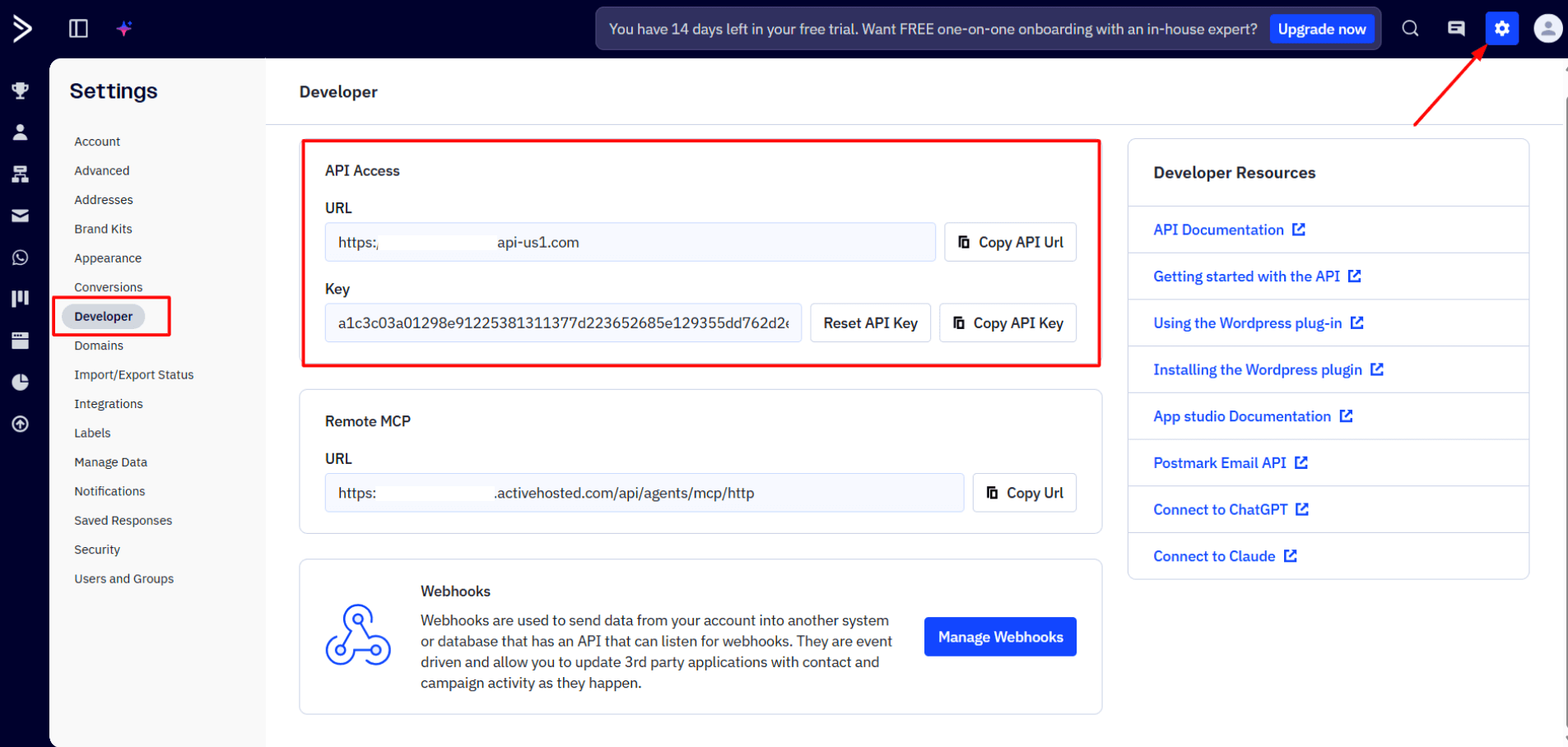
What you'll see:
| Credential | Description | Example |
|---|---|---|
| URL | Your unique ActiveCampaign API endpoint | https://youraccount.api-us1.com |
| Key | Your secret API key (long string) | a1c3c03a01298e9122538... |
Use the Copy API Url and Copy API Key buttons to copy these values exactly. Even a small typo will prevent the connection from working.
Connecting ActiveCampaign to Valid Email Checker
Now that you have your credentials, let's connect your account.
Step 1: Open the Integration Modal
You have two ways to start:
Option A: Click Integrations in the sidebar, then click + Connect Integration or click on the ActiveCampaign card.
Option B: Click Bulk Upload in the sidebar, then click Connect Email Platform in the top right corner and select ActiveCampaign.
Step 2: Enter Your Credentials
The connection modal will appear asking for your ActiveCampaign details:
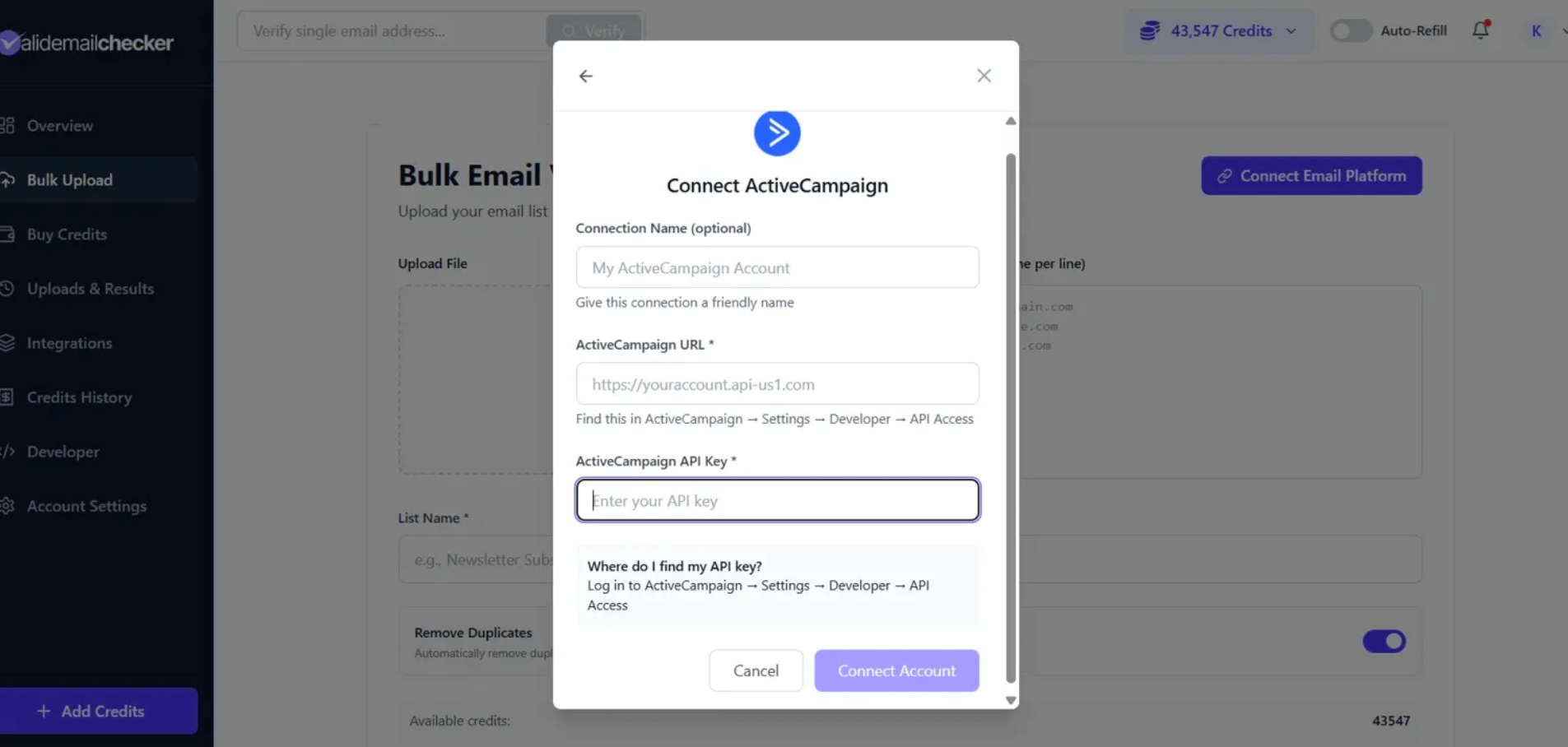
Fill in the following:
| Field | What to Enter |
|---|---|
| Connection Name (optional) | A friendly name like "My ActiveCampaign Account" or "Marketing Team AC" |
| ActiveCampaign URL | Your API URL from ActiveCampaign (e.g., https://youraccount.api-us1.com) |
| ActiveCampaign API Key | Your API Key from ActiveCampaign |
Step 3: Click Connect Account
Once you've entered your credentials, click Connect Account. We'll verify your credentials and establish the connection.
If successful, you'll see a confirmation and be taken to the list selection screen.
If you see an error, double-check that:
- Your API URL includes
https://at the beginning - Your API Key is copied exactly (no extra spaces)
- Your ActiveCampaign account is active
Verifying Your ActiveCampaign Lists
Once connected, you can verify any of your ActiveCampaign lists. Here's how:
Step 1: Select a List
After connecting (or when you click Sync Now on an existing connection), you'll see all your ActiveCampaign lists:
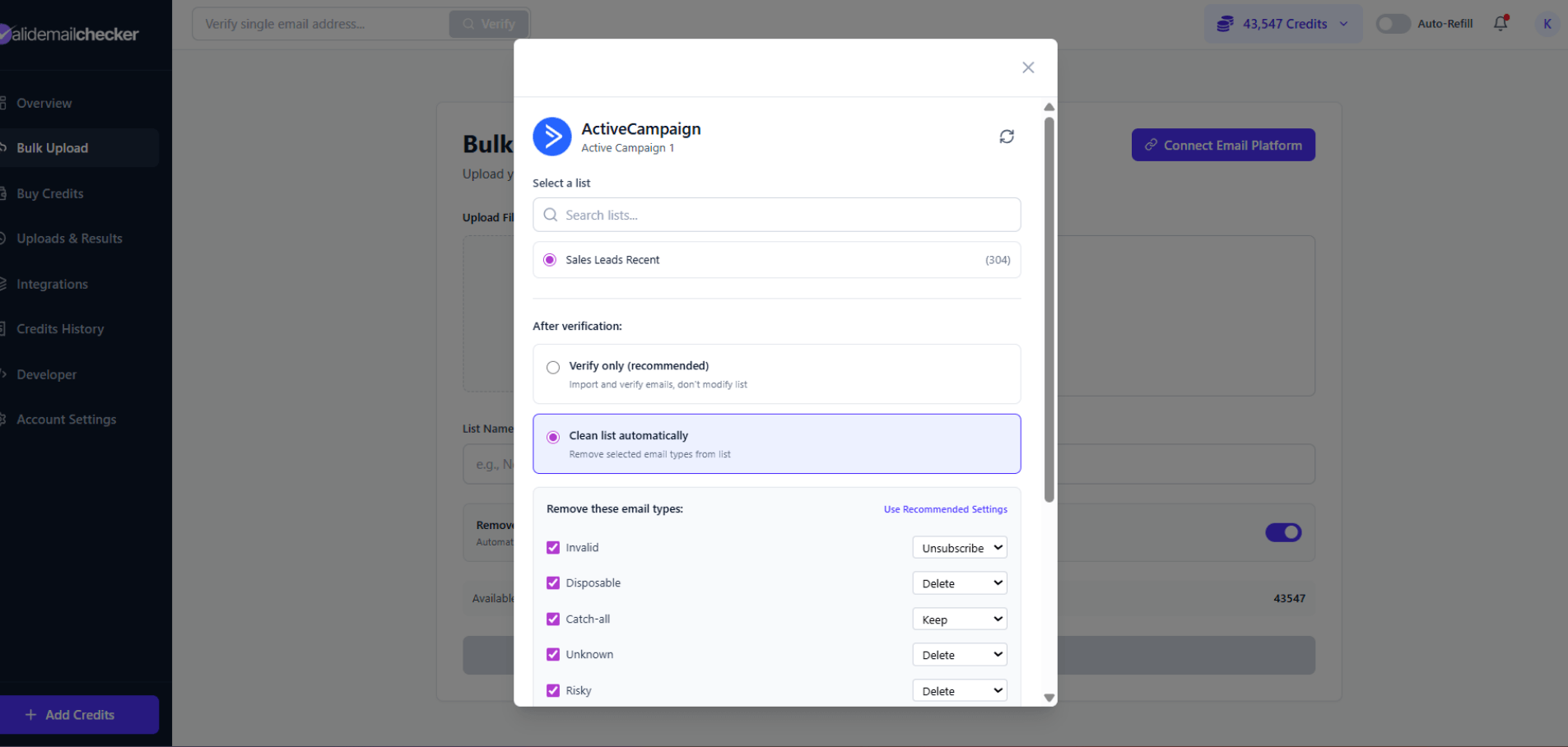
Each list shows:
- List name — The name you gave it in ActiveCampaign
- Contact count — How many emails are in that list
Click on the list you want to verify.
Step 2: Choose Your Verification Mode
This is where the magic happens. You have two options:
Option 1: Verify Only
Select Verify only if you want to:
- See verification results before making any changes
- Review which emails are problematic
- Make manual decisions about what to keep or remove
- Download results for your records
This imports and verifies your list but doesn't modify anything in ActiveCampaign. Your original list stays exactly as it is.
Option 2: Clean List Automatically
Select Clean list automatically if you want us to:
- Verify all emails
- Automatically remove or unsubscribe bad emails from your ActiveCampaign list
- Keep your list clean without manual intervention
When you choose this option, you can customize exactly what happens to each email type:
| Email Type | Available Actions | Default |
|---|---|---|
| Invalid | Unsubscribe, Delete, Keep | Unsubscribe |
| Disposable | Unsubscribe, Delete, Keep | Delete |
| Catch-all | Unsubscribe, Delete, Keep | Keep |
| Unknown | Unsubscribe, Delete, Keep | Keep |
| Risky | Unsubscribe, Delete, Keep | Keep |
What each action means:
- Unsubscribe — The contact stays in ActiveCampaign but is unsubscribed from the list (they won't receive emails but you keep their data)
- Delete — The contact is completely removed from ActiveCampaign
- Keep — No action taken; the contact remains as-is
Step 3: Start Verification
Click the button to start importing and verifying your list. You'll be automatically redirected to the Uploads & Results page to track progress.
Tracking Your Verification Progress
Once verification starts, you'll see your task on the Uploads & Results page:
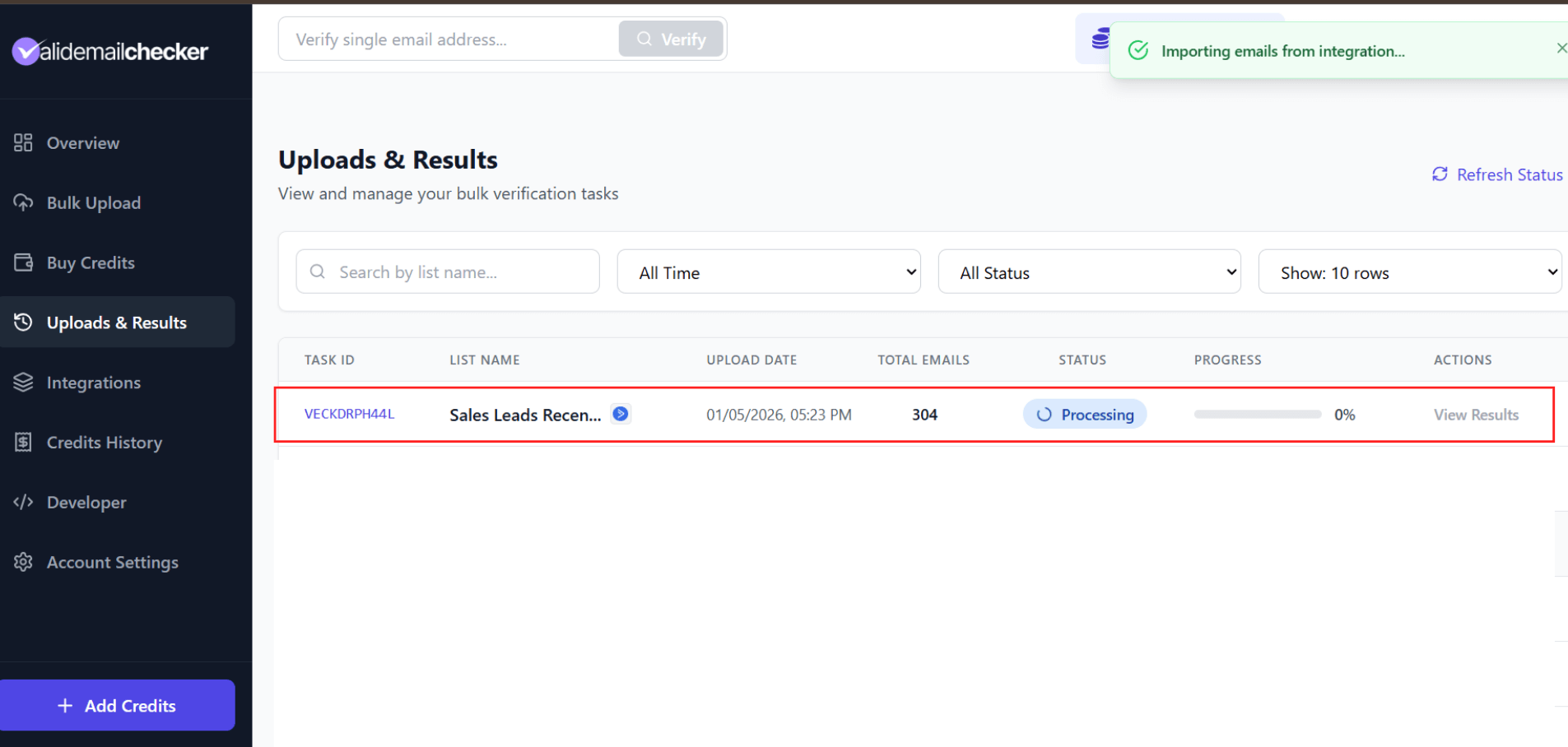
What you'll see:
| Column | Description |
|---|---|
| Task ID | Unique identifier for this verification (e.g., VECKDRPH44L) |
| List Name | The name of your ActiveCampaign list |
| Upload Date | When you started the verification |
| Total Emails | Number of contacts being verified |
| Status | Current state (Processing, Completed, etc.) |
| Progress | Percentage complete with progress bar |
| Actions | View Results, Delete |
The page updates automatically—no need to refresh. You'll also see a notification in the top right showing "Importing emails from integration..." while we pull your contacts.
Status meanings:
- 🔄 Processing — Verification in progress
- ✅ Completed — All done! Click "View Results" to see the breakdown
- ⚠️ Completed with Warning — Finished, but some emails couldn't be processed (credits refunded)
- ❌ Failed — Something went wrong (rare)
- 🗑️ Deleted — File deleted after 15 days on our server
Managing Your ActiveCampaign Connection
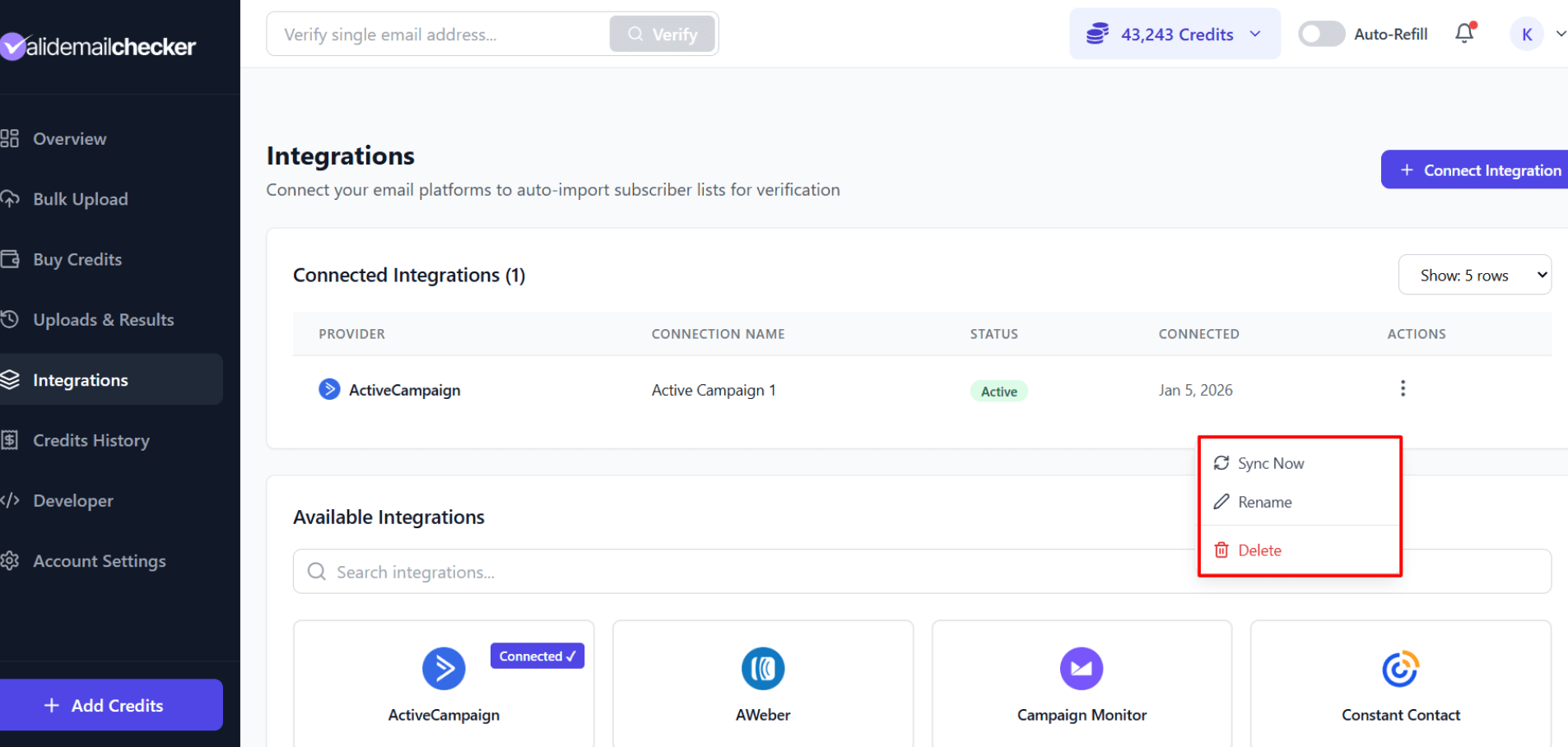
Your connected ActiveCampaign accounts appear on the Integrations page. Here's how to manage them:
Connection Actions
Click the three-dot menu (⋮) next to any connection to see your options:
| Action | What It Does |
|---|---|
| Sync Now | Open the list selector to verify another list from this account |
| Rename | Change the connection name (helpful if you have multiple accounts) |
| Delete | Remove this connection (doesn't affect your ActiveCampaign account) |
Connection Status
Each connection shows:
- Provider — ActiveCampaign logo and name
- Connection Name — The name you gave it
- Status — Active (green)
- Connected — Date you added this connection
Connecting Multiple ActiveCampaign Accounts
Have multiple ActiveCampaign accounts? No problem! Valid Email Checker lets you connect as many accounts as you need.
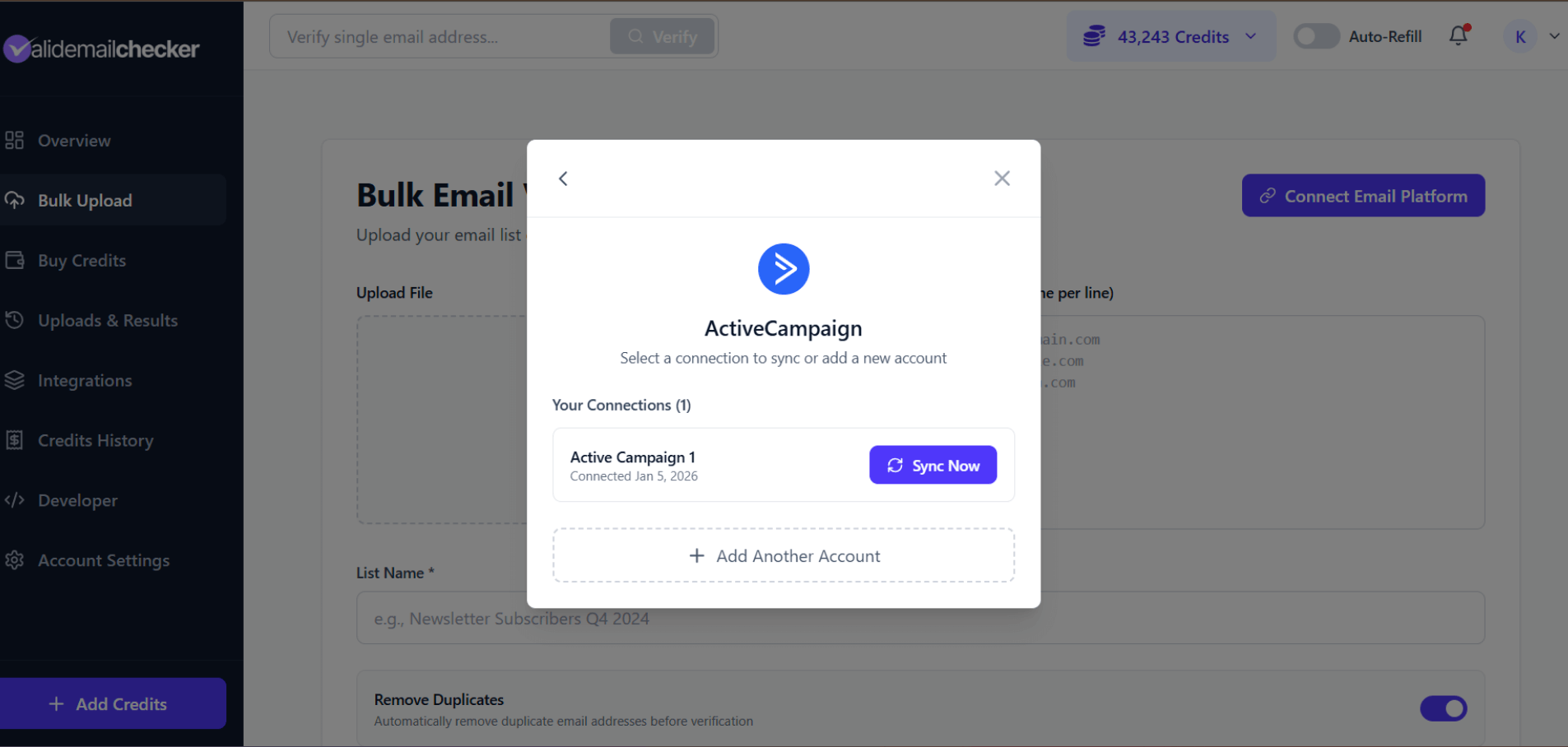
Adding Another Account
- Go to Bulk Upload → Connect Email Platform → ActiveCampaign
- If you already have a connection, you'll see the connection picker
- Click + Add Another Account
- Enter the credentials for your additional ActiveCampaign account
- Give it a unique name so you can tell them apart (e.g., "AC - Marketing Team" vs "AC - Sales Team")
Switching Between Accounts
When you have multiple accounts connected:
- Click on ActiveCampaign from the Bulk Upload page or Integrations page
- The connection picker displays all your connected accounts
- Click Sync Now on the account you want to use
- Select your list and verify as usual
Credits and Billing
How Credits Work with Integrations
- 1 credit = 1 email verified (same as all other verification methods)
- Credits are deducted when verification starts
- Unknown results are automatically refunded
- Duplicates are removed before verification (and not charged)
Checking Your Balance
Your credit balance is always visible in the top right corner of the dashboard. Make sure you have enough credits before starting a large verification.
If you don't have enough credits for your list size, you can:
- Purchase more credits
- Set up auto-refill to never run out
Team Member Access
If you're a team member (not the account owner):
- You can connect your own ActiveCampaign accounts
- You'll use credits from the shared team balance
- The owner can see credits used by each team member
Troubleshooting
"Invalid API credentials" Error
- Check your API URL: Make sure it starts with
https://and looks likehttps://youraccount.api-us1.com - Check your API Key: Copy it fresh from ActiveCampaign (Settings → Developer → API Access)
- Check for extra spaces: Make sure you didn't accidentally copy spaces before or after the credentials
"No lists found" Message
- Your ActiveCampaign account might not have any lists yet
- Create at least one list in ActiveCampaign, then try again
Verification Takes Too Long
- Large lists (10,000+ contacts) may take several minutes
- The page auto-updates—no need to refresh
- Check the progress bar for an estimate
Some Emails Show "Unknown" Status
- This happens when we can't definitively verify an email (server didn't respond, etc.)
- Credits for Unknown results are automatically refunded
- You can re-verify these emails later
Changes Not Appearing in ActiveCampaign
If you chose "Clean list automatically" but don't see changes:
- Allow a few minutes for ActiveCampaign to sync
- Check your "Unsubscribed" or "Deleted" contacts in ActiveCampaign
- Make sure the verification completed (check Uploads & Results)
Best Practices
Before Your First Verification
- Start with a small list — Test the integration with a smaller list first
- Use "Verify Only" mode — See results before auto-cleaning
- Review the results — Understand what each status means before taking action
For Ongoing List Hygiene
- Verify new imports — Whenever you add contacts to ActiveCampaign, verify them
- Schedule regular cleanings — Verify your main lists monthly or quarterly
- Use "Clean list automatically" — Once you're comfortable, automate the cleanup
- Monitor your sender reputation — Clean lists = better deliverability
Recommended Email Type Actions
For most users, we recommend:
| Email Type | Recommended Action | Why |
|---|---|---|
| Invalid | Unsubscribe | These will bounce—don't send to them |
| Disposable | Delete | Temporary emails, likely inactive |
| Catch-all | Keep | May be valid; monitor bounce rates |
| Unknown | Keep | Couldn't verify; try again later |
| Risky | Unsubscribe | High bounce risk; play it safe |
Frequently Asked Questions
Does this affect my ActiveCampaign account?
Only if you choose "Clean list automatically." The "Verify only" option doesn't modify anything in ActiveCampaign.
Can I verify automations or segments?
Currently, you can only verify lists. To verify contacts in automations or segments, export them to a list first.
How often should I verify my lists?
We recommend:
- After every import — Verify new contacts immediately
- Monthly — For active, growing lists
- Quarterly — For stable lists with minimal changes
Is my API key secure?
Yes. Your API key is encrypted and stored securely. We only use it to fetch your lists and (if you choose) update contact statuses. We never read email content or send emails on your behalf.
Can I undo an automatic cleanup?
No. Once contacts are deleted or unsubscribed via "Clean list automatically," you'd need to restore them manually in ActiveCampaign. This is why we recommend trying "Verify only" first.
Can I verify all my lists at once?
Currently, you verify one list at a time. This gives you more control over the process and lets you apply different cleaning rules to different lists.
Next Steps
- Understanding Verification Results — Learn what each status means
- Downloading Your Results — Export results for your records
- Other Integrations — Connect more email platforms
Need Help?
Having trouble connecting ActiveCampaign? Contact our support team and we'll help you get set up.