Campaign Monitor Integration
Connect your Campaign Monitor account to Valid Email Checker and verify your subscriber lists without exporting a single file. Just paste your API key and start cleaning.
What You Can Do
Once connected, you can:
- Import lists directly from Campaign Monitor for verification
- See subscriber counts before importing
- Clean lists automatically by removing or unsubscribing bad emails
- Connect multiple Campaign Monitor accounts if you manage several
Before You Start
Make sure you have:
- An active Campaign Monitor account
- At least one list with subscribers
- Valid Email Checker credits for verification
Finding Your Campaign Monitor API Key
Before connecting, you'll need to grab your API key from Campaign Monitor. Here's how:
Step 1: Access Account Settings
- Log into your Campaign Monitor account
- Click your profile icon in the top right corner
- Select Account settings from the dropdown menu
Step 2: Navigate to API & Integrations
In the left sidebar, click API & integrations.
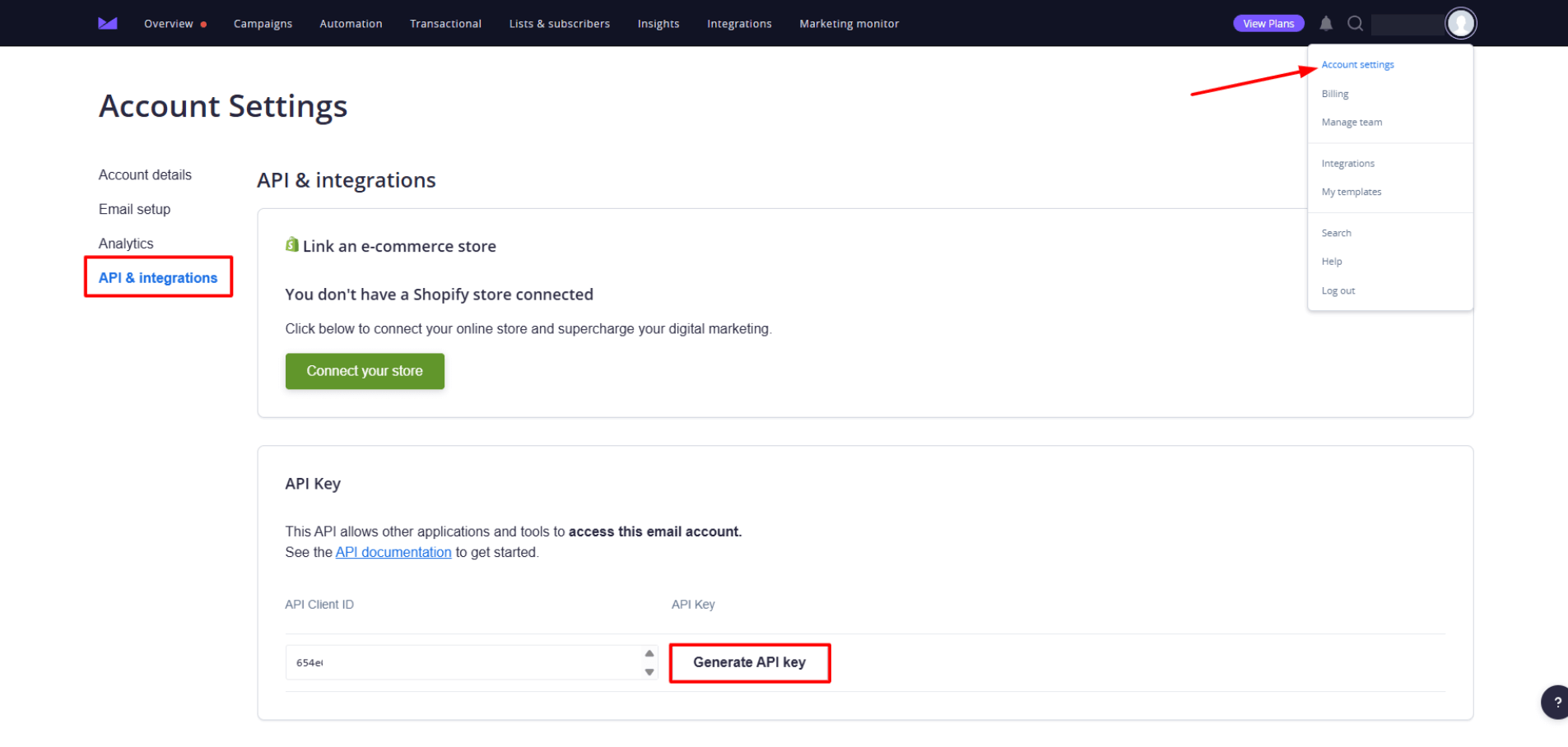
Step 3: Get Your API Key
You'll see two fields:
- API Client ID — A long string identifier
- API Key — Click Generate API key if you don't have one yet
Copy the API Key (not the Client ID). You'll paste this into Valid Email Checker in the next step.
Your API key gives access to your Campaign Monitor account. Don't share it publicly or commit it to code repositories.
Connecting Campaign Monitor
Now let's connect your account to Valid Email Checker.
Step 1: Start the Connection
- Go to Integrations in your sidebar
- Click + Connect Integration
- Find Campaign Monitor in the list and click it
You'll see the connection setup screen:
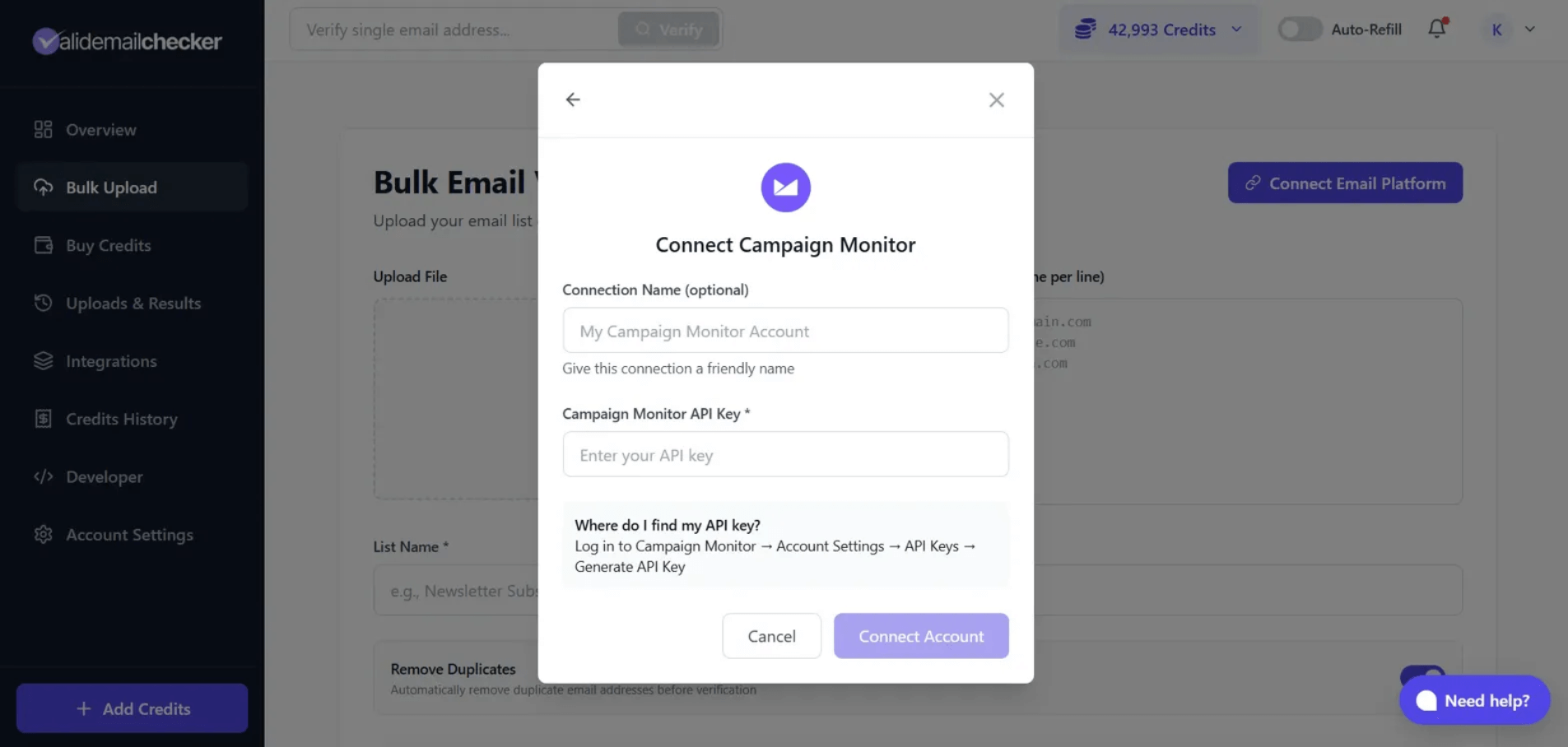
Step 2: Enter Your Details
Fill in the fields:
- Connection Name (optional) — Give this connection a friendly name like "Main Newsletter Account" or "Client - ABC Company". Helpful if you'll connect multiple Campaign Monitor accounts.
- Campaign Monitor API Key — Paste the API key you copied from Campaign Monitor.
Step 3: Connect
Click Connect Account. Valid Email Checker will verify your API key and pull in your lists.
If successful, your Campaign Monitor account is now connected and ready to use.
Verifying a Campaign Monitor List
Now for the fun part—let's verify some emails.
Step 1: Select Your Connection
Go to Bulk Upload and click Connect Email Platform. You'll see your connected Campaign Monitor accounts:
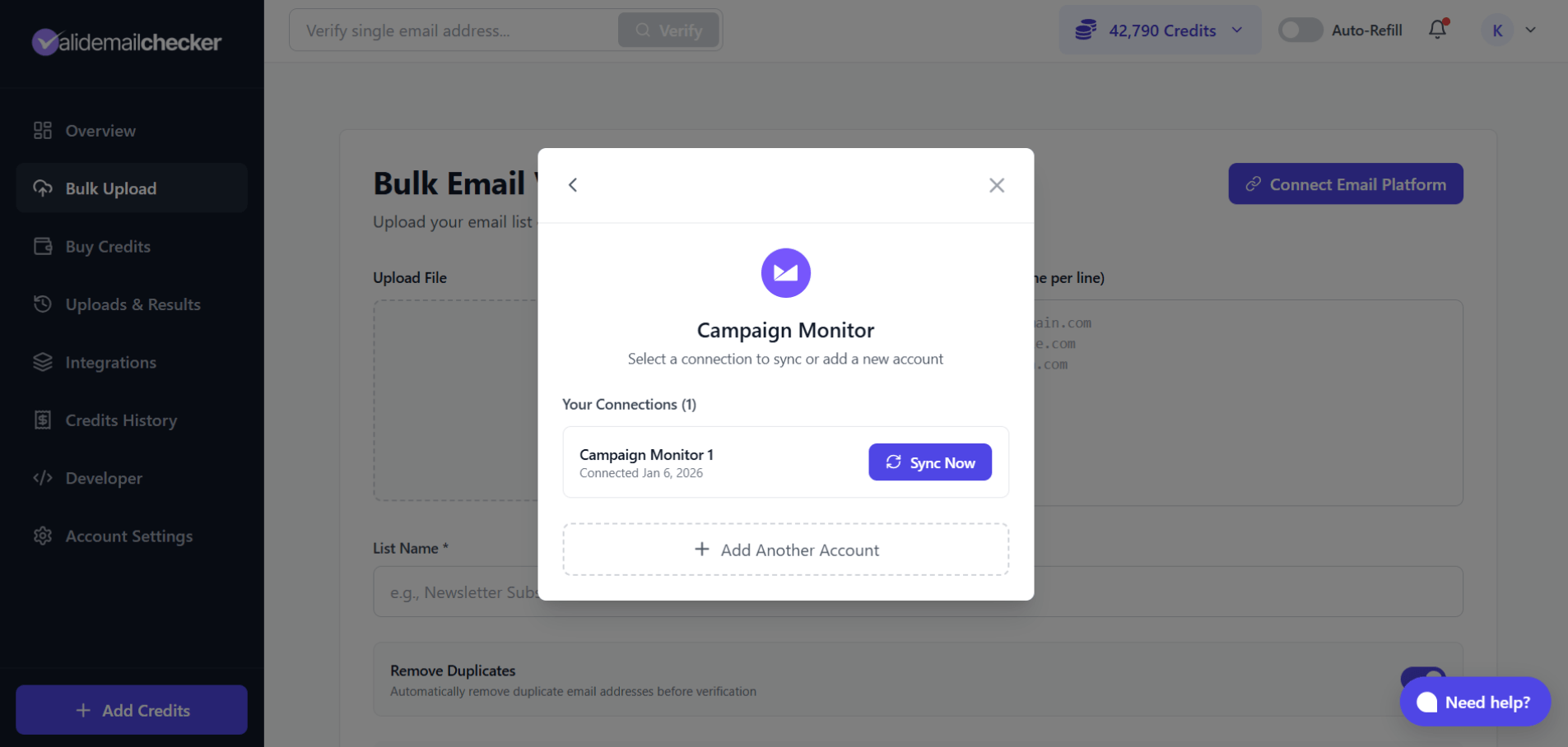
The connection picker displays all your connected Campaign Monitor accounts. Click Sync Now on the account you want to use, or click + Add Another Account to connect additional Campaign Monitor accounts.
Step 2: Choose a List
After syncing, you'll see all your Campaign Monitor lists with subscriber counts:
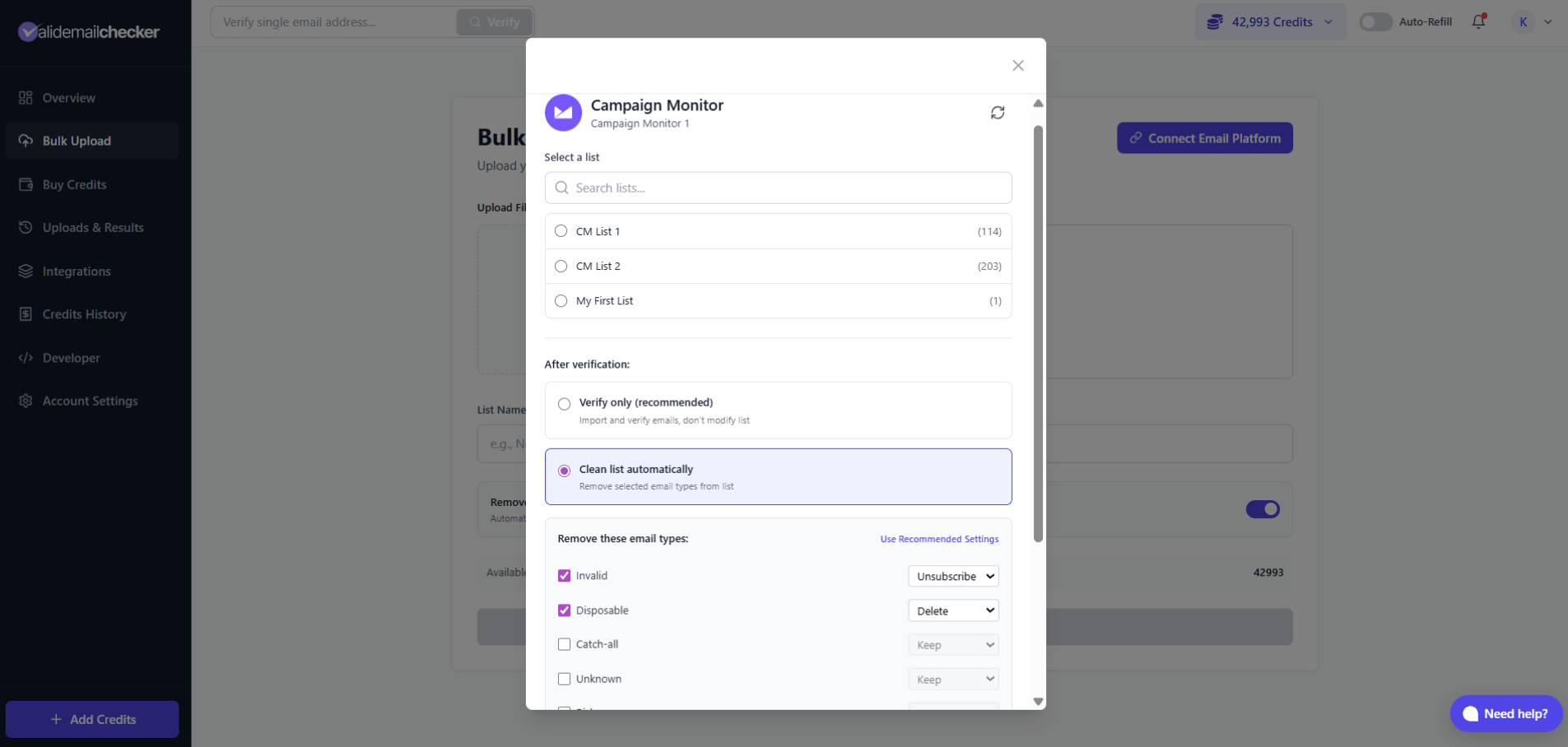
Select the list you want to verify. The number in parentheses shows how many subscribers are in that list.
Have a big list? No problem. Valid Email Checker handles lists of any size. Just make sure you have enough credits—each email costs 1 credit to verify.
Step 3: Choose What Happens After Verification
This is where you decide how hands-on you want to be. You have two options:
Option A: Verify Only
Select Verify only to import and verify emails without making any changes to your Campaign Monitor list.
- Emails are imported and verified
- Your Campaign Monitor list stays exactly as it is
- You review results and decide what to do
- Best for: First-time users, cautious cleaners, compliance requirements
Option B: Clean List Automatically
Select Clean list automatically to have bad emails removed from your Campaign Monitor list after verification.
When you choose this option, you can customize exactly what happens to each email type:
| Email Type | Available Actions | Default |
|---|---|---|
| Invalid | Unsubscribe, Delete, Keep | Unsubscribe |
| Disposable | Unsubscribe, Delete, Keep | Delete |
| Catch-all | Unsubscribe, Delete, Keep | Keep |
| Unknown | Unsubscribe, Delete, Keep | Keep |
| Risky | Unsubscribe, Delete, Keep | Keep |
Understanding the Actions:
- Unsubscribe — Marks the subscriber as unsubscribed in Campaign Monitor. They remain in your list but won't receive emails. Good for compliance and record-keeping.
- Delete — Permanently removes the subscriber from your Campaign Monitor list. They're gone completely.
- Keep — Does nothing. The subscriber stays active in your list.
Automatic cleaning can't be undone. If you're not sure, start with Verify only and clean manually after reviewing the results.
Step 4: Start Verification
Click the verify button to begin. You'll be taken to the Uploads & Results page where you can watch the progress:
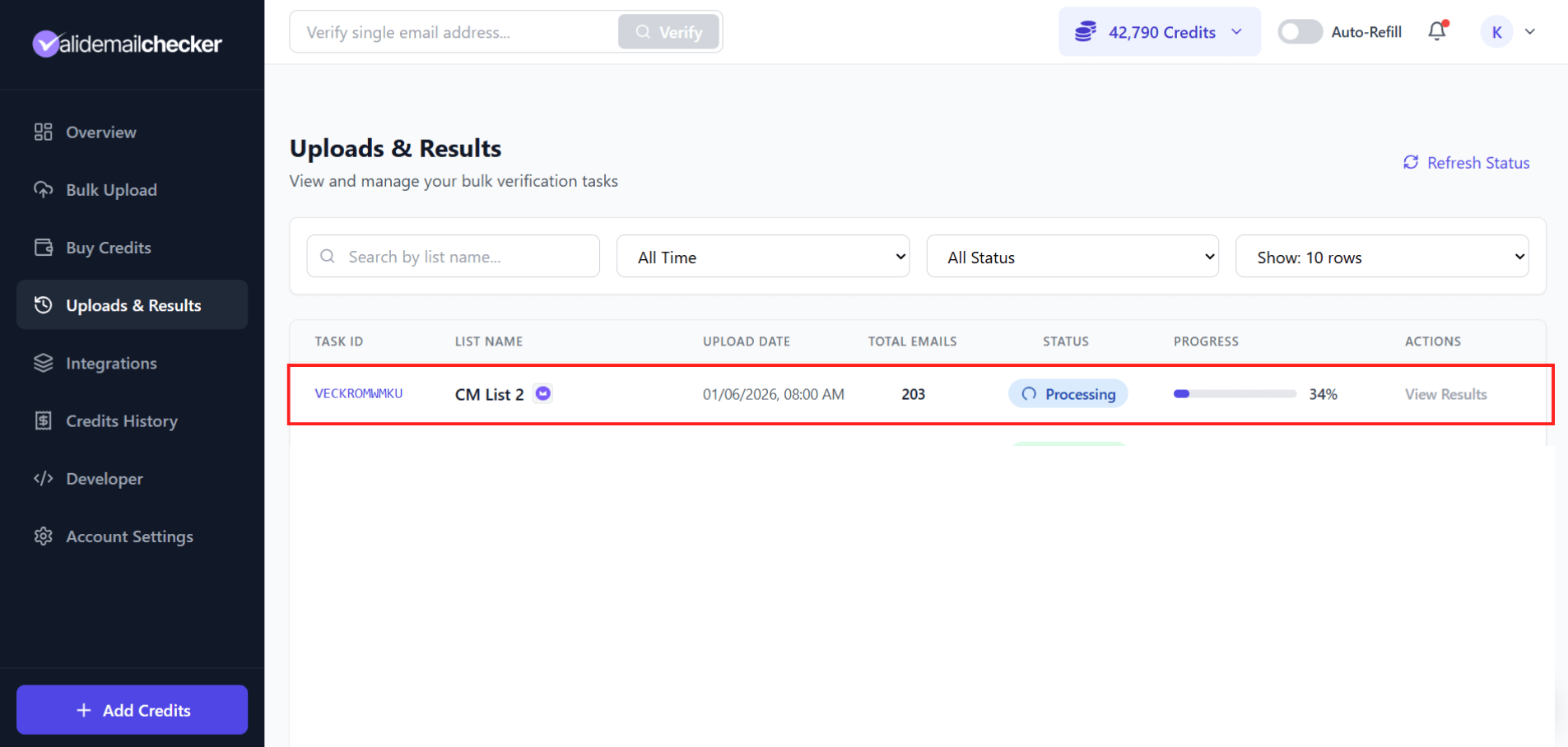
The integration icon next to your list name indicates this verification came from Campaign Monitor.
What you'll see:
| Column | Description |
|---|---|
| Task ID | Unique identifier for this verification (e.g., VECKROMWMKU) |
| List Name | The name of your Campaign Monitor list |
| Upload Date | When you started the verification |
| Total Emails | Number of contacts being verified |
| Status | Current state (Processing, Completed, etc.) |
| Progress | Percentage complete with progress bar |
| Actions | View Results, Delete |
The page updates automatically—no need to refresh. You'll see the percentage progress increase as verification continues.
Status meanings:
- 🔄 Processing — Verification in progress
- ✅ Completed — All done! Click "View Results" to see the breakdown
- ⚠️ Completed with Warning — Finished, but some emails couldn't be processed (credits refunded)
- ❌ Failed — Something went wrong (rare)
- 🗑️ Deleted — Results removed after 15-day retention period
Once verification completes, click View Results to see the breakdown.
Managing Your Campaign Monitor Connection
Viewing Connected Accounts
Go to Integrations to see all your connected Campaign Monitor accounts:
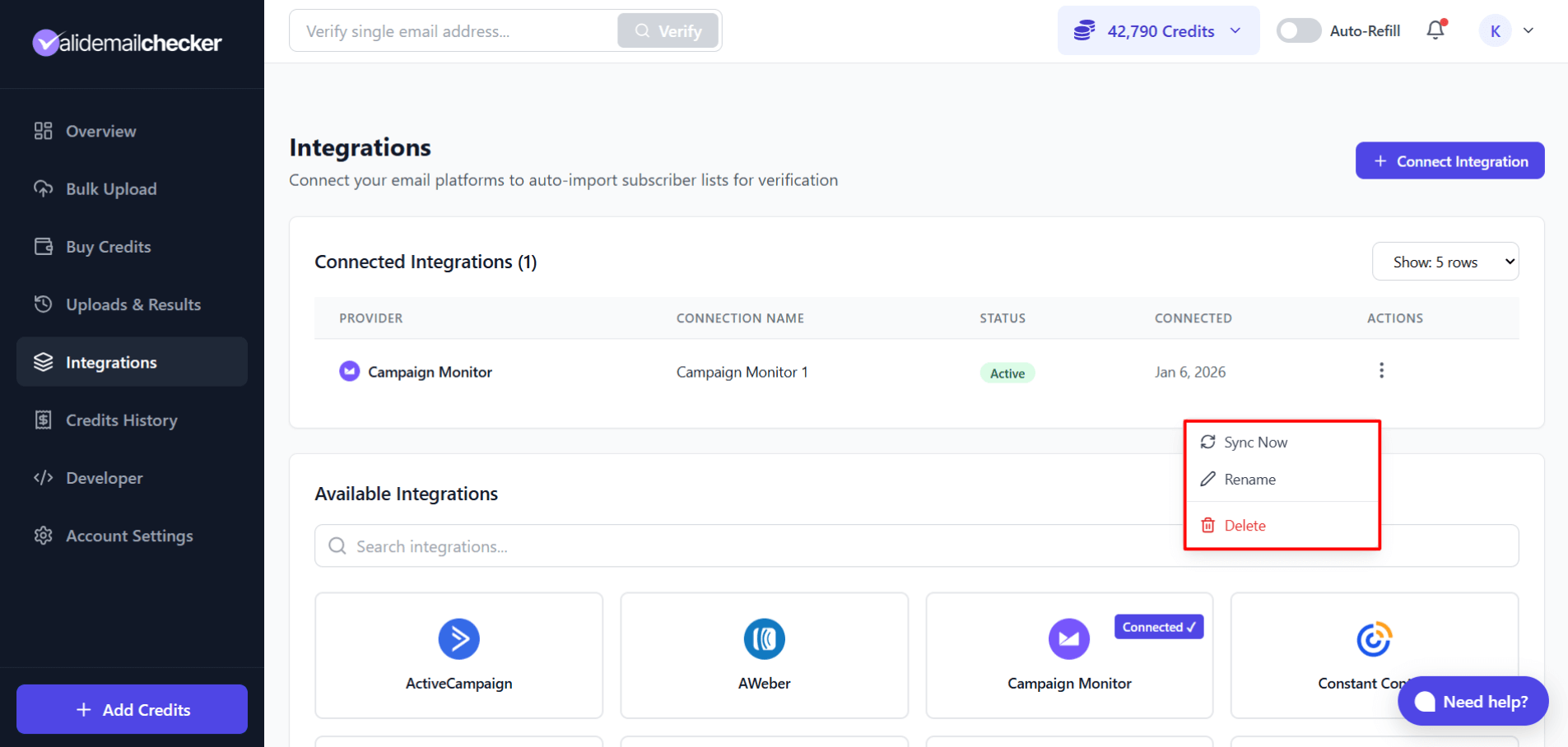
Each connection shows:
- Provider — Campaign Monitor logo and name
- Connection Name — The name you gave it (or default)
- Status — Active
- Connected — When you connected it
Available Actions
Click the three-dot menu on any connection to access:
| Action | What It Does |
|---|---|
| Sync Now | Refreshes your Campaign Monitor lists and subscriber counts |
| Rename | Changes the connection's display name |
| Delete | Removes the connection entirely |
When to Sync
Hit Sync Now when:
- You've added new lists in Campaign Monitor
- Subscriber counts seem outdated
- You've made significant changes to your lists
Syncing is fast and doesn't use any credits.
Updating Your API Key
If you regenerate your API key in Campaign Monitor:
- Delete the existing connection in Valid Email Checker
- Create a new connection with the new API key
Deleting a Connection
If you no longer need a Campaign Monitor connection:
- Go to Integrations
- Find the connection you want to remove
- Click the three-dot menu
- Select Delete
- Confirm the deletion
Deleting a connection only removes it from Valid Email Checker. Your Campaign Monitor account and all your subscribers remain untouched. You can always reconnect later.
Connecting Multiple Campaign Monitor Accounts
Managing campaigns for different clients or brands? You can connect as many Campaign Monitor accounts as you need.
Adding Another Account
- Go to Bulk Upload → Connect Email Platform
- Select Campaign Monitor
- In the connection picker, click + Add Another Account
- Enter the API key for the new account
- Give it a descriptive name to tell them apart
Each account shows separately in your connection picker, making it easy to switch between them.
Switching Between Accounts
When you have multiple accounts connected:
- Click on Campaign Monitor from the Bulk Upload page or Integrations page
- The connection picker displays all your connected accounts
- Click Sync Now on the account you want to use
- Select your list and verify as usual
Campaign Monitor-Specific Tips
Unsubscribe vs Delete
Campaign Monitor gives you both options. Here's when to use each:
Use Unsubscribe when:
- You need to maintain records for compliance
- You want to prevent the email from being re-added
- You're cleaning role-based emails you might want to review later
Use Delete when:
- The email is clearly invalid or fake
- You want a completely clean list
- You're removing disposable emails
List Segments
Currently, the integration imports your main Campaign Monitor lists. If you use segments within Campaign Monitor, they'll be included in the main list import. For segment-specific verification, consider exporting that segment as a CSV and using bulk file upload instead.
Transactional vs Marketing Lists
If you have both transactional and marketing lists in Campaign Monitor, they'll all appear in the list selector. Make sure you select the correct list type for verification.
Troubleshooting
"Invalid API Key" Error
If your API key isn't accepted:
- Make sure you copied the full API key (not the API Client ID)
- Check for extra spaces before or after the key
- Verify your Campaign Monitor account is active
- Try generating a new API key in Campaign Monitor
Lists Not Showing
If your Campaign Monitor lists don't appear after connecting:
- Click Sync Now to refresh
- Make sure the lists have at least one subscriber
- Verify you're using an API key from the correct Campaign Monitor account
Subscribers Not Updating After Cleaning
Campaign Monitor updates can take a few moments to process. If subscribers aren't showing as unsubscribed or deleted:
- Wait 2-3 minutes
- Refresh your Campaign Monitor list
- Check the verification results for any errors
Frequently Asked Questions
Does connecting Campaign Monitor cost credits?
No. Connecting and syncing your Campaign Monitor account is free. You only use credits when you actually verify emails.
Can I connect multiple Campaign Monitor accounts?
Yes! Connect as many accounts as you need. Each gets its own connection with a separate name.
Will you send emails to my subscribers?
Never. We only read your subscriber emails for verification and optionally remove bad ones. We never send any emails to your list.
What happens to my Campaign Monitor data?
We import subscriber emails temporarily for verification. After 15 days, verification results are automatically deleted from our system. We never store your subscriber data permanently.
Can I undo automatic cleaning?
No. Once emails are unsubscribed or deleted from Campaign Monitor, the action can't be reversed through Valid Email Checker. Always start with Verify only if you're unsure.
What's the difference between API Client ID and API Key?
The API Client ID is an identifier for your account. The API Key is the authentication token that grants access. You need to paste the API Key (not the Client ID) into Valid Email Checker.
Can I verify all my lists at once?
Currently, you verify one list at a time. This gives you more control over the process and lets you apply different cleaning rules to different lists.
Next Steps
- View your verification results — Learn how to analyze and export your results
- Understanding result types — What each verification status means
- Connect another platform — Add more email platforms
Need Help?
Running into issues with your Campaign Monitor integration? We're here to help:
- Live Chat — Click the chat bubble in the corner
- Email — support@validemailchecker.com
- Contact Form — validemailchecker.com/contact-us