Klaviyo Integration
Klaviyo is one of the most powerful email and SMS marketing platforms out there, especially for ecommerce brands. But all those sophisticated flows and segments mean nothing if you're sending to invalid email addresses.
With Valid Email Checker's Klaviyo integration, you can verify your subscriber lists and segments directly—no CSV exports, no manual uploads, no headaches. Just connect, select, verify, and your Klaviyo lists are clean.
What You Can Do
Once connected, you can:
- Import lists directly from your Klaviyo account
- See subscriber counts for each list before verifying
- Verify any list or segment without manual exports
- Auto-clean your lists by removing or unsubscribing bad emails
- Connect multiple Klaviyo accounts if you manage several brands
- Sync anytime to get the latest subscribers
Before You Start
You'll need:
| Requirement | Details |
|---|---|
| Klaviyo account | Any plan (free or paid) |
| Valid Email Checker account | With available credits |
| Klaviyo Private API Key | With List and Profiles access (we'll show you how) |
Klaviyo uses Private API Keys for integrations. You'll create one specifically for Valid Email Checker with the right permissions. Don't worry—it takes about 2 minutes.
Finding Your Klaviyo Private API Key
Here's how to create a Private API Key in Klaviyo:
Step 1: Go to API Keys Settings
- Log in to your Klaviyo account
- Click your profile icon in the left sidebar
- Select Settings
- In the left sidebar under Account, click API keys
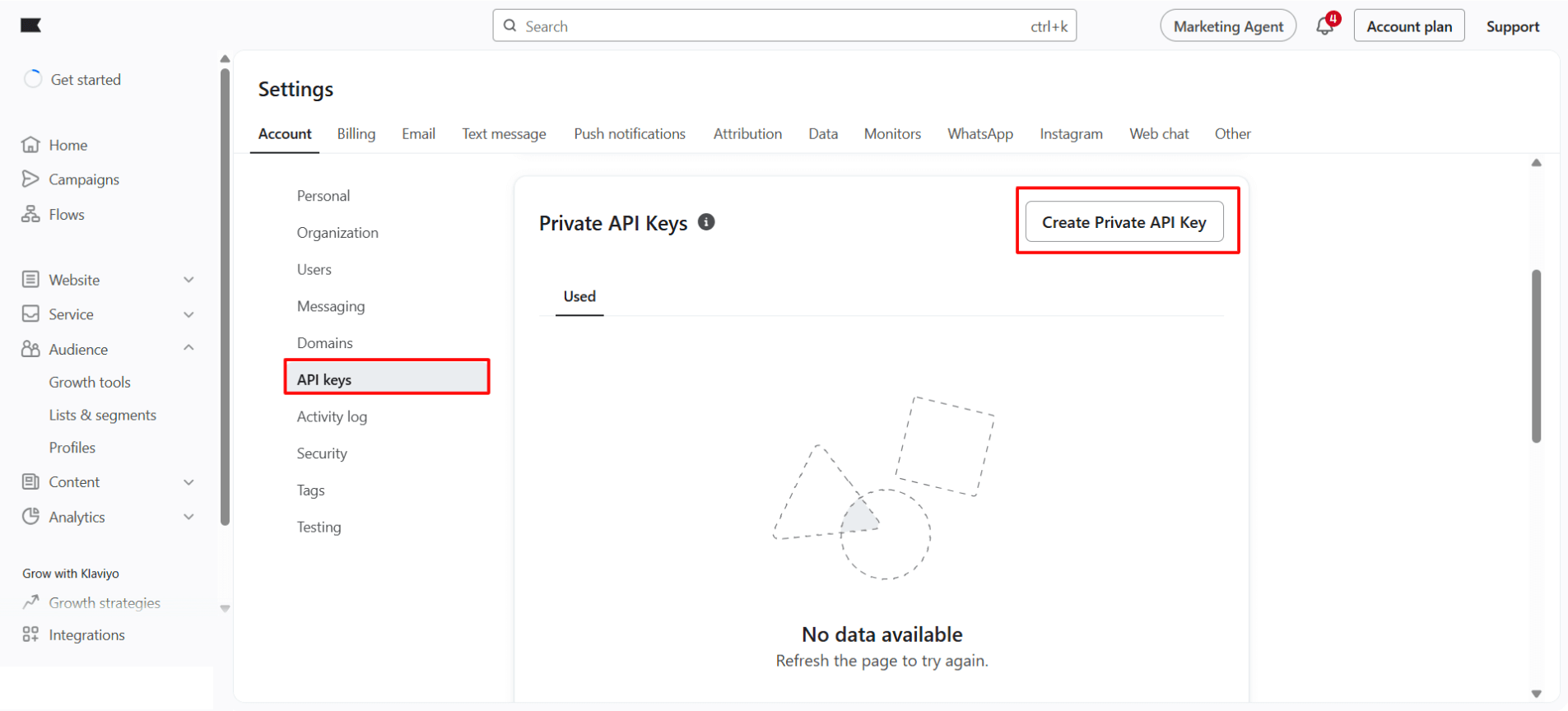
Step 2: Create a New Private API Key
- Click the Create Private API Key button
- Give your key a name like
Valid Email Checker Integration - Select Custom Key for the access level
Step 3: Set the Required Permissions
For Valid Email Checker to work properly, you need to enable Full Access for these scopes:
| Scope | Access Level | Why It's Needed |
|---|---|---|
| Accounts | Full Access | To identify your Klaviyo account |
| List | Full Access | To read your lists and modify subscribers |
| Profiles | Full Access | To access and update contact information |
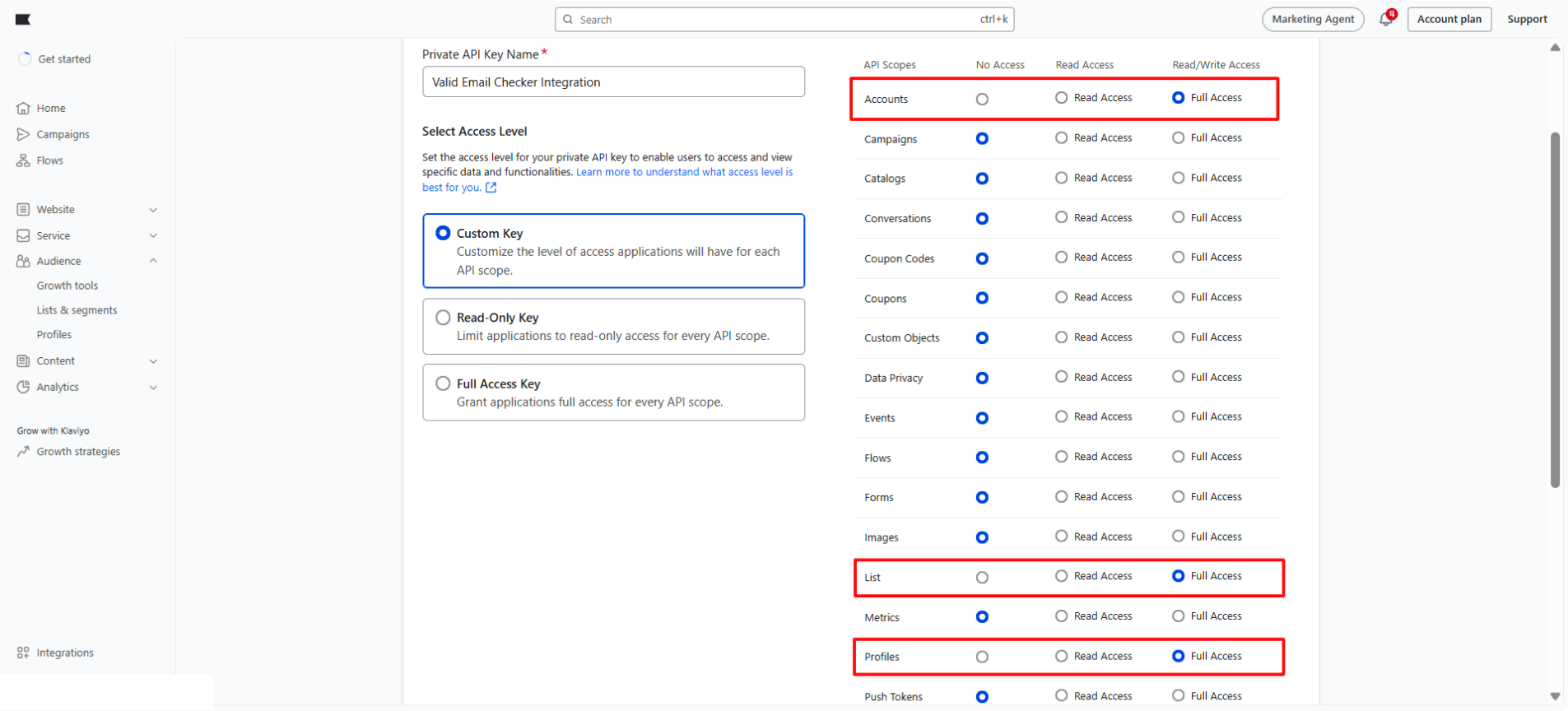
| Scope | Minimum Access |
|---|---|
| Accounts | Either Full or Read Access |
| List | Full Access |
| Profiles | Full Access |
List and Profiles need Full Access so we can clean your lists automatically. Read Access alone won't work for these.
Step 4: Copy Your API Key
- Click Create to generate the key
- Copy the key immediately—Klaviyo only shows it once!
- Store it somewhere safe if you need it later
Connecting Klaviyo to Valid Email Checker
Now let's connect your Klaviyo account:
Step 1: Open the Integration
Option A: Go to Integrations in the sidebar and click Klaviyo
Option B: Go to Bulk Upload and click Connect Email Platform, then select Klaviyo
Step 2: Enter Your Details
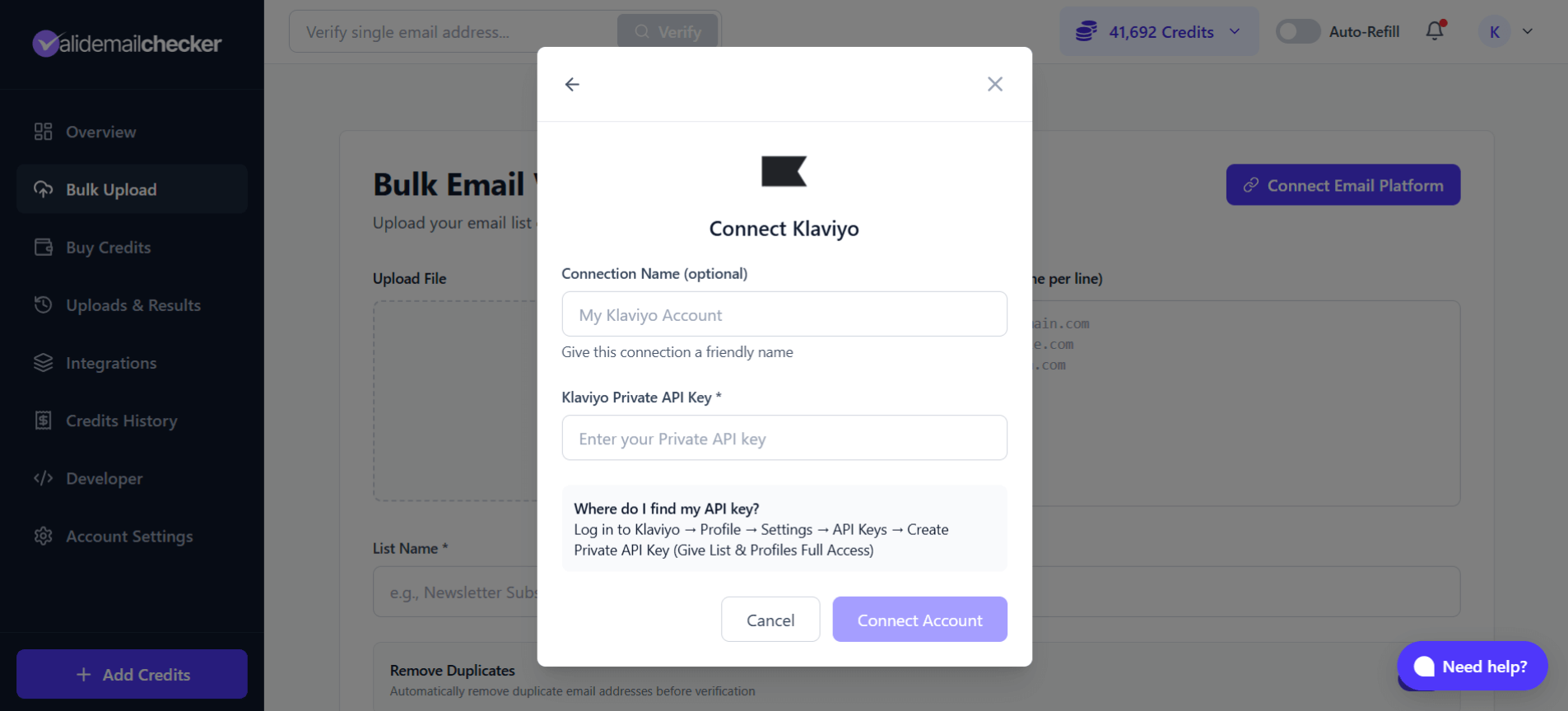
| Field | What to Enter |
|---|---|
| Connection Name | A friendly name like "My Klaviyo Account" or your brand name (optional) |
| Klaviyo Private API Key | Paste the API key you just created |
Step 3: Connect
Click Connect Account. We'll verify your API key and sync your lists.
Once connected, you should see your Klaviyo lists with subscriber counts within a few seconds. If nothing appears, double-check that your API key has the correct permissions.
Verifying Your Klaviyo Lists
Once connected, you can verify any list in your Klaviyo account.
Step 1: Select Your List
Go to Bulk Upload and click Connect Email Platform. Select your Klaviyo connection.
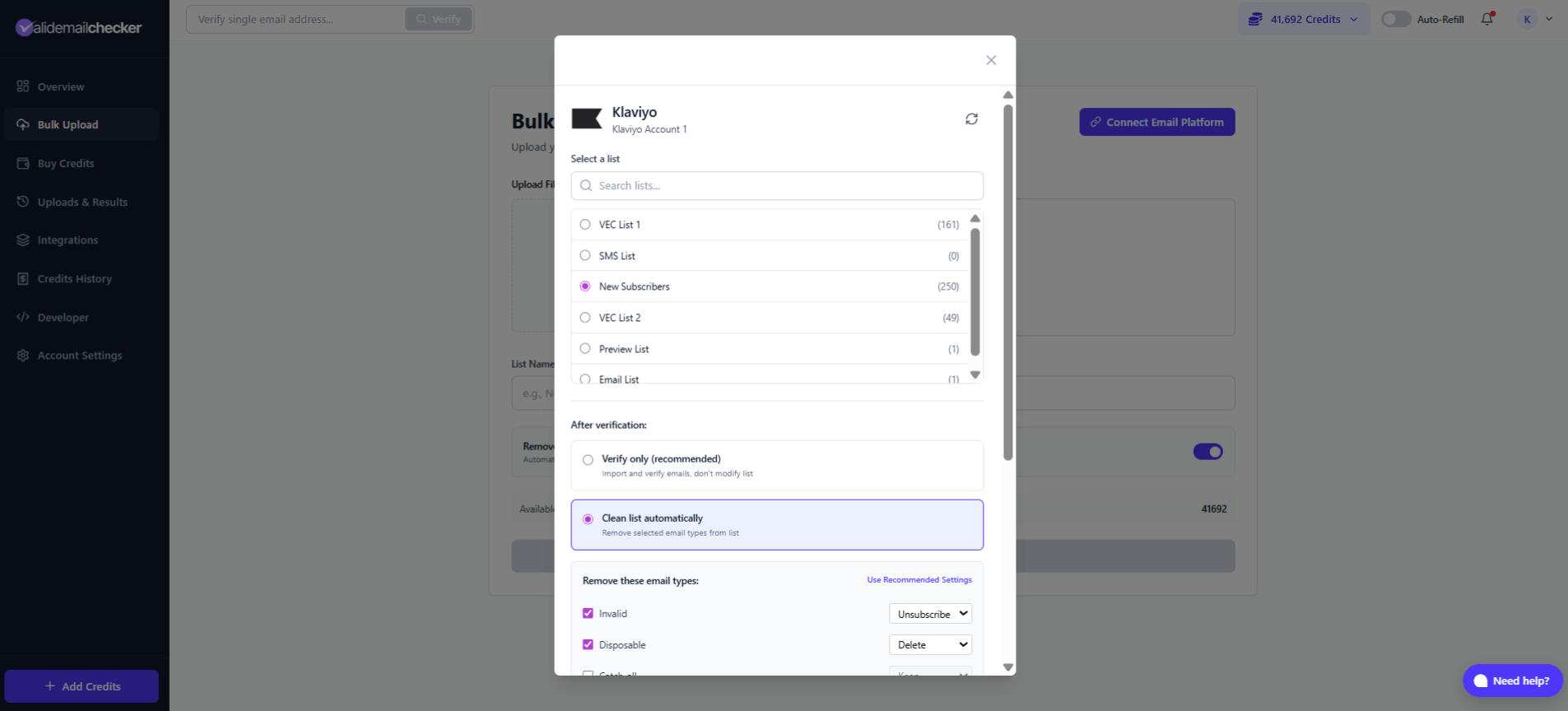
You'll see all your Klaviyo lists with subscriber counts, Select the list you want to verify.
Step 2: Choose Your Verification Mode
Option A: Verify Only
We import and verify your emails, but don't make any changes to your Klaviyo list. Perfect when you want to review results first.
Option B: Clean List Automatically
We verify AND automatically clean your list based on your settings:
| Email Type | Options | Default |
|---|---|---|
| Invalid | Keep / Unsubscribe / Delete | Unsubscribe |
| Disposable | Keep / Unsubscribe / Delete | Delete |
| Catch-all | Keep / Unsubscribe / Delete | Keep |
| Unknown | Keep / Unsubscribe / Delete | Keep |
| Risky | Keep / Unsubscribe / Delete | Keep |
Step 3: Start Verification
Click Import List to start. You'll be redirected to the Uploads & Results page to track progress.
Monitoring Your Verification
After starting verification, you can track progress in real-time.
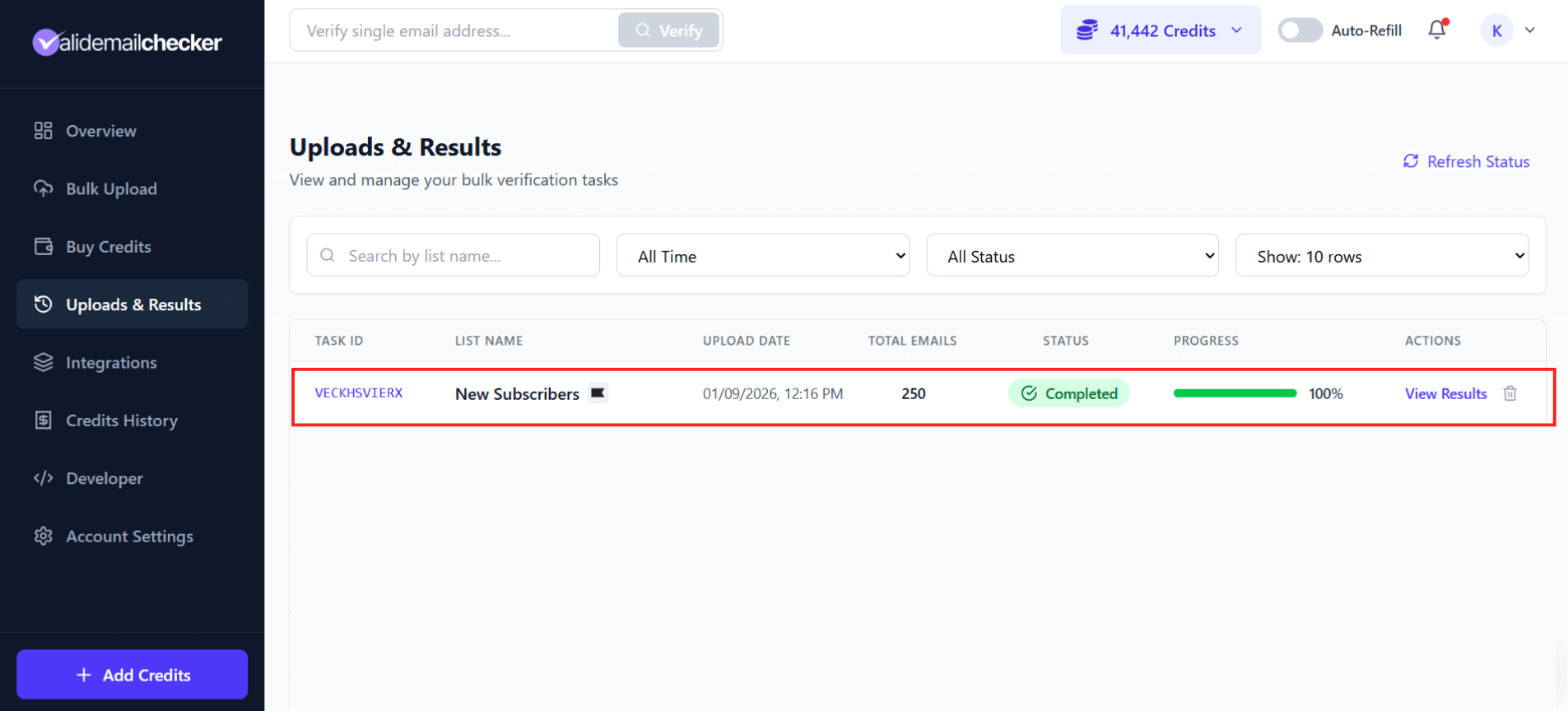
The results table shows:
| Column | Description |
|---|---|
| Task ID | Unique identifier (e.g., VECK6AVRRST) |
| List Name | Your list name with HubSpot icon |
| Upload Date | When verification started |
| Total Emails | Number of contacts being verified |
| Status | Processing, Completed, Failed, or Deleted |
| Progress | Percentage complete |
| Actions | View Results when done |
Estimated Verification Times
| List Size | Estimated Time |
|---|---|
| 100 emails | Seconds |
| 1,000 emails | 1-2 minutes |
| 10,000 emails | 5-10 minutes |
| 100,000 emails | 15-30 minutes |
| 1,000,000 emails | 1-2 hours |
When complete, click View Results to see the breakdown and download your verified data.
Managing Your Klaviyo Connection
Find all your connections on the Integrations page.
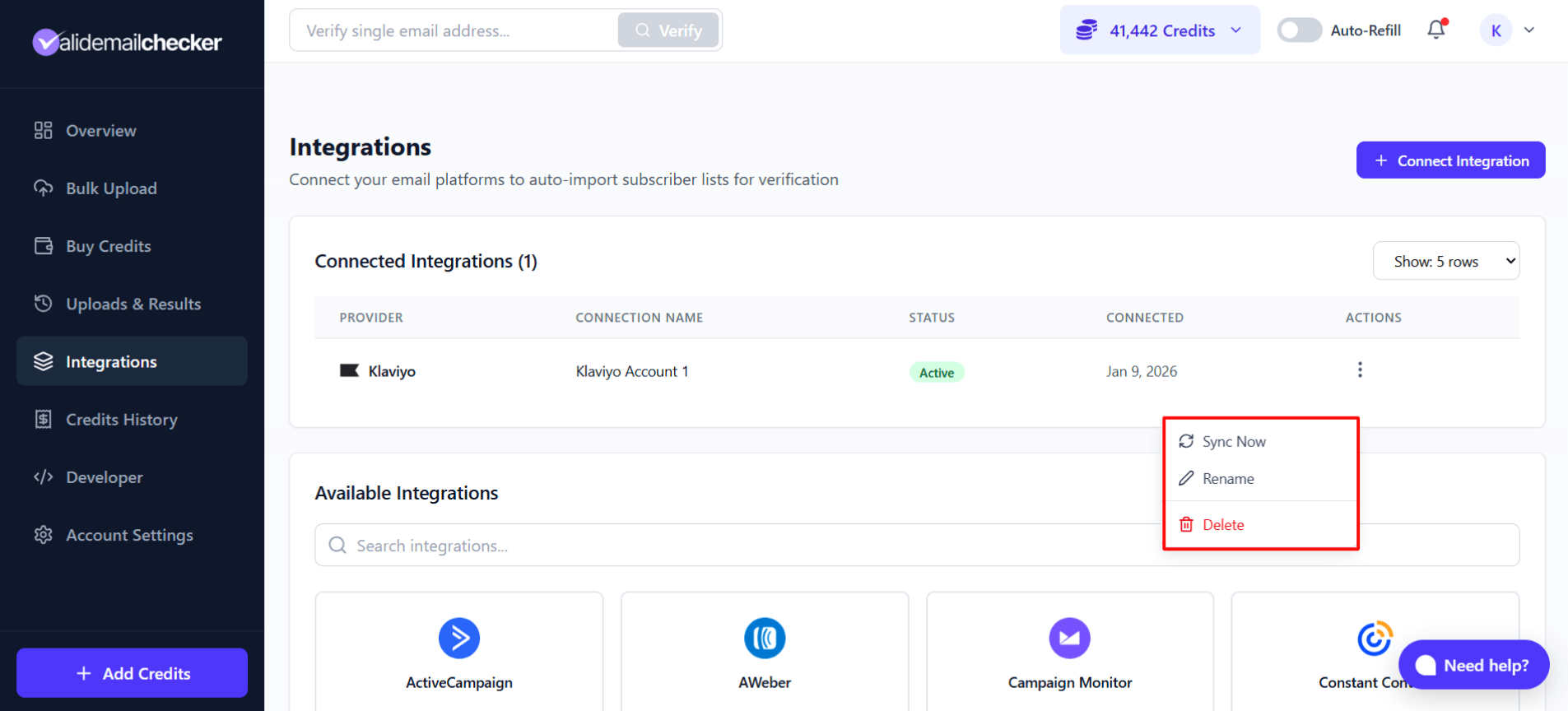
Available Actions
Click the three-dot menu (⋮) for any connection:
| Action | What It Does |
|---|---|
| Sync Now | Refresh your lists to get the latest subscribers |
| Rename | Change the connection name |
| Delete | Remove the connection entirely |
When to Sync
Hit Sync Now when:
- You've added new subscribers in Klaviyo
- You've created new lists or segments
- Subscriber counts seem outdated
- You want to verify recently added contacts
Connecting Multiple Klaviyo Accounts
Managing multiple brands or client accounts? You can connect them all.
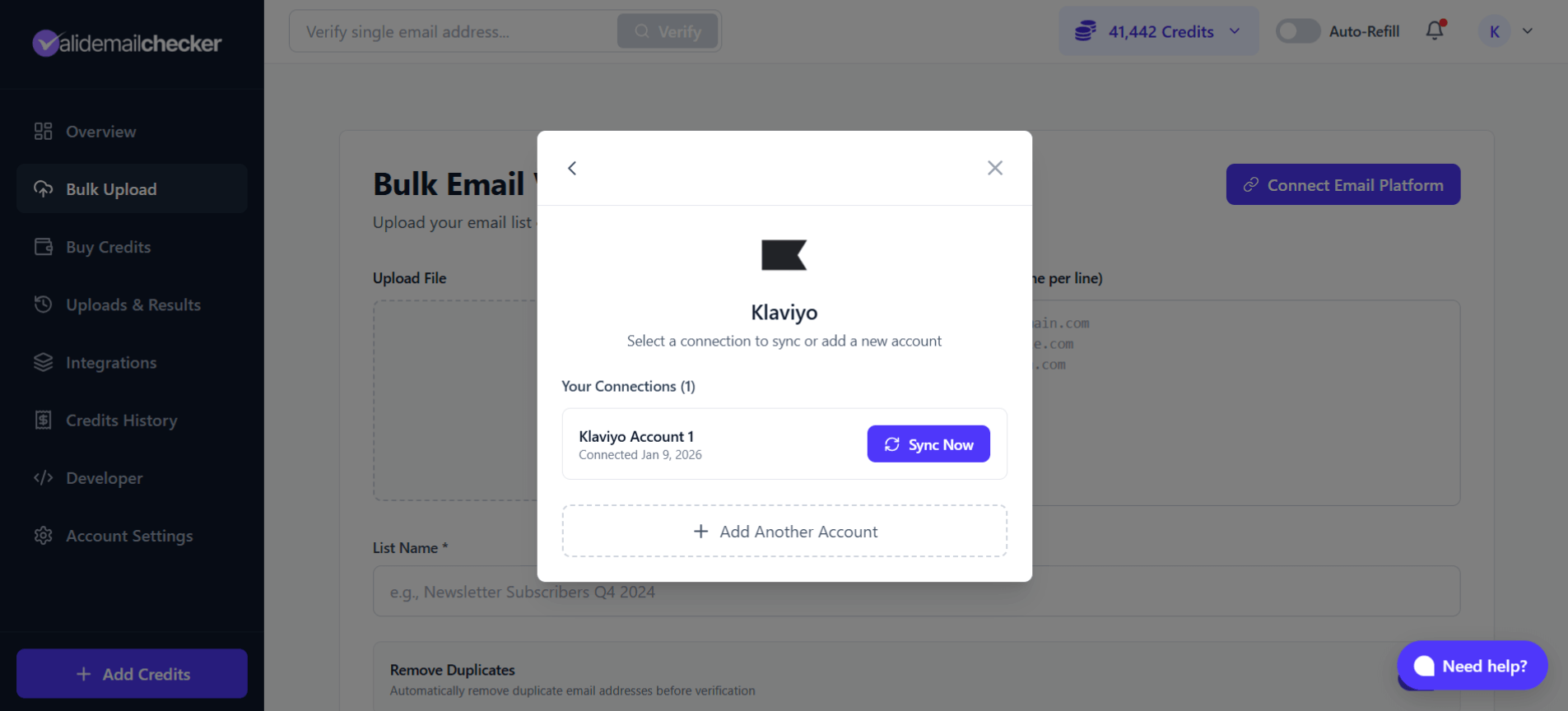
Adding Another Account
- Go to Bulk Upload → Connect Email Platform → Klaviyo
- You'll see your existing connections listed
- Click Add Another Account
- Enter a unique name (e.g., "Brand B - Klaviyo")
- Paste the API key from your other Klaviyo account
- Click Connect Account
Each Klaviyo account needs its own Private API Key. You can't use the same key for multiple accounts.
Managing Multiple Connections
When verifying, you can choose which account to use. Each connection shows:
- Connection name
- When it was connected
- Sync Now button for quick updates
Troubleshooting
"Invalid API Key" Error
Causes:
- Typo when pasting the key
- Key was deleted in Klaviyo
- Key doesn't have required permissions
Fix:
- Go back to Klaviyo → Settings → API Keys
- Create a new Private API Key
- Make sure Accounts, List, and Profiles all have Full Access
- Copy and paste carefully (no extra spaces)
No Lists Appearing
Causes:
- API key only has Read Access (needs Full Access)
- Klaviyo account has no lists yet
- Connection issue
Fix:
- Verify your API key has Full Access for List scope
- Check that you have at least one list in Klaviyo
- Click Sync Now to refresh
Can't Connect Multiple Accounts
Causes:
- Using the same API key for both
- Connection name already exists
Fix:
- Each Klaviyo account needs its own unique API key
- Use different connection names (e.g., "Brand A" and "Brand B")
Verification Taking Too Long
Causes:
- Very large list
- High server load
Fix:
- Large lists naturally take longer—check the timing estimates above
- The progress bar updates in real-time, no need to refresh
- For lists over 100,000, expect 15-30+ minutes
Changes Not Reflecting in Klaviyo
Causes:
- You selected "Verify Only" instead of "Clean List Automatically"
- Klaviyo's interface may cache data
Fix:
- If you chose "Verify Only," changes don't sync back—that's expected
- Refresh your Klaviyo page or wait a few minutes
- Check the profile status in Klaviyo directly
Frequently Asked Questions
How often should I verify my Klaviyo lists?
For active ecommerce stores, we recommend:
- Monthly for your main newsletter list
- Before every major campaign (Black Friday, launches, etc.)
- Quarterly for less active segments
Does this work with Klaviyo segments?
Yes! Segments appear alongside lists. Just remember that segments are dynamic—new subscribers matching your segment criteria will be added automatically (and they won't be verified yet).
Will verification affect my Klaviyo flows?
No, verification doesn't change your flow logic. It only affects individual profile statuses (subscribed → unsubscribed) if you choose "Clean List Automatically."
Can I verify my entire Klaviyo database at once?
Yes, but we recommend verifying by list or segment for better control. If you have one master list with everyone, you can verify that.
Is my Klaviyo data safe?
Absolutely. We only read your lists and profiles to verify emails. We don't store your contact data permanently, and everything is deleted after 15 days. See our Data & Privacy Policy for details.
Next Steps
- Understanding Verification Results — Learn what each status means
- Downloading Your Results — Export verified data
- Credit System — How credits work with integrations
Need Help?
Running into issues with your Klaviyo integration? We're here to help:
- Live Chat: Click the chat bubble in the corner
- Email: support@validemailchecker.com
- Contact Form: validemailchecker.com/contact-us