Elastic Email Integration
Connect your Elastic Email account to Valid Email Checker and verify your subscriber lists without ever leaving our platform. No file exports, no manual uploads—just clean, verified lists ready for your next campaign.
What You Can Do
With the Elastic Email integration, you can:
- Import lists directly from your Elastic Email account
- Verify subscribers to identify invalid, disposable, and risky emails
- Auto-clean lists by automatically removing bad emails after verification
- Connect multiple accounts if you manage several Elastic Email workspaces
- Sync anytime to pull fresh list data before verification
Before You Start
Make sure you have:
- A Valid Email Checker account with available credits
- An Elastic Email account with at least one contact list
- Access to create API keys in Elastic Email (admin or full access)
You'll need 1 credit per email verified. Check your balance in the top-right corner of your dashboard before starting a large verification.
Step 1: Find Your Elastic Email API Key
Before connecting, you'll need to create an API key in Elastic Email with the right permissions.
Creating Your API Key
- Log in to your Elastic Email account
- Click Settings in the left sidebar
- Click Manage API keys in the API section
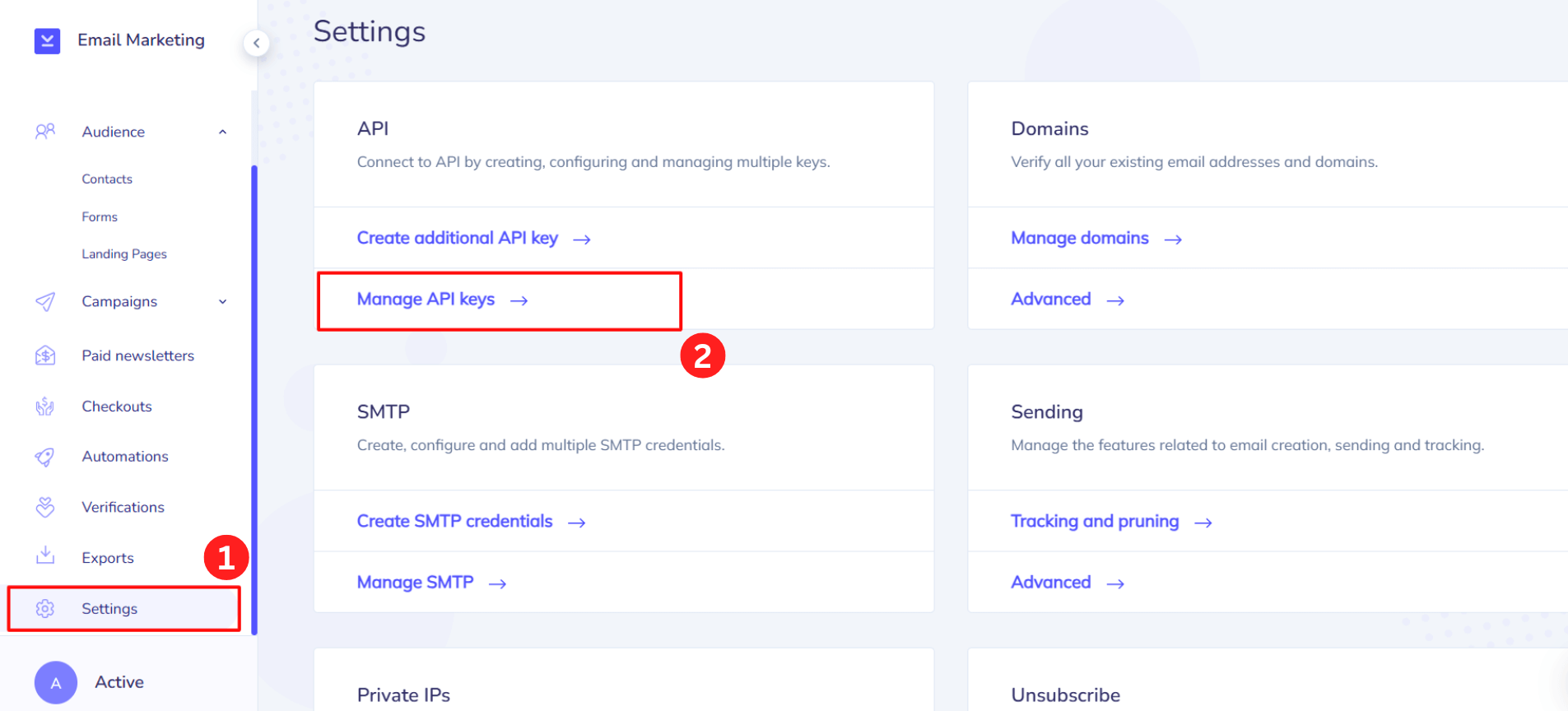
- Click Create additional API key (or you'll land on the creation page)
- Enter a name for your key (e.g., "Valid Email Checker Integration")
- Select Full access under Permissions
- Click Create
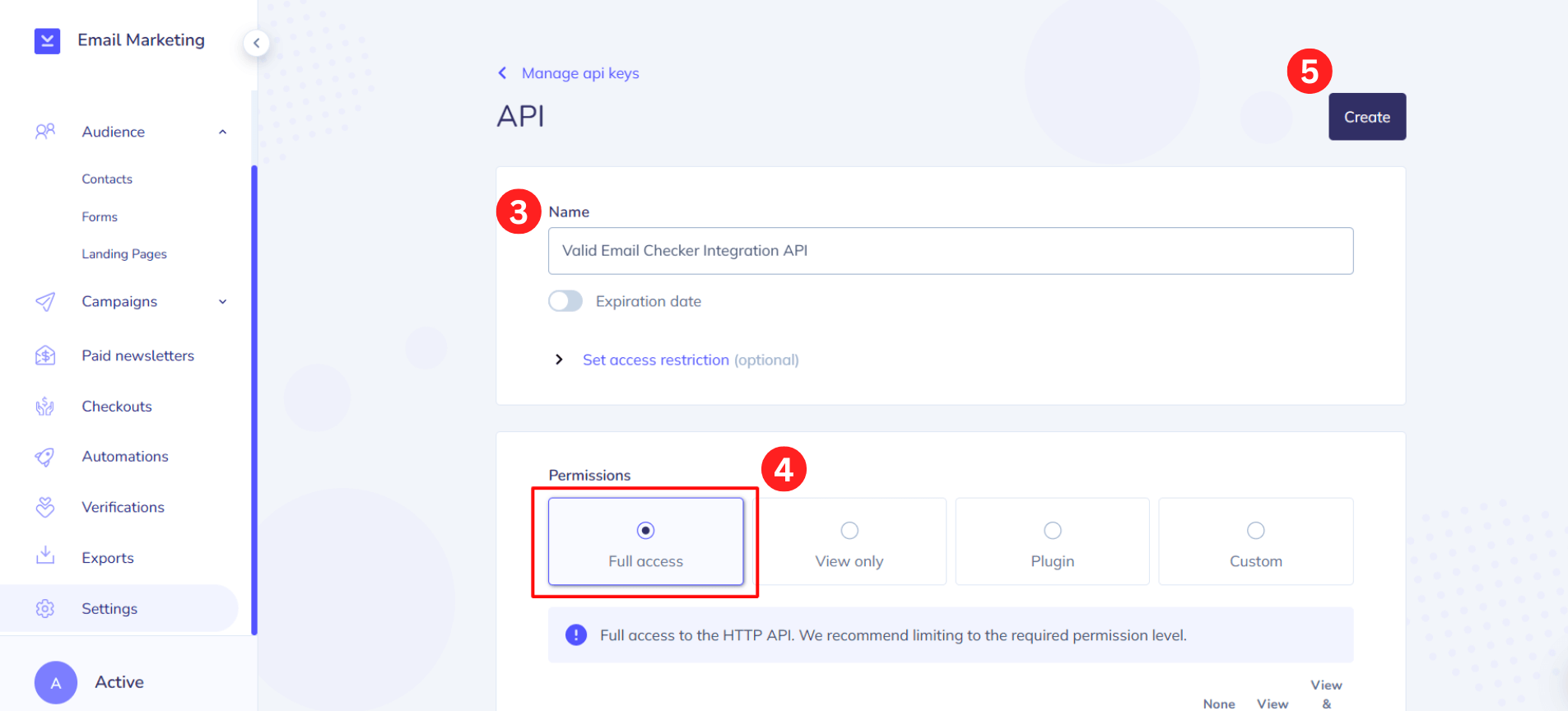
- Copy your API key immediately—Elastic Email only shows it once!
Your API key provides full access to your Elastic Email account. Never share it publicly or commit it to code repositories.
Step 2: Connect Your Account
Now let's connect Elastic Email to Valid Email Checker.
How to Connect
- Go to Integrations in your Valid Email Checker sidebar
- Click + Connect Integration
- Find and select Elastic Email from the available platforms
- Enter your details:
- Connection Name (optional but recommended): Give it a friendly name like "Main Marketing Account"
- API Key: Paste the API key you copied from Elastic Email
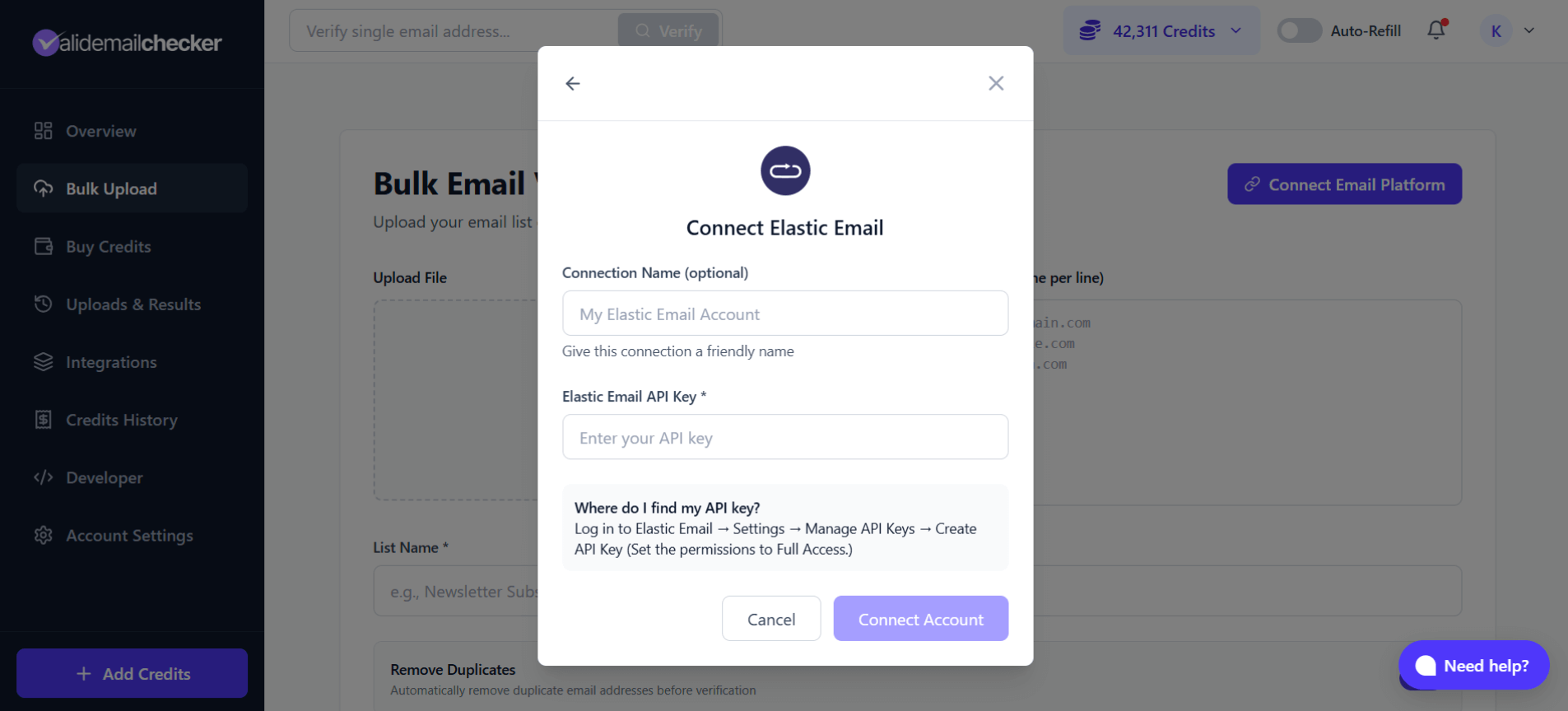
- Click Connect Account
Valid Email Checker will verify your API key and sync your lists. This usually takes just a few seconds.
If you plan to connect multiple Elastic Email accounts, give each connection a clear, descriptive name. You'll thank yourself later when choosing which account to verify.
Step 3: Select a List to Verify
Once connected, you'll see all your Elastic Email lists with subscriber counts.
Choosing Your List
- After connecting (or click Sync Now on an existing connection), the list selection modal appears
- Browse your available lists—each shows the subscriber count in parentheses
- Select the list you want to verify
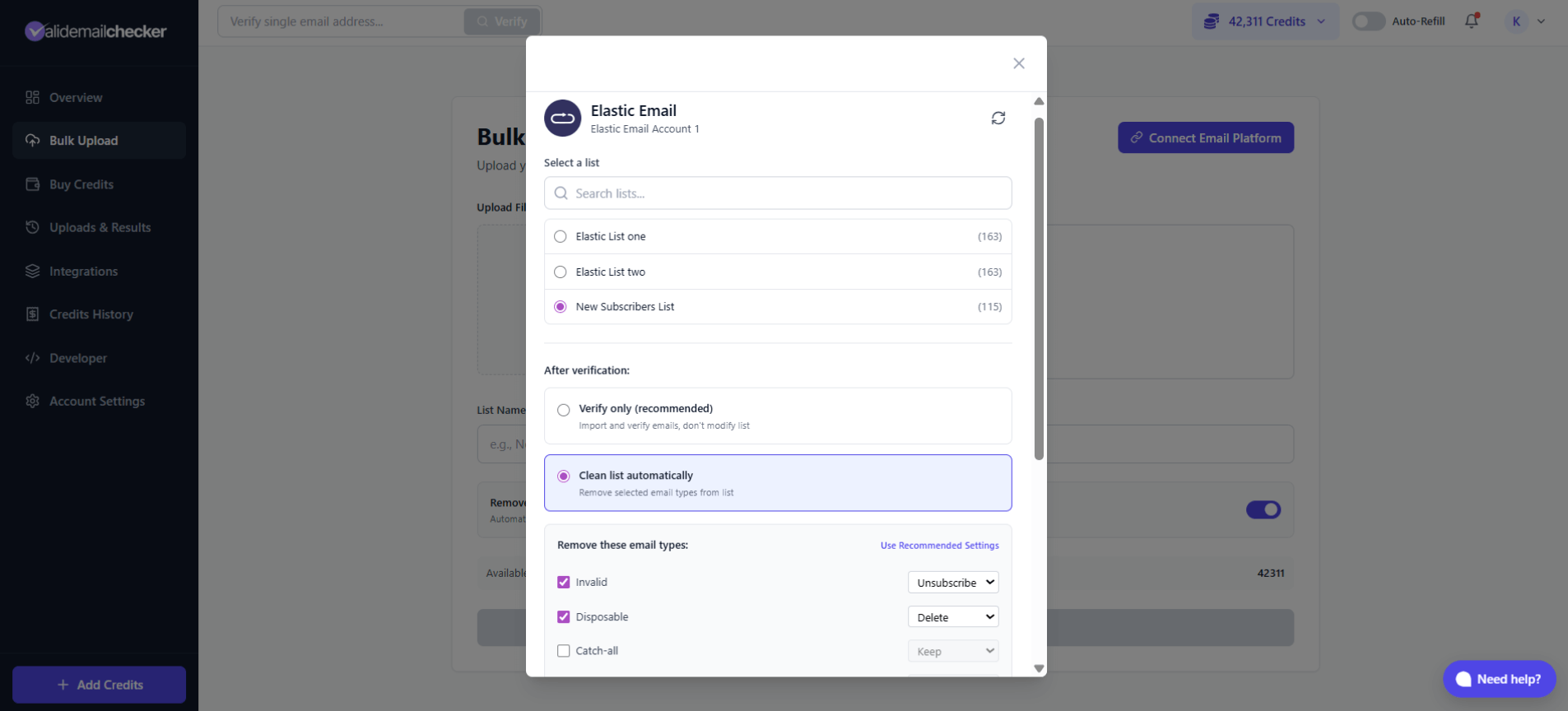
Step 4: Choose Your Verification Option
After selecting a list, decide what happens after verification:
Option A: Verify Only
- Imports and verifies your emails
- Does not modify your Elastic Email list
- You review results and decide what to do
- Best for: First-time users, compliance requirements, cautious approach
Option B: Clean List Automatically
- Verifies emails AND automatically updates your Elastic Email list
- You choose what happens to each email type
- Best for: Regular maintenance, hands-off cleaning
Available actions for each email type:
| Email Type | Options | Default |
|---|---|---|
| Invalid | Keep / Unsubscribe / Delete | Unsubscribe |
| Disposable | Keep / Unsubscribe / Delete | Delete |
| Catch-all | Keep / Unsubscribe / Delete | Keep |
| Unknown | Keep / Unsubscribe / Delete | Keep |
| Risky | Keep / Unsubscribe / Delete | Keep |
After selecting your options, click the verification button to start the process.
Step 5: Monitor Your Verification
After starting verification, you're redirected to the Uploads & Results page.
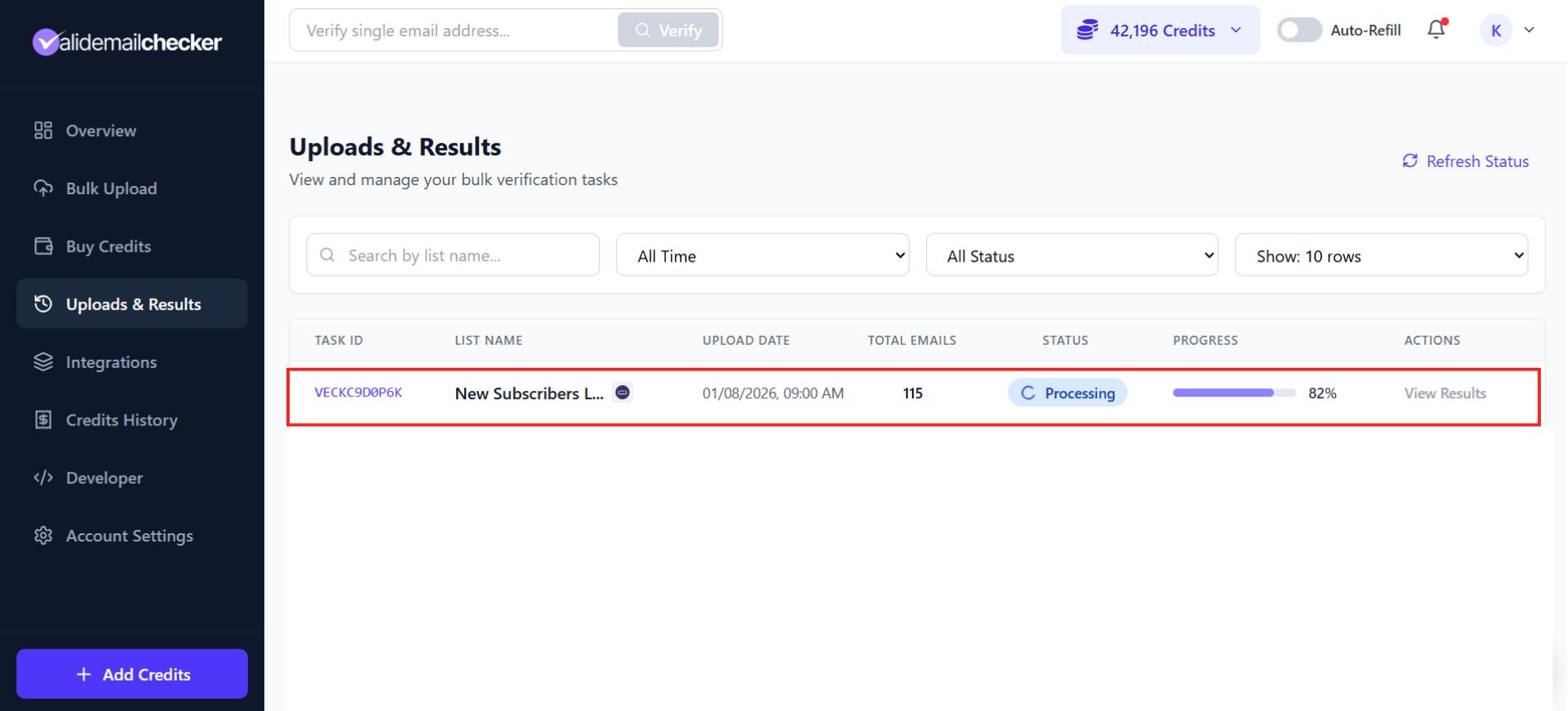
What You'll See
| Column | Description |
|---|---|
| Task ID | Unique identifier for this verification |
| List Name | Your Elastic Email list name (with integration icon) |
| Upload Date | When verification started |
| Total Emails | Number of subscribers being verified |
| Status | Processing, Completed, or Failed |
| Progress | Real-time percentage completion |
| Actions | View Results (available when complete) |
The page updates automatically—no need to refresh. For large lists, feel free to close the browser; verification continues in the background.
Managing Your Connection
Accessing Your Connections
Go to Integrations in the sidebar to see all connected accounts.
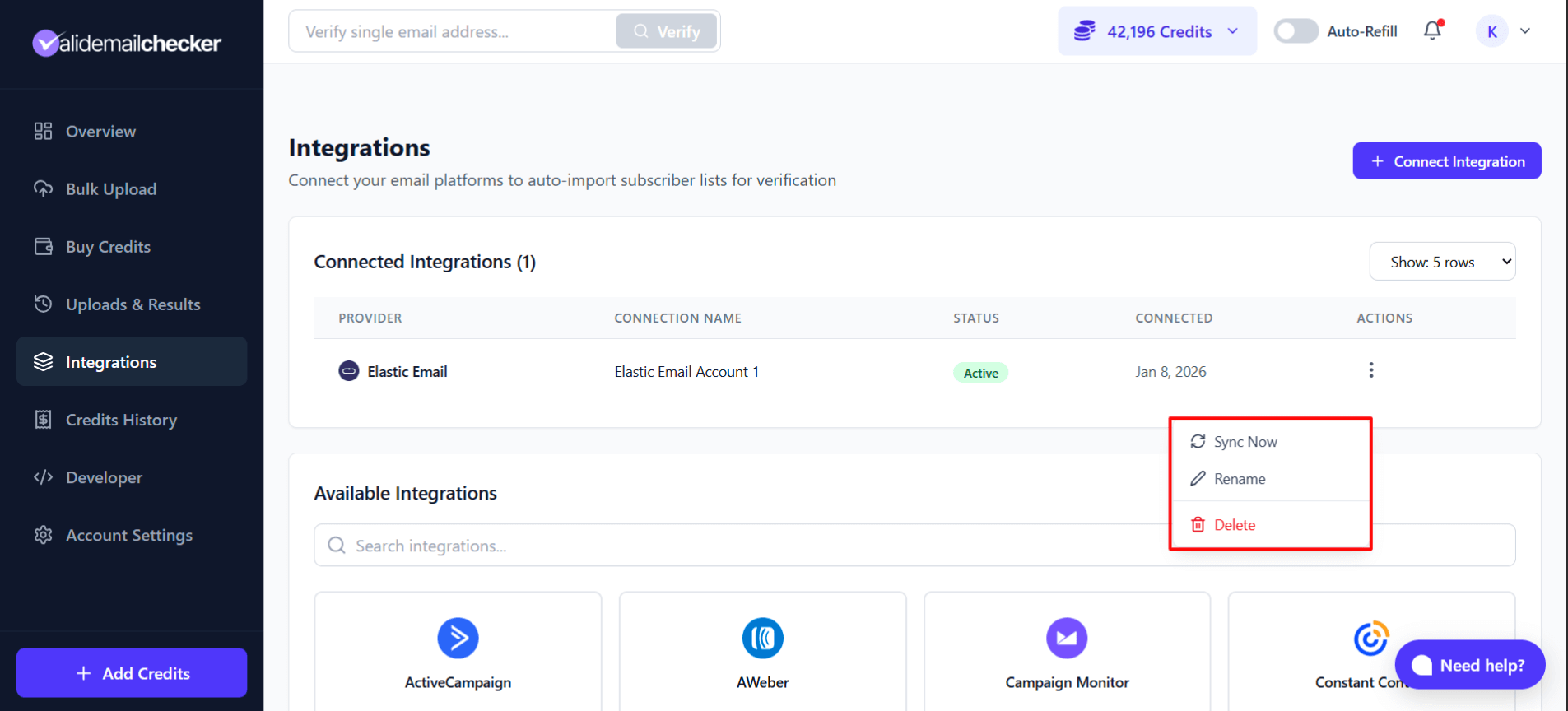
Available Actions
Click the three-dot menu (⋮) on any connection to:
| Action | What It Does |
|---|---|
| Sync Now | Refresh lists and subscriber counts from Elastic Email |
| Rename | Change the connection's display name |
| Delete | Remove the connection (doesn't affect your Elastic Email data) |
When to Sync
Sync your connection when:
- You've added new lists in Elastic Email
- Subscriber counts have changed significantly
- You want the latest data before verification
Connecting Multiple Accounts
Managing multiple Elastic Email accounts? Valid Email Checker handles that.
Adding Another Account
- Go to Integrations or Bulk Upload page
- Click on the already-connected Elastic Email card
- You'll see your existing connections
- Click + Add Another Account
- Enter a unique name and new API key
- Click Connect Account
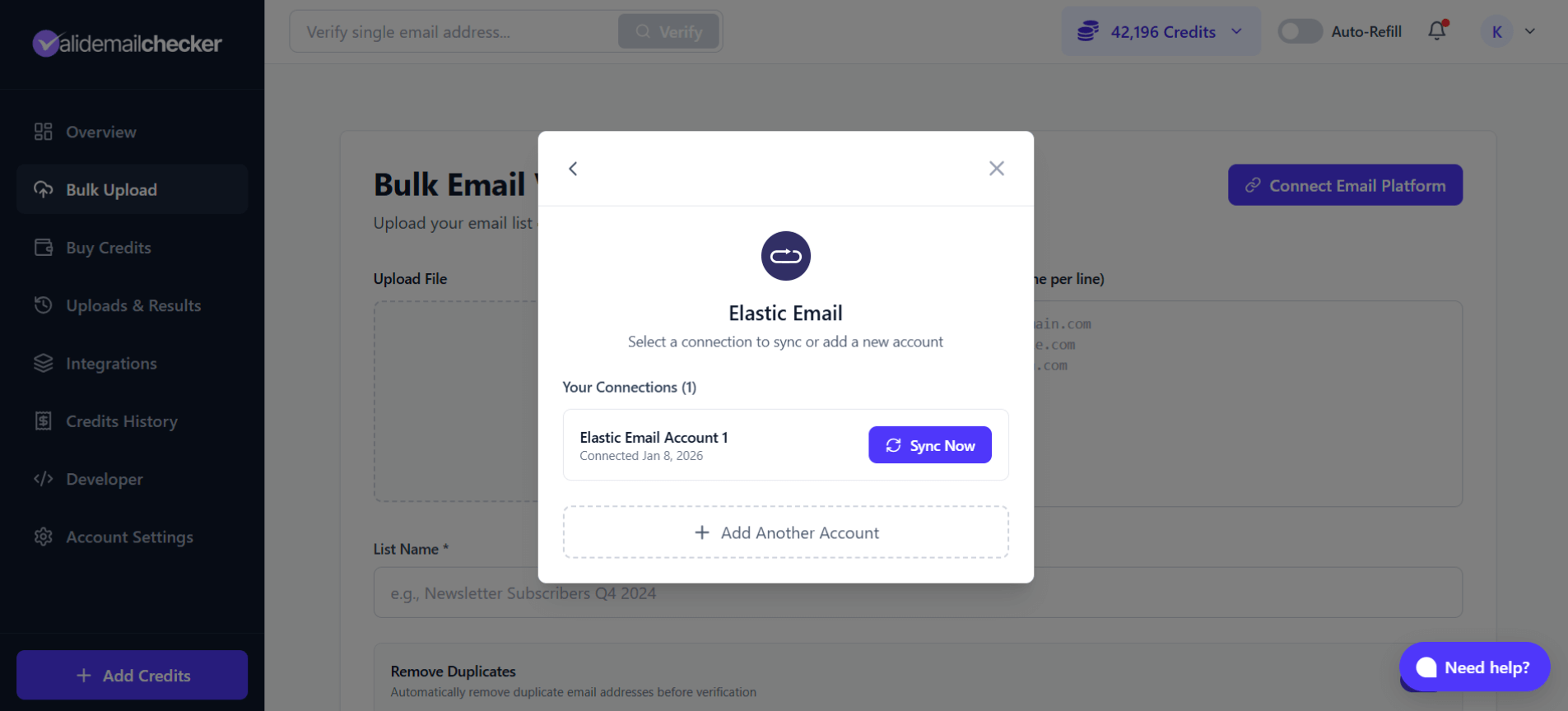
Switching Between Accounts
When you click on Elastic Email (after connecting multiple accounts):
- You'll see all your connections listed
- Each shows the connection name and connection date
- Click Sync Now next to the account you want to use
- Select your list and proceed with verification
Elastic Email Tips
API Key Permissions
While "Full access" works best for complete functionality, here's what each permission level allows:
| Permission | Can Read Lists | Can Modify Contacts |
|---|---|---|
| Full access | ✅ | ✅ |
| View only | ✅ | ❌ |
| Plugin | ✅ | Limited |
| Custom | Depends on settings | Depends on settings |
For auto-cleaning to work, you need Full access or a Custom key with contact modification permissions.
Best Practices
- Verify before major campaigns — Clean your list a day or two before sending
- Use connection names wisely — "Client A - Newsletter" is better than "Account 1"
- Start with "Verify Only" — Until you're comfortable with the results
- Check subscriber counts — If numbers seem off, sync to refresh the data
Troubleshooting
"Invalid API Key" Error
- Double-check you copied the complete key (no extra spaces)
- Verify the key hasn't been deleted in Elastic Email
- Make sure the key has appropriate permissions
Lists Not Appearing
- Click Sync Now to refresh your data
- Check that you have contact lists (not just segments) in Elastic Email
- Verify your API key has permission to view contacts
Verification Stuck or Failed
- Check your credit balance—you need enough for all emails
- Large lists may take longer; check back in a few minutes
- If failed, try re-syncing and starting again
Changes Not Reflected in Elastic Email
- Make sure you selected "Clean list automatically"
- Verify your API key has "Full access" permissions
- Changes may take a few minutes to appear in Elastic Email
Frequently Asked Questions
Does connecting affect my Elastic Email account?
No. Connecting only allows Valid Email Checker to read your lists and (if you choose auto-clean) update contact statuses. We never send emails or modify your campaigns.
How long does verification take?
It depends on list size:
- Under 1,000 emails: A few seconds
- 1,000 - 10,000 emails: 1-5 minutes
- 10,000 - 100,000 emails: 5-30 minutes
- 100,000+ emails: 30 minutes to a few hours
Can I verify the same list multiple times?
Yes! You're charged per verification, so you can re-verify lists as often as needed—great for lists that get new subscribers regularly.
What happens if I delete the connection?
Only the connection in Valid Email Checker is removed. Your Elastic Email account, lists, and contacts remain completely unchanged.
Do I need to reconnect after changing my API key?
Yes. If you regenerate or delete your API key in Elastic Email, you'll need to update the connection in Valid Email Checker with the new key.
Next Steps
- Understanding Verification Results — Learn what each status means
- Downloading Results — Export your verification data
- Managing Integrations — Overview of all supported platforms