MailerLite Integration
Connect your MailerLite account to Valid Email Checker and keep your subscriber lists clean and deliverable. This guide walks you through everything from generating your API token to verifying your first list.
What You Can Do
Once connected, you can:
- Import lists directly - Pull your MailerLite subscriber lists into Valid Email Checker without exporting files
- Verify subscribers - Check every email address for validity, deliverability, and risk
- Auto-clean your lists - Automatically unsubscribe or delete problematic emails after verification
- Track verification history - See all your MailerLite verifications in Uploads & Results
- Connect multiple accounts - Manage several MailerLite accounts from one dashboard
Before You Start
Make sure you have:
| Requirement | Details |
|---|---|
| MailerLite account | Any plan (Free or paid) |
| API token access | Account Owner or Admin role required |
| Valid Email Checker credits | 1 credit per email verified |
Before importing, you'll see exactly how many credits the verification will use. Make sure you have enough - the import won't start if you don't.
Finding Your MailerLite API Token
MailerLite uses API tokens for authentication. Here's how to create one:
Step 1: Access Integrations
- Log in to your MailerLite account
- Click Integrations in the left sidebar
- Find the MailerLite API section
- Click Use next to the API option
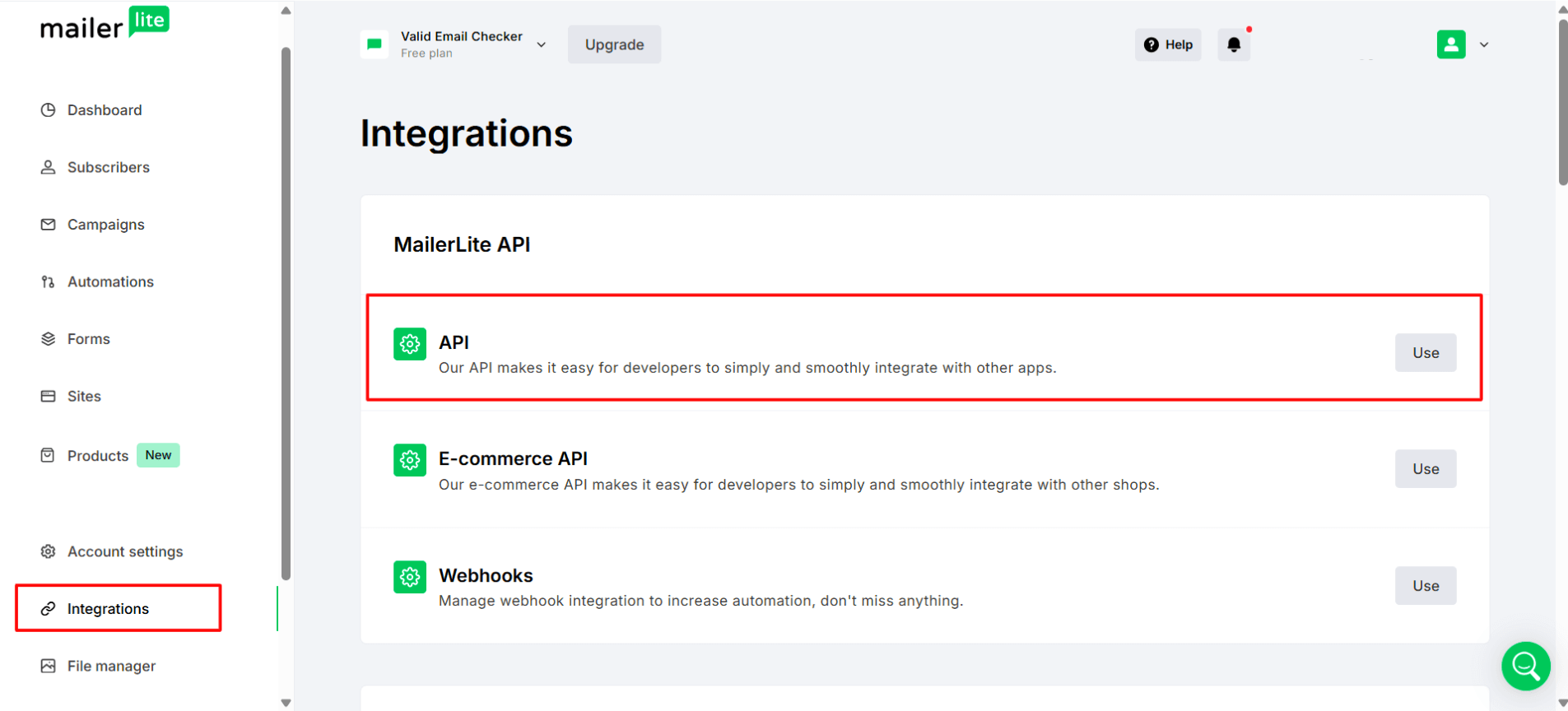
Step 2: Generate a New Token
You'll be taken to the Developer API page. If you haven't created any tokens yet, you'll see "No API tokens to show."
- Click the green Generate new token button
- Give your token a name (like "Valid Email Checker Integration")
- Click Create token
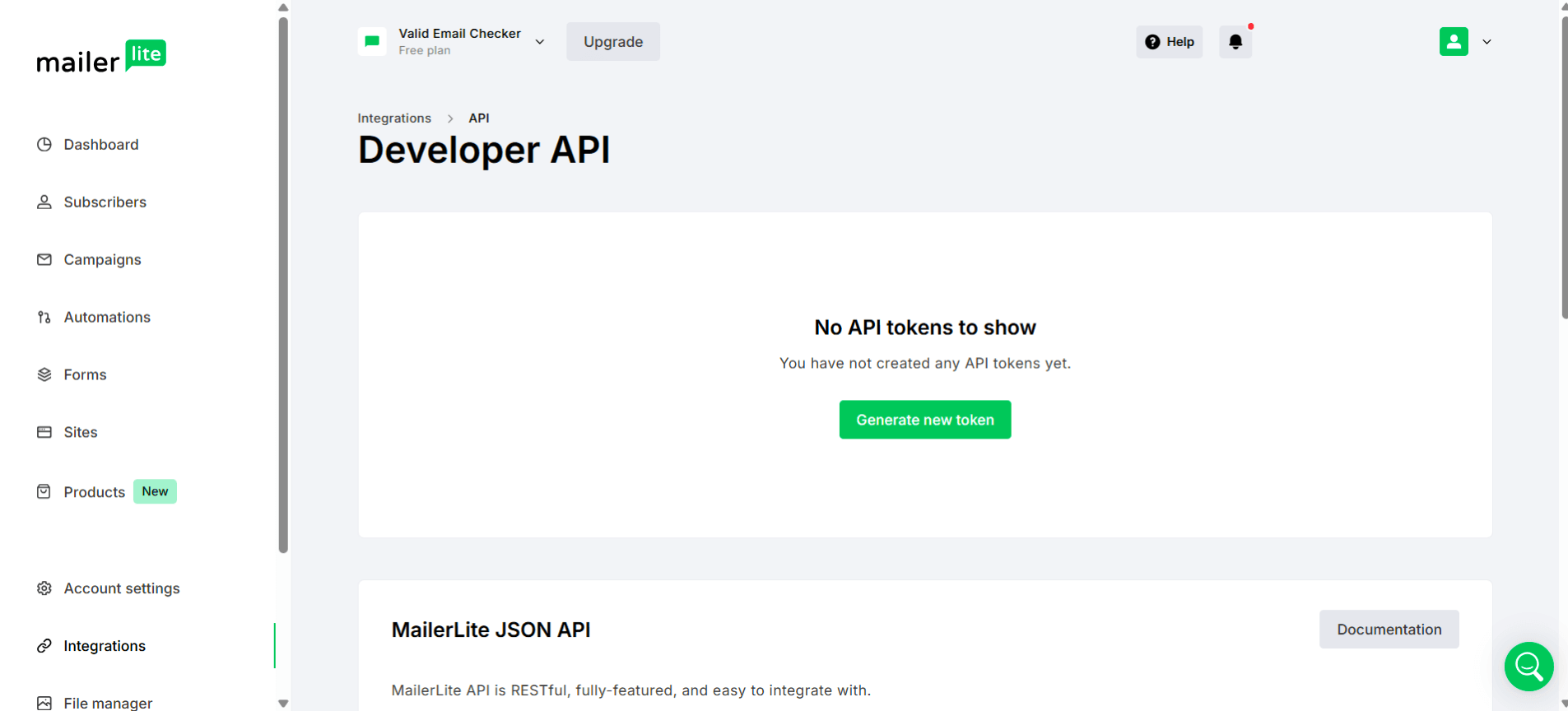
Step 3: Copy Your API Token
MailerLite only shows your full API token once - immediately after you create it. After you close this dialog, you'll only see the token's name. If you lose it, you'll need to create a new one.
Copy the entire token string and store it somewhere safe - you'll need it in the next step.
Connecting Your MailerLite Account
Now let's connect MailerLite to Valid Email Checker:
Step 1: Open the Integration
- Go to Bulk Upload in your Valid Email Checker dashboard
- Click Connect Email Platform
- Find and click MailerLite from the available integrations
Step 2: Enter Your Credentials
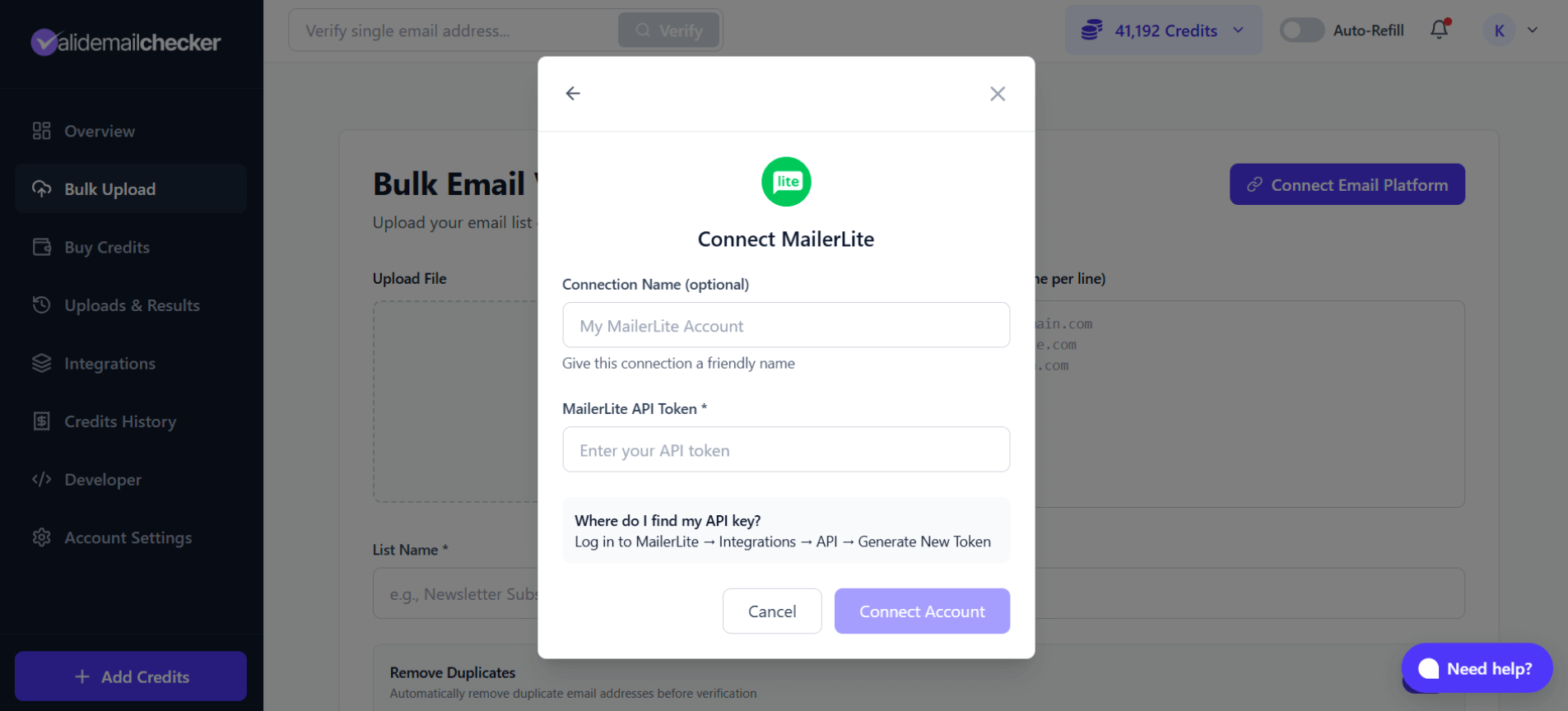
Fill in the connection details:
| Field | What to Enter |
|---|---|
| Connection Name (optional) | A friendly name like "My MailerLite Account" |
| MailerLite API Token | Your full API token from MailerLite |
The modal also shows a helpful reminder: Log in to MailerLite → Integrations → API → Generate New Token
Step 3: Connect
Click Connect Account. If successful, you'll see the list selection screen.
- Invalid API token: Make sure you copied the complete token
- Connection failed: Check that your API token hasn't been revoked in MailerLite
- No lists found: Verify your MailerLite account has at least one subscriber list
Verifying Your MailerLite Lists
Once connected, you can start verifying your subscriber lists:
Step 1: Select a List
After connecting (or clicking Sync Now on an existing connection), you'll see your available lists:
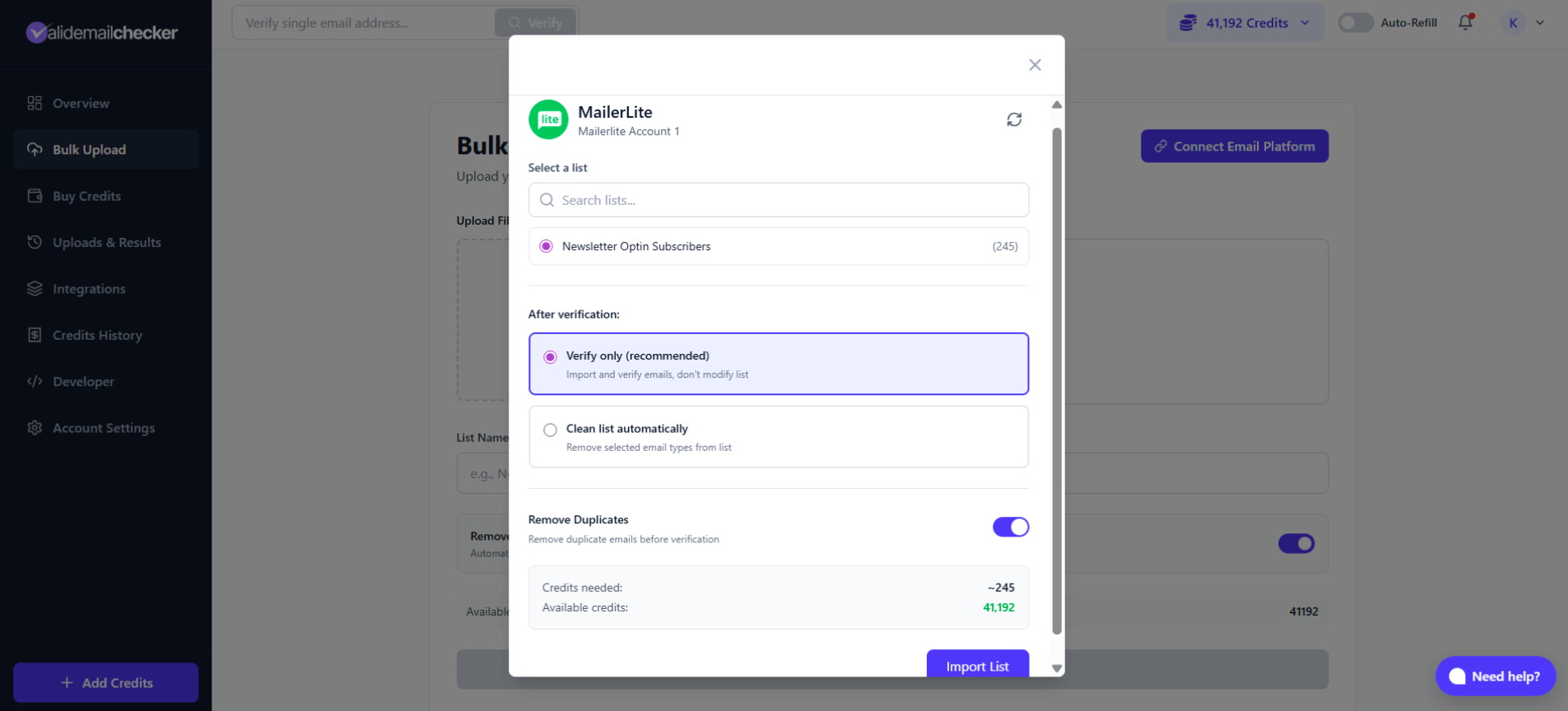
- Click on the list you want to verify
- The number in parentheses shows how many subscribers are in that list
- Use the search box if you have many lists
Step 2: Choose Your Verification Option
You have two choices for what happens after verification:
Option 1: Verify Only
- Imports your list and verifies all emails
- Does not modify your MailerLite list
- You review results and decide what to do
- Best for: First-time users, cautious approach, lists you can't risk modifying
Option 2: Clean List Automatically
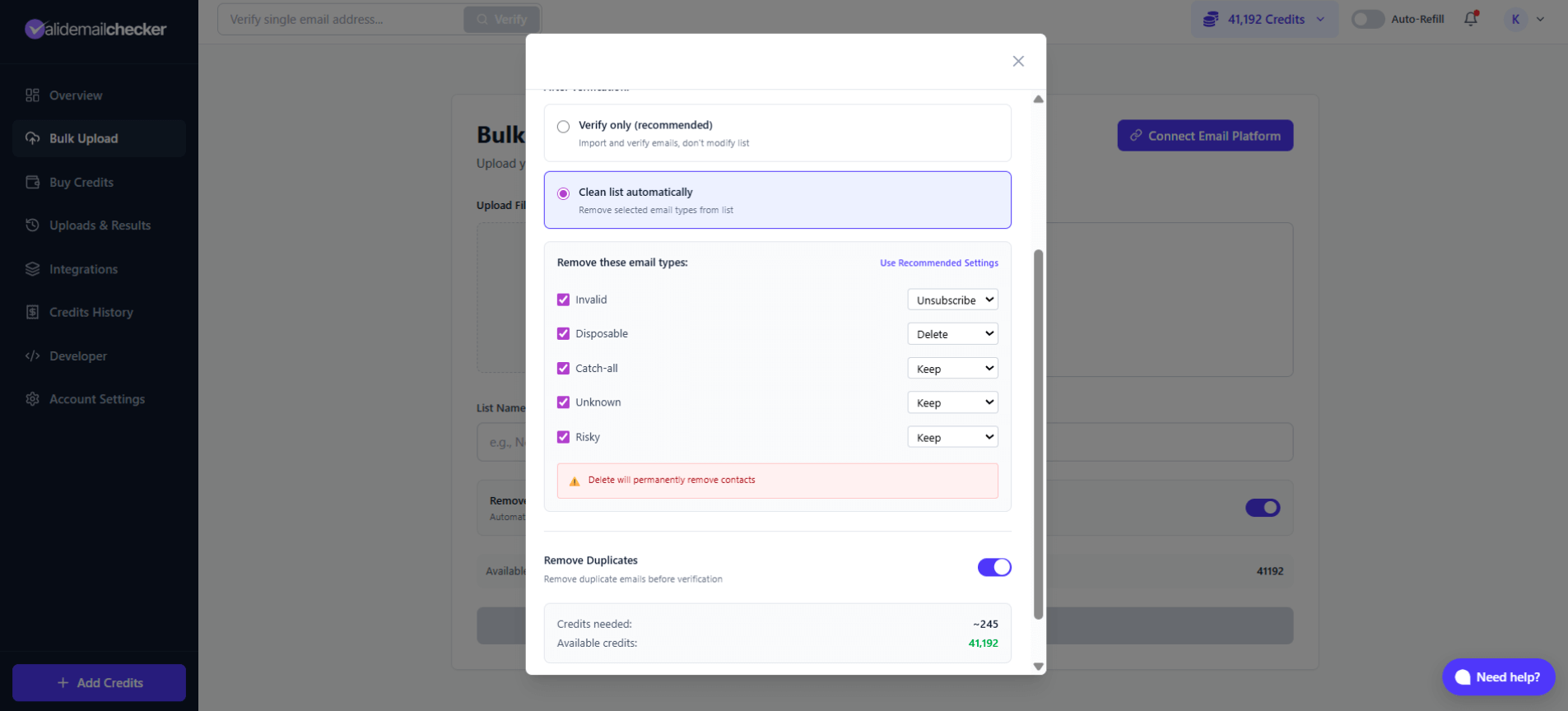
- Verifies emails AND automatically removes problematic ones from MailerLite
- You choose the action for each email type
- Changes happen in your actual MailerLite list
Available Actions:
| Email Type | Available Actions | Default |
|---|---|---|
| Invalid | Unsubscribe, Delete, Keep | Unsubscribe |
| Disposable | Unsubscribe, Delete, Keep | Delete |
| Catch-all | Unsubscribe, Delete, Keep | Keep |
| Unknown | Unsubscribe, Delete, Keep | Keep |
| Risky | Unsubscribe, Delete, Keep | Keep |
See that warning in the modal? Delete will permanently remove contacts from your MailerLite account. There's no undo. If you're unsure, use Unsubscribe instead - it keeps the contact record but stops them from receiving emails.
Step 3: Configure Additional Options
- Remove Duplicates: Toggle on to skip duplicate email addresses (saves credits)
Step 4: Start Verification
Review the credit summary:
- Credits needed: Shows the approximate number of credits required (e.g., ~245)
- Available credits: Your current balance (e.g., 41,192)
Click Import List to start the verification process.
Monitoring Your Verification
After clicking Import List, you'll be taken to the Uploads & Results page:
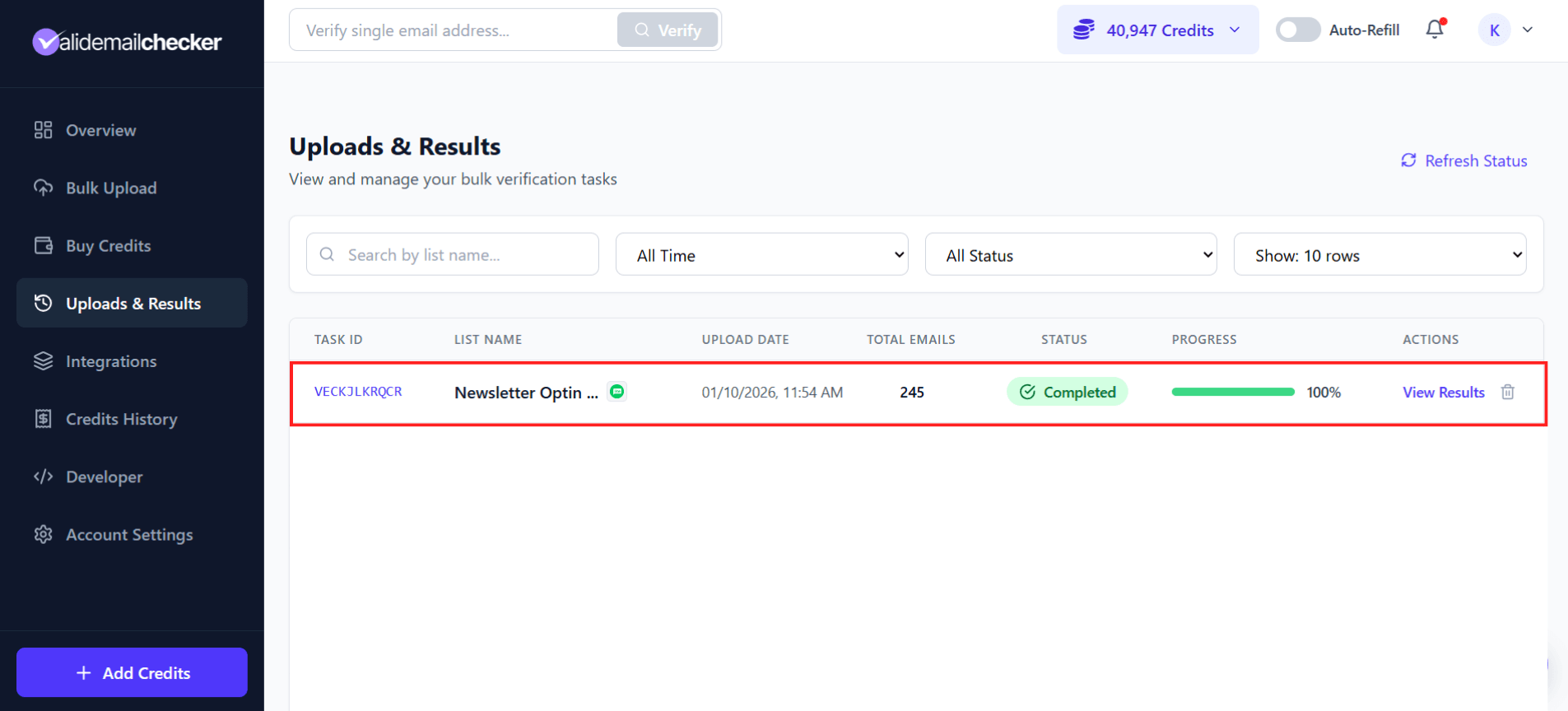
Here's what you'll see:
| Column | Description |
|---|---|
| Task ID | Unique identifier (e.g., VECKJLKRQCR) |
| List Name | Your list name with the MailerLite icon |
| Upload Date | When you started the verification |
| Total Emails | Number of subscribers being verified |
| Status | Processing, Completed, Failed, or Deleted |
| Progress | Real-time percentage completion |
| Actions | View Results when complete |
The MailerLite icon (green circle) next to the list name shows this came from an integration, not a file upload.
Verification Times
| List Size | Estimated Time |
|---|---|
| 100 emails | Seconds |
| 1,000 emails | 1-2 minutes |
| 10,000 emails | 5-10 minutes |
| 100,000 emails | 15-30 minutes |
| 1,000,000 emails | 1-2 hours |
You don't need to keep the page open - verification continues in the background. Come back anytime to check progress.
Managing Your MailerLite Connection
Viewing Connected Accounts
Go to Integrations in your sidebar to see all your connected accounts:
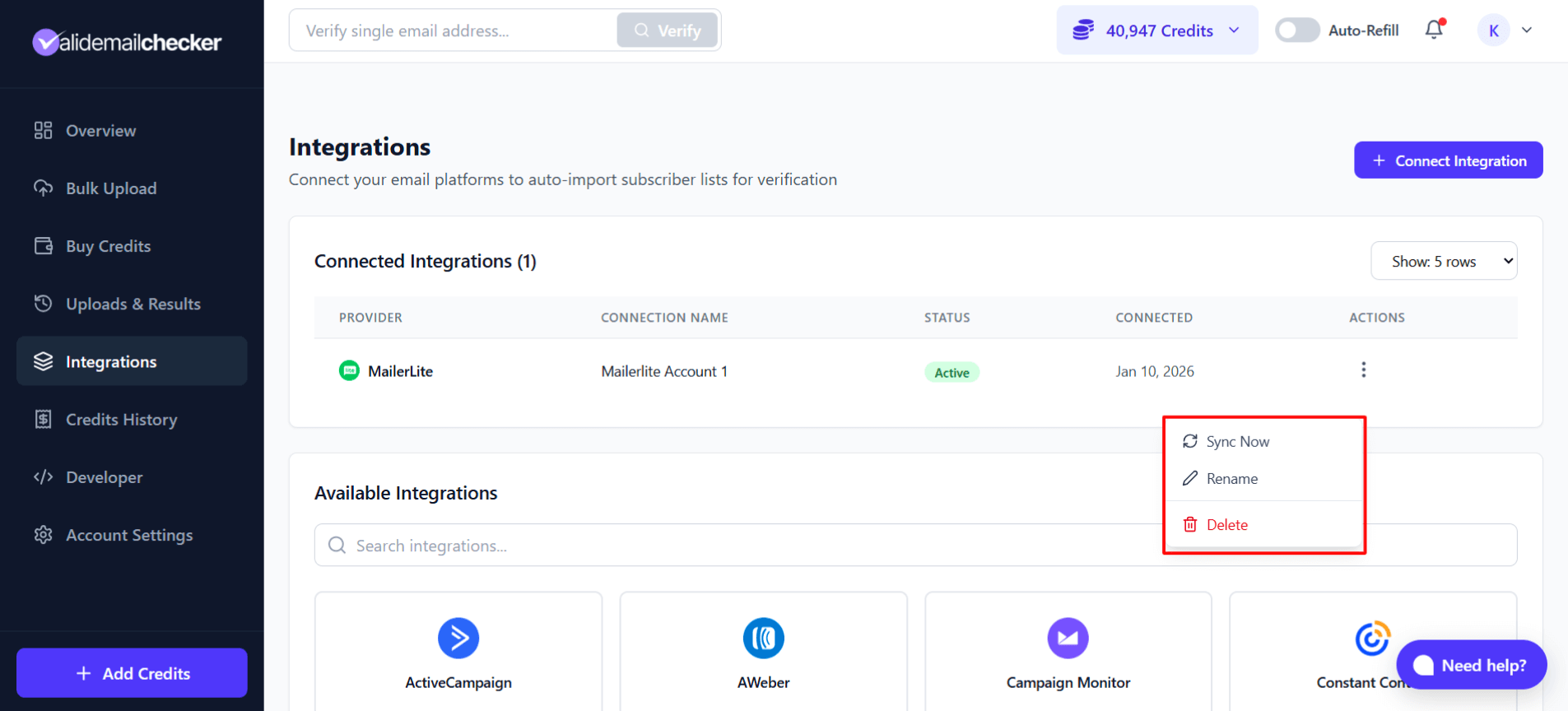
Each connection shows:
- Provider: MailerLite logo
- Connection Name: The name you gave it (e.g., "Mailerlite Account 1")
- Status: Active or Inactive
- Connected: When you set it up
Available Actions
Click the three-dot menu (⋮) next to any connection for options:
| Action | What It Does |
|---|---|
| Sync Now | Refresh your list data from MailerLite |
| Rename | Change the connection's friendly name |
| Delete | Remove this connection entirely |
Use Sync Now when you've added new lists or subscribers in MailerLite and want to see them in Valid Email Checker. It refreshes the available lists without affecting your verification history.
Connecting Multiple MailerLite Accounts
Managing email marketing for multiple brands or clients? You can connect several MailerLite accounts:
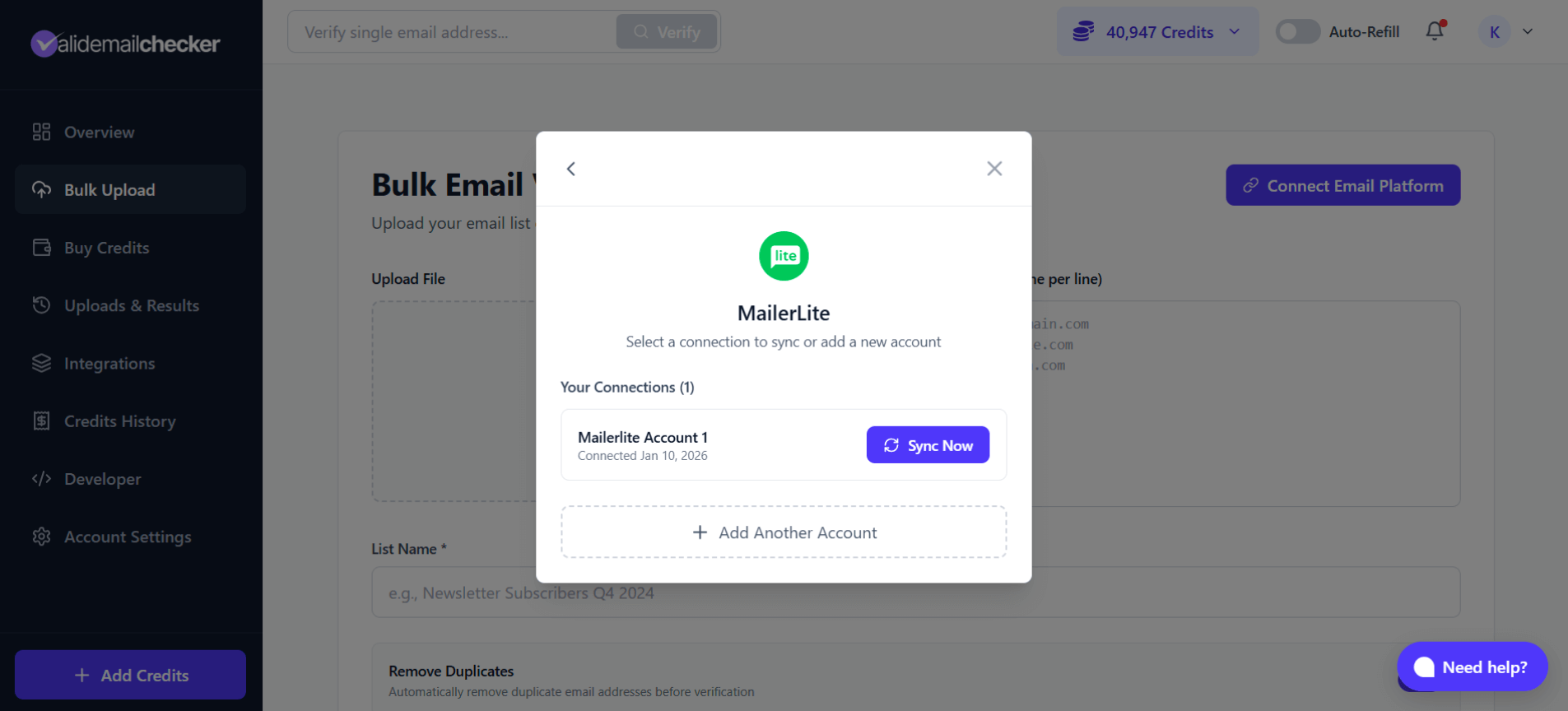
Adding Another Account
- Go to Bulk Upload and click Connect Email Platform
- Click on MailerLite
- You'll see your existing connections listed with a Sync Now button
- Click + Add Another Account
- Enter a unique connection name and the new API token
- Click Connect Account
Best Practices for Multiple Accounts
| Tip | Why |
|---|---|
| Use descriptive names | "Agency - Client ABC" is clearer than "MailerLite 2" |
| One API token per account | Each MailerLite account needs its own API token |
| Separate by purpose | Keep client accounts separate from your own |
MailerLite-Specific Tips
Groups vs Lists
MailerLite organizes subscribers into Groups (which function like lists). When you connect, you'll see all your groups available for verification.
After Auto-Clean Runs
If you chose Clean list automatically, here's what happens in MailerLite:
- Unsubscribed emails: Moved to your unsubscribed list. They still exist in your account but won't receive campaigns.
- Deleted emails: Completely removed from MailerLite. No trace remains.
You can view unsubscribed contacts in MailerLite under All Subscribers → showing Unsubscribed subscribers.
Troubleshooting
"Invalid API Token" Error
Cause: The API token is incorrect, incomplete, or revoked.
Solution:
- Go to MailerLite → Integrations → API
- Check if your token is still listed and active
- If not, generate a new token
- Make sure you copy the entire token string
"No Lists Found" Error
Cause: Your MailerLite account has no subscriber groups, or they're all empty.
Solution:
- Log in to MailerLite and go to Subscribers
- Verify you have at least one group with contacts
- If using a new account, add some subscribers first
Verification Stuck or Failed
Cause: Connection issue or temporary service problem.
Solution:
- Check your MailerLite API token is still valid
- Try clicking Sync Now on the connection
- Attempt the verification again
- If issues persist, contact support
Changes Not Appearing in MailerLite
Cause: Auto-clean actions take time to sync.
Solution:
- Wait a few minutes for changes to propagate
- Refresh your MailerLite subscriber page
- Check the Unsubscribed section for emails marked as unsubscribed
- Review your activity log in MailerLite
"Insufficient Credits" Error
Cause: Your credit balance is lower than the list size.
Solution:
- Buy more credits before importing
- Or verify a smaller list first
Frequently Asked Questions
Do I need to export my list from MailerLite?
No! That's the whole point of the integration. Valid Email Checker connects directly to MailerLite and imports your subscriber lists automatically. No CSV exports needed.
Will verification affect my MailerLite list?
Only if you choose Clean list automatically. If you select Verify only, your MailerLite list remains completely untouched - we just read the data and verify it.
Can I verify specific segments instead of the whole list?
Not directly through the integration. MailerLite imports entire groups. To verify specific segments, export them from MailerLite as a CSV and use our bulk upload feature instead.
How often should I verify my MailerLite lists?
We recommend:
- Before major campaigns: Verify a week before any big send
- Quarterly: For actively growing lists
- After imports: Whenever you add purchased or collected leads
- When bounce rates increase: If you notice delivery issues
What happens if I delete the integration?
Deleting the integration:
- Removes the connection from Valid Email Checker
- Does not delete anything from MailerLite
- Does not delete your verification history
- Does not reverse any auto-clean actions already performed
Is my API token stored securely?
Yes. Your MailerLite API token is encrypted and stored securely. We never display your full token after initial connection, and you can delete the connection at any time to revoke access.
Next Steps
- Understanding Verification Results - Learn what each status means
- Catch-All Emails - Special handling for catch-all addresses
- Auto-Refill Setup - Never run out of credits during verification
- View All Integrations - Connect more email platforms