ConvertKit Integration
Connect your ConvertKit account to Valid Email Checker and verify your subscriber lists without the hassle of exporting and importing files. Whether you're running a newsletter, selling digital products, or building your creator empire, keeping your ConvertKit list clean is essential for maintaining high deliverability.
This guide walks you through connecting ConvertKit, verifying your forms and tags, and optionally auto-cleaning your lists based on verification results.
What You'll Need
Before connecting ConvertKit to Valid Email Checker, make sure you have:
- A ConvertKit account (any plan)
- A ConvertKit V4 API Key (we'll show you where to find it)
- Sufficient credits in your Valid Email Checker account
Valid Email Checker uses ConvertKit's V4 API, which requires a V4 API Key that starts with kit_. The older V3 API key won't work for this integration.
Finding Your ConvertKit V4 API Key
ConvertKit recently introduced V4 API Keys. Here's how to find yours:
- Log in to your ConvertKit account
- Click the Settings gear icon in the top-right corner
- Select Developer from the left sidebar under Settings
- Look for the V4 Keys section (marked as Beta)
- If you don't have a V4 key yet, click Add a new key
- Copy the API Key (it starts with
kit_)
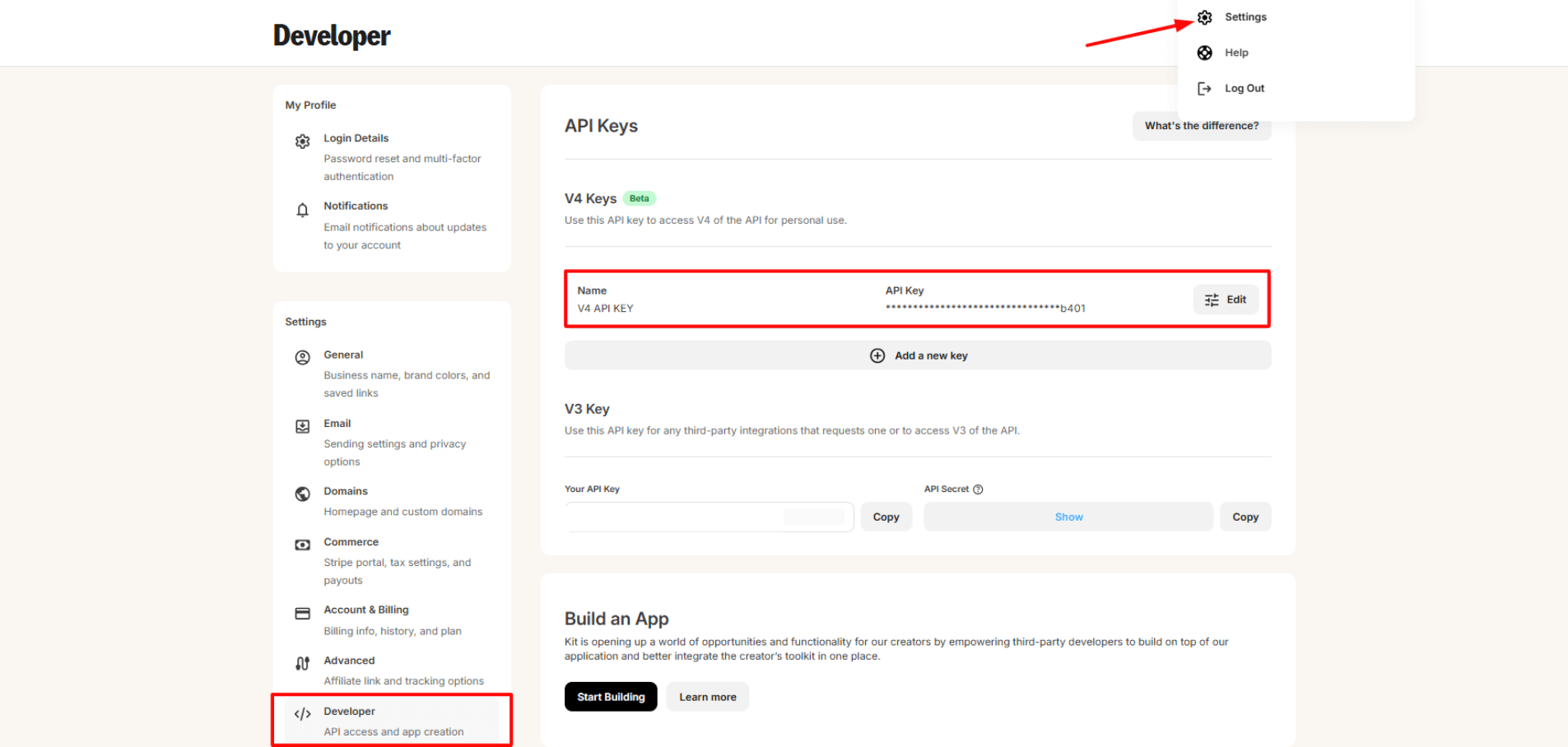
ConvertKit has two types of API keys:
- V4 Keys (Beta) - Start with
kit_- This is what you need - V3 Keys - Your API Key and API Secret - Won't work with our integration
Make sure you're copying from the V4 Keys section.
Connecting Your ConvertKit Account
Now let's connect ConvertKit to Valid Email Checker:
Step 1: Open the Integration
- Log in to your Valid Email Checker dashboard
- Click Integrations in the left sidebar
- Find ConvertKit in the Available Integrations section
- Click on the ConvertKit card
Step 2: Enter Your Credentials
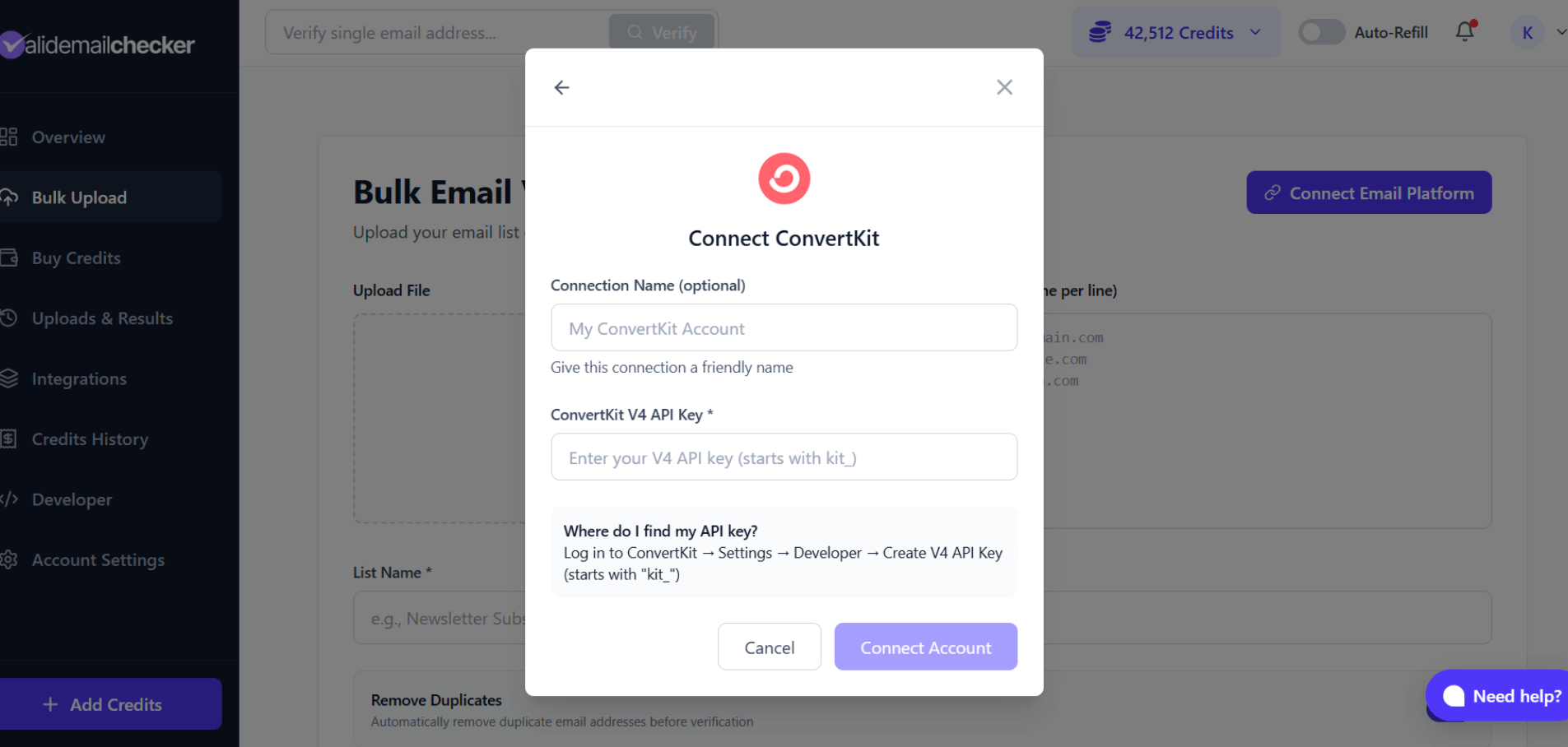
In the connection modal:
-
Connection Name (optional) - Give this connection a friendly name like "My Creator Account" or "Newsletter Business". This helps if you plan to connect multiple ConvertKit accounts.
-
ConvertKit V4 API Key - Paste your V4 API Key that starts with
kit_ -
Click Connect Account
Valid Email Checker will verify your API key and establish the connection. If successful, you'll see your ConvertKit forms and tags ready to sync.
Verifying Your ConvertKit Lists
Once connected, you can verify subscribers from any of your ConvertKit forms or tags.
Step 1: Start a Verification
- Go to Bulk Upload in the left sidebar
- Click Connect Email Platform in the top-right
- Select your ConvertKit connection
- Click Sync Now to fetch your latest forms and tags
Step 2: Choose a Form or Tag
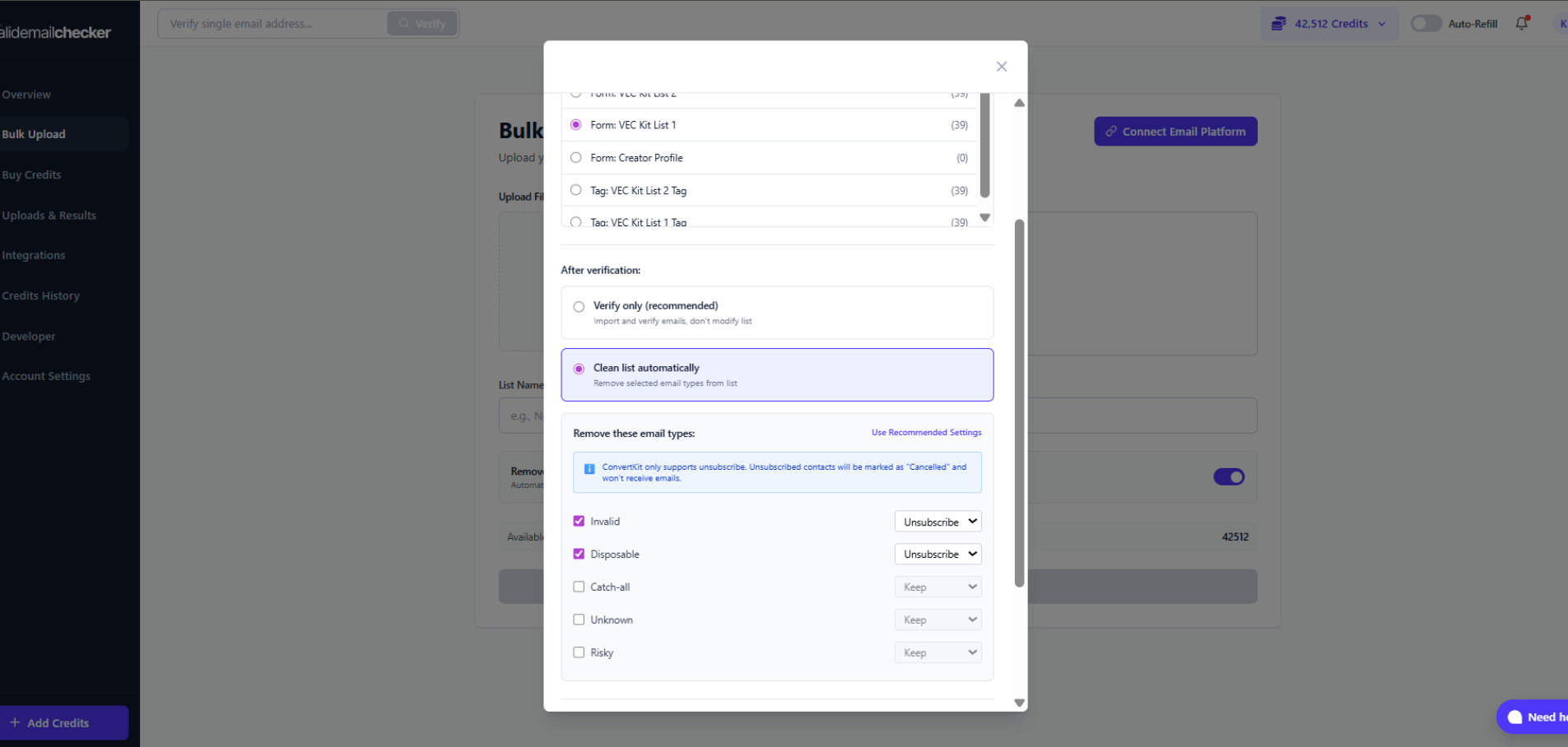
ConvertKit organizes subscribers by:
- Forms - Subscribers who signed up through specific forms
- Tags - Subscribers grouped by tags you've applied
Select the form or tag you want to verify. The number in parentheses shows how many subscribers are in each.
Step 3: Choose What Happens After Verification
This is where it gets interesting. You have two options:
Verify only
- Import and verify emails
- Don't modify your ConvertKit list
- You review results and decide what to do
Clean list automatically
- Remove selected email types from your list
- ConvertKit will mark them as "Cancelled" (unsubscribed)
- Automated but irreversible
Unlike some platforms, ConvertKit doesn't support hard deletion of contacts. When you choose to "remove" contacts, they're actually marked as Cancelled (unsubscribed) and won't receive your emails. They'll still appear in your account but can't be emailed.
Step 4: Configure Auto-Cleaning (Optional)
If you chose "Clean list automatically," select which email types to remove:
| Email Type | Recommendation | What Happens |
|---|---|---|
| Invalid | Remove | Unsubscribed from your list |
| Disposable | Remove | Unsubscribed from your list |
| Catch-all | Keep (review manually) | No action taken |
| Unknown | Keep (review manually) | No action taken |
| Risky | Keep (review manually) | No action taken |
Step 5: Start Verification
Starting Verification
- Select your list
- Choose verification mode
- If using automatic cleaning, configure your preferences
- Click Import List to start
Monitoring Your Verification
Track your ConvertKit verification in the Uploads & Results page:
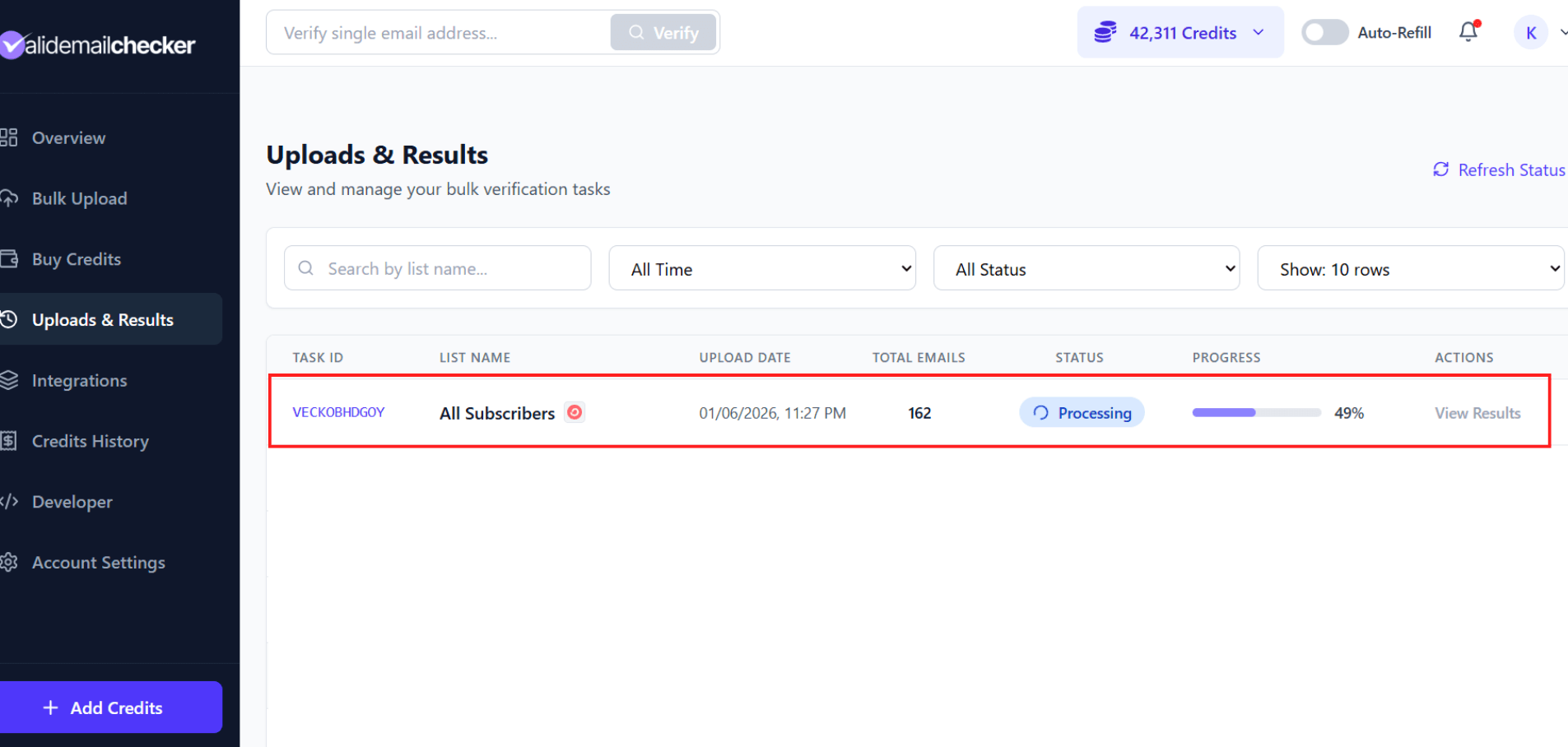
What you'll see:
| Column | Description |
|---|---|
| Task ID | Unique identifier for this verification |
| List Name | The name of your Campaign Monitor list |
| Upload Date | When you started the verification |
| Total Emails | Number of contacts being verified |
| Status | Current state (Processing, Completed, etc.) |
| Progress | Percentage complete with progress bar |
| Actions | View Results, Delete |
The page updates automatically—no need to refresh. You'll see the percentage progress increase as verification continues.
Status meanings:
- 🔄 Processing — Verification in progress
- ✅ Completed — All done! Click "View Results" to see the breakdown
- ⚠️ Completed with Warning — Finished, but some emails couldn't be processed (credits refunded)
- ❌ Failed — Something went wrong (rare)
- 🗑️ Deleted — Results removed after 15-day retention period
The ConvertKit icon next to your list name indicates this verification came from your ConvertKit integration.
Reviewing Your Results
Once verification completes:
- Click View Results in the Actions column
- Review the breakdown of your subscriber quality
- Download results in your preferred format (CSV, XLSX, JSON, TXT)
- If you chose "Verify only," decide which subscribers to handle manually
For detailed guidance on interpreting results, see Understanding Your Results.
Understanding ConvertKit's Unsubscribe Behavior
When Valid Email Checker auto-cleans your ConvertKit list, here's what actually happens:
What "Remove" means in ConvertKit:
- The contact is marked as Cancelled
- They appear in your "Cancelled" subscribers list
- They will NOT receive any future emails from you
- They still count toward your ConvertKit subscriber limit (unfortunately)
- You can manually delete them from ConvertKit if needed
Why this matters:
- Auto-cleaning prevents bounces and protects your sender reputation
- Cancelled subscribers won't hurt your deliverability
- You may want to periodically delete cancelled subscribers in ConvertKit to free up your subscriber limit
After Valid Email Checker marks contacts as Cancelled, you can bulk delete them in ConvertKit:
- Go to Subscribers in ConvertKit
- Filter by "Cancelled Subscribers"
- Select all and delete This frees up space in your subscriber limit.
Managing Your Connection
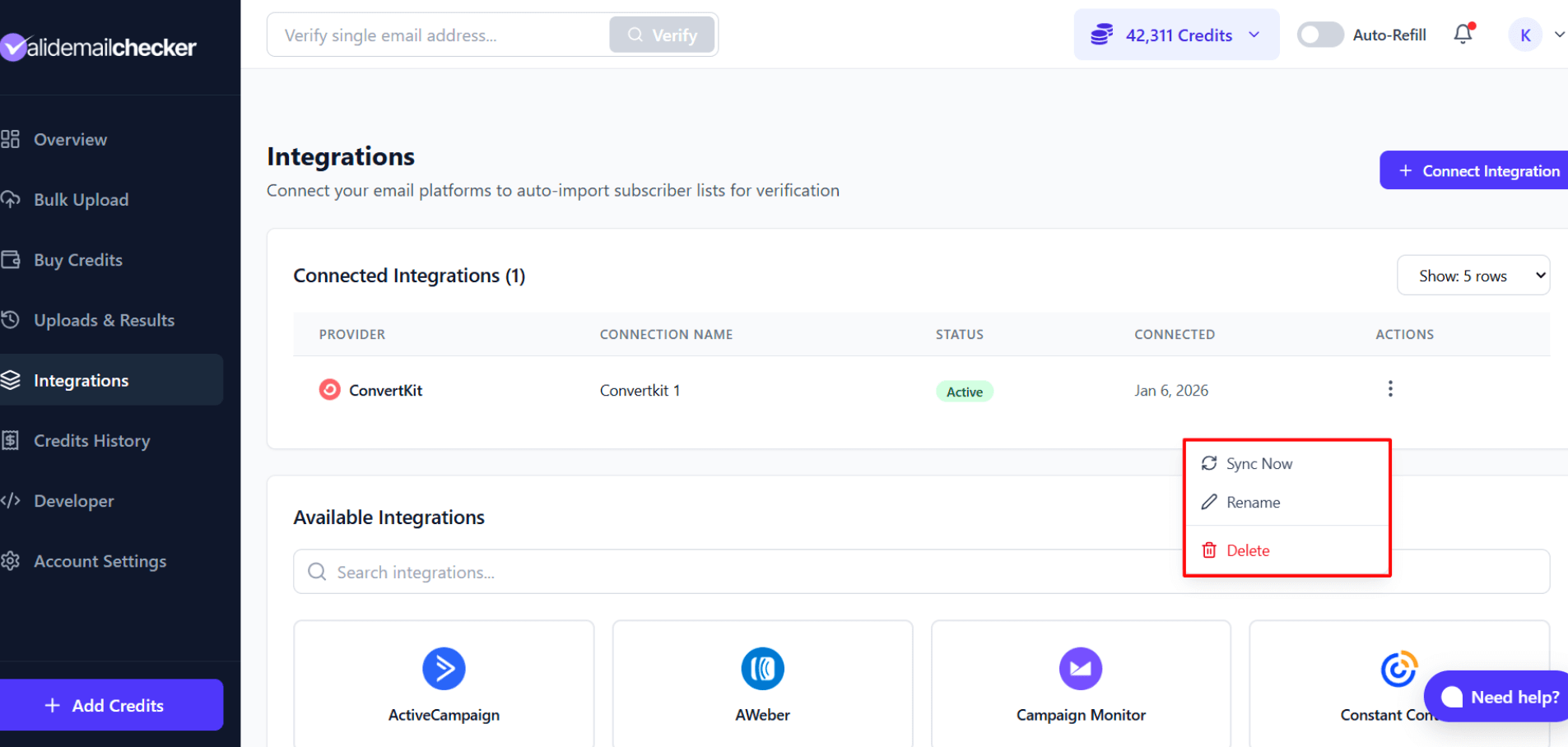
View and manage your ConvertKit integration from the Integrations page.
Available Actions
Click the three-dot menu next to your ConvertKit connection:
| Action | What It Does |
|---|---|
| Sync Now | Fetch latest forms and tags from ConvertKit |
| Rename | Change the connection's friendly name |
| Delete | Remove this connection entirely |
Connection Status
Your connection shows:
- Provider - ConvertKit
- Connection Name - The name you gave it
- Status - Active
- Connected - When you connected this account
Using Multiple ConvertKit Accounts
If you manage multiple ConvertKit accounts (perhaps for different businesses or clients), you can connect them all.
Adding Another Account
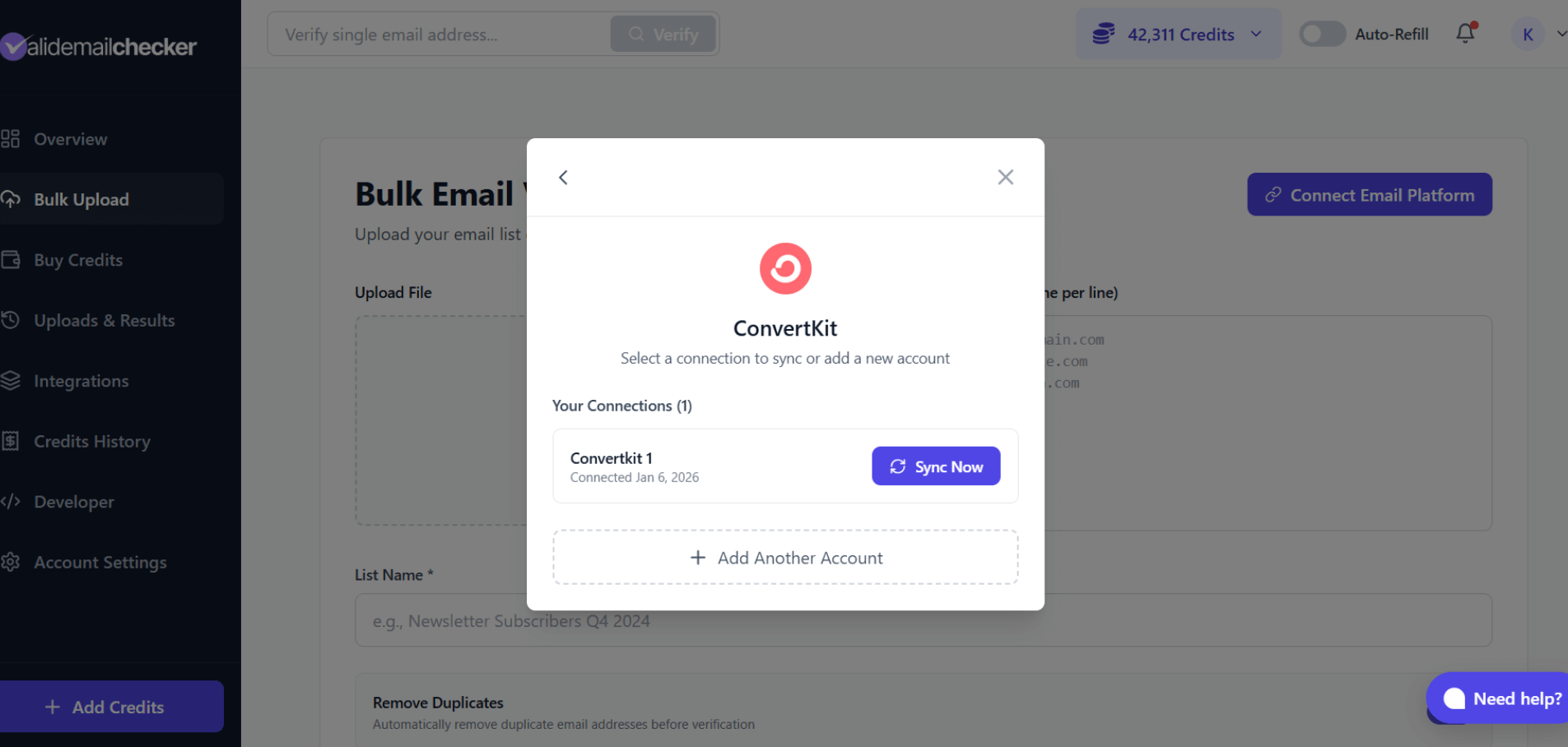
- Go to Bulk Upload → Connect Email Platform
- Select ConvertKit
- You'll see your existing connections listed
- Click Add Another Account
- Enter the new account's V4 API Key
- Give it a unique name to tell them apart
Switching Between Accounts
When starting a verification:
- Click Connect Email Platform
- Select ConvertKit
- Choose which connection to use
- Click Sync Now on the desired account
Troubleshooting
"Invalid API Key" Error
Problem: Connection fails with an invalid API key message.
Solutions:
- Make sure you're using a V4 API Key (starts with
kit_) - The V3 API Key and Secret won't work
- Copy the key again - make sure no extra spaces were added
- Check if the key was revoked in ConvertKit
"No Forms or Tags Found"
Problem: After connecting, no forms or tags appear.
Solutions:
- Click Sync Now to refresh the list
- Make sure you have at least one form or tag in ConvertKit
- Check that subscribers exist in your forms/tags (empty ones may not appear)
- Verify you're logged into the correct ConvertKit account
"Connection Failed" or "Unable to Connect"
Problem: The connection process fails entirely.
Solutions:
- Check your internet connection
- Try generating a new V4 API Key in ConvertKit
- Clear your browser cache and try again
- Disable browser extensions that might interfere
"0 Subscribers Imported"
Problem: Verification shows 0 emails despite having subscribers.
Solutions:
- Select a form or tag that has confirmed subscribers
- Make sure you selected a specific form/tag (not the header)
- Sync again to refresh the subscriber list
Verification Stuck at "Processing"
Problem: Progress bar hasn't moved in a while.
Solutions:
- Click Refresh Status on the Uploads & Results page
- Large lists take longer - 100,000+ subscribers may take several minutes
- If stuck for more than 30 minutes, contact support
Auto-Clean Didn't Work
Problem: You selected auto-clean but subscribers weren't marked as cancelled.
Solutions:
- Check that you selected specific email types to remove
- Verify you had "Clean list automatically" selected (not "Verify only")
- The changes may take a few minutes to reflect in ConvertKit
- Check your ConvertKit "Cancelled" subscribers list
Frequently Asked Questions
Does this integration work with ConvertKit's free plan?
Yes! The ConvertKit integration works with all ConvertKit plans, including the free tier. You just need access to your V4 API Key.
Will verifying affect my ConvertKit subscriber count?
Verifying alone doesn't change your subscriber count. If you enable auto-cleaning, contacts marked as Cancelled still count toward your limit until you delete them from ConvertKit.
How often should I verify my ConvertKit list?
For active newsletters, we recommend quarterly verification. Before major campaigns or product launches, do an additional verification to ensure maximum deliverability.
Can I verify specific tags only?
Yes! When selecting what to verify, you can choose individual tags. This is useful for verifying specific segments like "Launch List" or "Paid Subscribers" without touching your entire database.
What's the difference between forms and tags?
Forms contain subscribers who signed up through that specific form. Tags are labels you can apply to any subscriber regardless of how they joined. Both work with Valid Email Checker.
Why can't I hard delete contacts?
This is a ConvertKit limitation, not Valid Email Checker. ConvertKit's API doesn't support permanent deletion - only marking as Cancelled (unsubscribed). You can manually bulk delete cancelled subscribers in ConvertKit's dashboard if needed.
Can I reconnect a disconnected account?
Yes. If you deleted a connection, you can add it again using the same V4 API Key. Your previous verification history remains in Valid Email Checker.
Next Steps
Your ConvertKit integration is ready to use! Here's what to explore next:
- Understanding Your Results - Learn what each verification status means
- Result Types Explained - Deep dive into Safe, Invalid, Catch-All, and more
- Credit System - Understand how credits work with integrations
- Other Integrations - Connect more email platforms
Need Help?
Running into issues with your ConvertKit integration?
- Email: support@validemailchecker.com
- Live Chat: Click the chat bubble in the bottom-right corner
- Contact Form: validemailchecker.com/contact-us
Our support team is here to help you get the most out of your ConvertKit integration.